Starting Design Mode
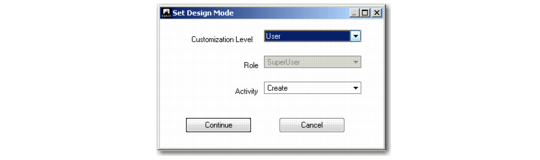
When you select Design Mode, the system prompts you to choose a customization level.
Set Design Mode
1 Choose the level for the customizations:
General. The customizations are effective for all users.
Role. The customizations are effective for all users who have the selected role as their default role.
User. The customizations are effective for you only.
Note: The choices that display are based on the customization access you have been assigned. See
Security Settings.
2 If you chose the Role customization level, select the role for which the customizations apply. You can only select from roles that are assigned to your user ID.
3 Select the component activity for which the customization applies; for example, Create, Modify, or Delete. This feature lets you, for example, create a different screen layout for viewing or approving transactions than the screen layout for creating or modifying transactions.
4 Click Continue to confirm.
Note: When you save a customization for a role other than your own role, a warning message is displayed to inform you that the customization is only visible for users with that role.
Sub-Account Create in Design Mode
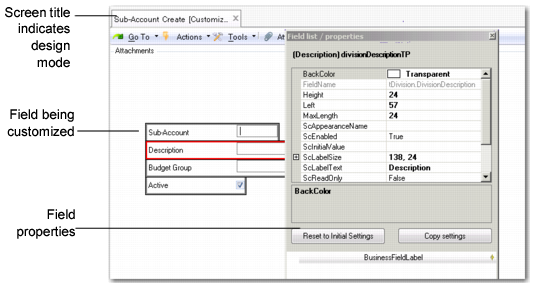
In design mode, a gray border is displayed around all fields. When you select a field, its border color changes to red. By selecting the border, you can drag and drop a field or modify its properties.
Field Properties
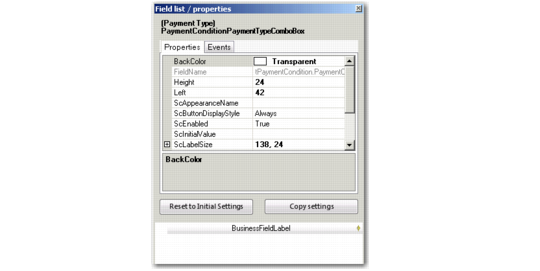
The Field list/properties window displays the properties that control the appearance of the selected field.
The window contains two tabs, Properties and Events.
Properties Tab
Field List/
Properties, Properties Tab
Field Descriptions
BackColor
Specify the color schema for the field. The system applies any color modifications you make to the field border, and not the actual input zone.
Modify the numeric red, green, and blue properties of the field, or select a color from the drop-down list.
Color Palette
Field Name
This read-only technical field name is used by data binding information for the control (internal use only).
Height
Specify the height of the field (label and input zone) in pixels.
Left
Specify the field position in pixels, relative to the left of the screen.
Max Length
Specify the maximum length of the field.
ScAppearanceName
Specify a user-defined setting from the Appearances.xml file to apply to the field. The Appearances.xml file is a Cascaded Style Sheet, and contains settings for color, shadowing, and alignment.
To create a new setting, add a new section to the Appearances.xml file, as follows:
<NewAppearSett>
<ImageHAlign>Center</ImageHAlign>
<ImageVAlign>Middle</ImageVAlign>
</NewAppearSett>
To apply the new setting to a field, specify the section that contains the settings in the ScAppearanceName field; in this example, NewAppearSett.
The path to Appearances.xml is set in the QAD.Plugin.Financials.dll.config file.
ScChecked
Specify the initial value for check box fields.
ScEnabled
Specify True or False to enable or disable the field.
If you set the property to False, the field continues to display on the screen, but it is no longer accessible in the UI. The field becomes read only, and cannot be tabbed to and its value cannot be copied.
ScInitialValue
Specify the initial value of the field. You can use this setting to encourage the use of a particular convention when entering data. For example, you can set the initial value of the Cost Center field to ADMIN for a user who mainly creates transactions for the cost center Admin. The user can overwrite the initial value of the field.
Note: The initial value cannot be used for the Daybook field because, when you select a daybook from a lookup, the system also retrieves a voucher number. If you used the ScInitialValue field to set an initial value for a daybook, the system would not retrieve the corresponding voucher number. However, you can use the Daybook Set functionality to set an initial value for invoice daybooks for both AR and AP invoices.
ScLabelSize
Specify the amount of space in pixels (width; height) to allocate to the field label.
ScLabelText
Specify the label text for the field.
Important: The ability to change standard labels is very useful, but can create inconsistencies between screens, and could also create confusion when communicating with the QAD Support helpdesks.
ScReadOnly
Select True or False from the drop-down list to indicate whether the field is read-only or editable. When set to True, the field cannot be updated, but can be tabbed to and its contents can be selected and copied.
Top
Specify the field position in pixels, relative to the upper left corner of the screen.
Visible
Select True from the drop-down list to make the field visible on the UI. Select False to hide the field (including the label).
You can also select a field and drag it into the BusinessFieldLabel section to remove it from the UI window. You can also drag fields back from the BusinessFieldLabel section to the UI to make them visible again.
Note: Fields that are hidden from the UI are listed in the BusinessFieldLabel section of the design window.
Width
Specify the width of the field (label and input zone) in pixels.
BusinessFieldLabel
This section of the design window lists fields that have been hidden on the UI or user-defined fields that have been defined but not yet placed on the UI.
Use the two buttons as follows:
Reset to Initial Settings resets the properties of the field to the initial settings shipped with the application. The system prompts you to confirm the reset operation.
Copy Settings copies the properties of the current customizations to another customization level. You can choose the level and the role or user, if applicable.
Copy Customization Settings
Event Tabs
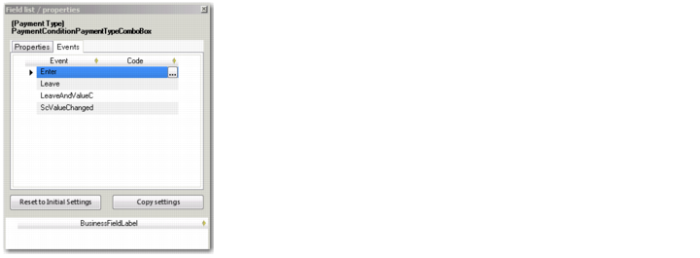
The Events tab lets you use the events and properties of UI controls to add basic UI customization code to UI elements. Examples of events include the following:
• Enter, which controls the behavior of a field when it gets focus.
• Leave, which controls the behavior of a field when the field loses focus.
You can select an event from a list of available exposed events for each field or control on the screen for which you are using Design Mode. For any event you select, you can alter the properties of other fields and controls, and specify conditions under which the properties must be altered.
Field/List Properties, Events Tab
In the Events tab, the list of events is sorted alphabetically. When you select an event, a button appears to the right of the event in the Code column. Click this button to open an editor in which you can build a condition and an action (in the case of True or False values).
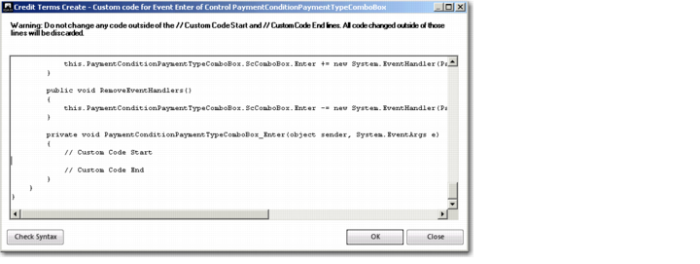
In the Custom Code for Event editor, you can customize the code using non-intrusive customization. You must add custom code between the //Custom Code Start and //Custom Code End lines. Any changes you make to the generated code outside of these lines are not saved by the system.
Custom Code for Event Form
In the Custom Code for Event editor, click OK to save and compile your customized C# code. If the compiler finds errors, it displays the errors and the system cancels the saving of the customized code.
Any C# code added using the Events tab becomes part of the UI customization data, and is stored in the
bcontrolproperty component. You can also export and import code customized in the Custom Code for Event editor using Export UI Customization and Import UI Customization. See
Exporting Customizations and
Importing Customizations.
Event information is stored in XML format in the PropertyValue field. For events, the PropertyName is always formatted as: EVENT:<eventname>.
Communicating with the Business Logic
When adding customized code using the Events tab, you can interact with the backend business logic code using a generic method called UICustomization. The UICustomization method is defined at business component level, and is available from every adapter in the system.
Note: All methods defined on the adapter can be used to communicate with the backend business logic code.
In the standard code, the UICustomization method does not hold any code, and must be extended using non-intrusive customization on the backend.
The UICustomization method has three input parameters: controlname, eventname, and an input dataset. The method also has one output dataset. These datasets contain identically structured temporary tables. The temporary tables have three fields: control name, property name, and value. The input parameter dataset contains control property values passed from the UI. The output dataset must be interpreted by the custom code developer and property values must be set accordingly.
Example:
In this example, the
UICustomization method has been used to customize the Search field on the Business Relation record. If a user enters the value 1000 in the Search field and then leaves the field, a user-defined field with the
sc_tBusinessRelation_CustomShort1 identifier is enabled on the Business Relation screen. See
User-Defined Fields.
PROCEDURE BBusinessRelation.UICustomization.after:
EMPTY TEMP-TABLE tUIOutput.
IF icControlName = "BusinessRelationSearchTextBox" AND
icEventName = "Leave"
THEN DO:
FIND FIRST tUIInput WHERE
tUIInput.tcControlName = "BusinessRelationSearchTextBox" AND
tUIInput.tcPropertyName = "Value" NO-ERROR.
IF AVAILABLE tUIInput AND tUIInput.tcValue = "1000"
THEN DO:
CREATE tUIOutput.
ASSIGN tUIOutput.tcControlName = "sc_tBusinessRelation_CustomShort1"
tUIOutput.tcPropertyName = "Enabled"
tUIOutput.tcValue = "false".
END.
END.
END PROCEDURE.