Customize Views
Data grids are a common element in component-based functions. You can enable or disable the data fields on the grid lines, or reposition them using generic UI features. The next time you access the function, the grid displays with your modifications. For more information on browses and grids, see
Introduction to QAD Enterprise Applications User Guide.
You can also make more extensive customizations to the grid layout using design mode. If a grid contains a large number of data fields, you can predefine column views using design mode.
You can also add custom tables to the form as a new grid.
The example in this section creates two views for the Banking tab of the Supplier screen: an extended view containing all data and a condensed view with key data only.
1 Open the Supplier Modify screen.
2 Click the Banking tab.
3 Choose Design Mode from the Tools menu.
The Set Design Mode screen is displayed.
4 Choose the General customization level.
Set Design Mode
5 Click in the grid to activate it for customization.
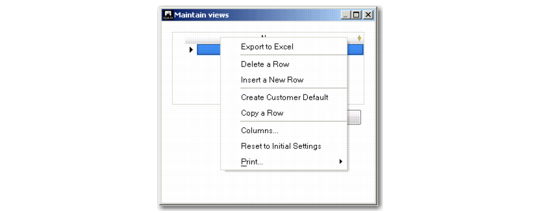
6 Right-click the column headings in the grid and choose Maintain Views.
Right-Click Menu
7 In the Maintain Views screen, create two views by right-clicking and selecting Insert a New Row.
Maintain Views
8 Enter the name of the views in each row.
New View
9 Click Save to create the view.
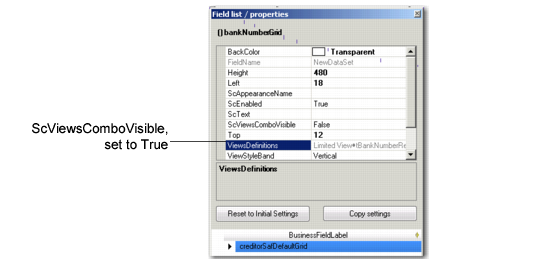
After creating the view, the design window shows an additional property for the grid: ScViewsComboVisible.
ScViewsCombo
Visible Property Field
10 Set the ScViewsComboVisible property to True.
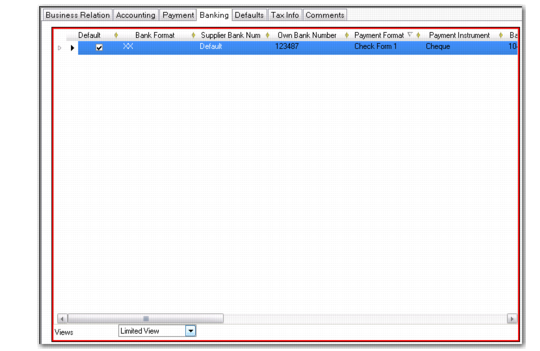
An additional drop-down list is displayed in the Banking grid.
11 Select the Limited view from the new drop-down list.
Banking Grid, New View
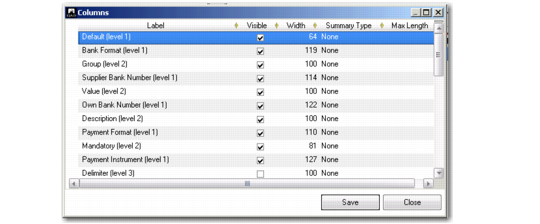
12 Right-click in the grid and select Columns.
The Column screen opens, listing all possible columns for the Banking grid.
Columns
13 Deselect the columns that are not required for the condensed view.
14 Click OK to confirm.
15 Choose Tools and Design Mode to exit design mode.
16 In the Save Customization screen, select the save option and click Yes to save.
The customized grid now has the two views available in the combo-box at the end. The columns displayed change as you move from one view to the other.