QAD 2017 Enterprise Edition
>
User Guides
>
System Administration
>
System Control
>
Configuring System and User Settings
Configuring System and User Settings
The system and user settings defined in these functions apply only to component-based programs; they do not affect standard Progress programs.
Note: When you have changed settings at system or user level, to enable the changes you must then clear the client cache and re-start the Enterprise Financials appserver.
System Settings
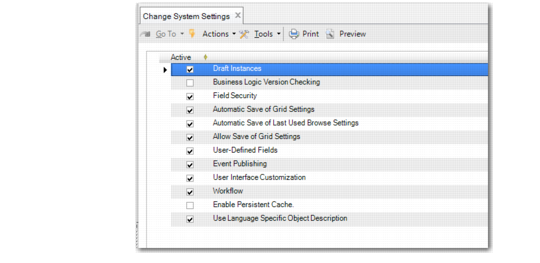
The System Settings function lets you modify system-wide settings that affect the areas of security, customization, and workflows related to component-based functions.
A subset of the settings can also be modified by users, but only if they are enabled system wide. If the setting is disabled, users cannot enable it.
The following settings are enabled by default: UI Customization and Automatic Save of Grid Settings. The others are disabled by default.
Enabling some of the features controlled here may affect system performance.
Change System Settings, (36.24.5.1)
Field Descriptions
Allow Save of Grid Settings
Disable this if you do not want users to be able to choose to save grid settings. When this is disabled, the Save Current Grid Settings option does not display when users right-click in a grid. When this is selected, the option does display.
Enable this if you want grid settings saved only when a user specifies.
This setting interacts with the Automatic Save of Grid Settings. When grid settings are automatically saved, the Allow Save of Grid Settings has no effect.
The following figure shows the right-click grid menu when Allow Save of Grid Settings is enabled.
Change System Settings, Right-Click Grid Menu
When this option is enabled, individual users can disable it in User Settings if they have permissions. When this option is disabled system-wide, it applies to all users.
Automatic Save of Grid Settings
Select if you want the system to automatically save grid settings and reload them the next time users access that function.
Automatic Save of Last Used Browse Settings
Select if you want the system to automatically save each user’s last used browse and lookup settings and reload them the next time the user accesses that function.
When the Automatic Save of Last Used Browse Settings option is enabled, individual users can disable it in User Settings if they have permissions. When this option is disabled system-wide, it applies to all users.
Note: If you clear the Automatic Save of Last Used Browse Settings field, changes to browse settings are not saved automatically. However, any changes you make to a browse before you clear the Automatic Save of Last Used Browse Settings field are saved. If you want to reset the browse settings to the factory default or customer default, use Stored Search Delete to delete user-level stored searches. Browse settings are also stored in memory cache; therefore, it is recommended that you log off the application and log on again after you make changes to the browse defaults.
Business Logic Version Checking
Select to ensure that all business components register their versions in the application database. When a component is activated, the system checks the client version against the server-side version registered in the database. Any inconsistencies are reported.
Enabling this setting can be useful in ensuring system integrity. For example, if you have multiple application servers, a patch may be installed on one server and not another. When the client runs the updated component, its version number is registered. Later, if the other server is used where the patch is not installed, the system detects that an older version of the component exists and displays an error preventing the component from being run.
Draft Instances
Select to enable the support of draft instances—records saved without validation—in all functions that support Save as Draft. If you clear the field, the Save as Draft and Browse Draft activities are disabled.
Currently, the Save as Draft feature applies only to the following functions:
• Banking Entry
• Business Relation
• Customer
• Customer Finance Charge
• Customer Invoice
• Journal Entry
• Petty Cash
• Supplier Invoice
• Supplier
Field Security
Select if you want to activate the ability to set permissions and access to individual fields in the UI. When this setting is selected, the Field Security Maintain activity displays on the menu; otherwise, it does not.
For more information on field security, see
QAD Security and Controls User Guide.
User Interface Customization
Select to enable users with the relevant roles to customize the UI. See
UI Customization.
This option is enabled by default. When this option is enabled, individual users can disable it in User Settings if they have permissions. When this option is disabled system-wide, it applies to all users.
Important: This option also controls whether browse and grid savings can be saved. When this field is disabled, the browse and grid settings have no effect, since they are considered to be a form of UI customization.
User-Defined Fields
Select to enable users with access to customizing the UI to add user-defined fields (UDF) to customized activities. UDFs can only be added to the UI when the User Interface Customization field is selected.
Workflow
Select to enable ad-hoc workflow. When the field is cleared, the Workflow choice on the Tools menu of component activities is disabled.
Selecting this field is typically combined with selecting the Workflow Inbox. However, you can also notify the recipients of work items through e-mail rather an application Inbox.
For more information on creating and receiving workflow items, see
Introduction to QAD Enterprise Applications User Guide. See
Configuring Workflow for more details on setting up workflow.
Enabling workflow adds load to the system, which can degrade performance since the system must continually poll for new Inbox objects. To reduce this load, have users that will not be receiving objects in their Inbox disable the feature in User Settings.
Automatic Save of Last Used Stored Search
Select if you want the system to automatically remember the stored search that was last used in a browse and display it with this search loaded the next time the user accesses that function.
When this option is enabled, individual users can disable it in User Settings if they have permissions. When this option is disabled system-wide, it applies to all users.
Enable Persistent Cache
This option caches menu and browse settings from the current session and re-loads them in the next session. Caching stores static data on the client and improves performance. You can also set this option for individual users in Change User Settings (36.24.5.2). If set at the system level, the setting applies to all users. If not set at the system level, the individual user setting is enabled.
Note: Use the Reset Client Cache (36.24.3.7) menu option to clear the persistent cache.
Use Language Specific Object Description
Select this option to display translated descriptions in the language associated with a user’s ID in User Maintenance, provided that descriptions are loaded or entered for this language. The Description fields for most component-based records support a translation option.
If you select the Use Language Specific Object Description field, the system also retrieves translated descriptions when the user runs API queries.
If you clear this field, this option is disabled in Change User Settings. If the Use Language Specific Object Description system setting is selected, the corresponding user setting is selected by default, but you can clear the setting in Change User Settings.
User Settings
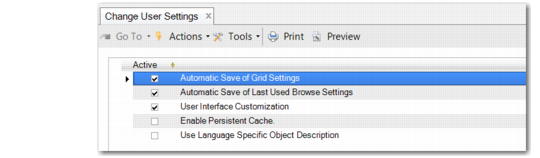
The User Settings function lets each user configure a subset of settings that are defined at the system level. The settings are effective for the current user only. Users can only modify these settings if they have been enabled system wide.
Disabling UI Customization can enhance performance for a user.
Change User Settings, (36.24.5.2)
Field Descriptions
Each user can modify a subset of the system settings when they are enabled:
Automatic Save of Last Used Browse Settings
Automatic Save of Grid Settings
Use Language Specific Object Description
User Interface Customization
Enable Persistent Cache