QAD 2017 Enterprise Edition
>
User Guides
>
System Administration
>
UI Customization
>
Financial Text Translation
Financial Text Translation
You can maintain label and message translations in the financial programs by using Financial Translation Maintenance (36.24.10).
This program enables you to:
• Search for financial translations using different filters.
• Edit current translations while keeping a record of the original.
The program also marks a record as updated when it is modified and records the last modified user ID and date.
Note: When you run System Synchronize (36.24.3.2), it does not overwrite records that you have changed. Also, although Financial Translation Maintenance does not maintain report text directly, the report text does refer to the financial translations. Therefore, if you run System Synchronize with report text, the report text copies the values in the financial translations.
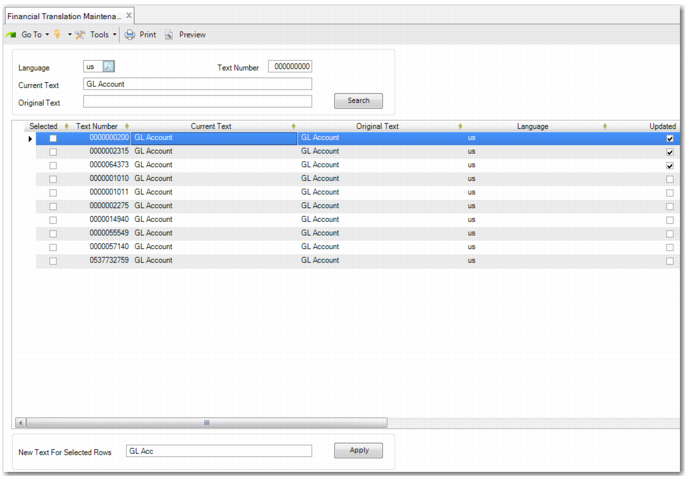
Financial Translation Maintenance
There are two ways to update current strings:
• In the grid, in the Current Text column, type the new text and click Save. This approach is generally best when you want to edit one string.
• In the New Text For Selected Rows field, type the new text and select the row or rows to display the new text, and click Apply. To keep your changes, click Save. This approach is best when you want to update multiple strings with the same text.
The fields in the program have the following function:
Language
Specify the language code for the text you want to search for. This field is mandatory.
Text Number
Enter the string number of the text you want to search for. This field is useful because there are many translation records with the same meaning but with unique string numbers. If you do not enter a text number, you must enter either the current text or the original string.
Current Text
Enter the current translated text as it appears in the interface. If you do not enter the current text, you must enter either the text number or the original string. This field accepts wild cards.
Original Text
Enter the original string as supplied by QAD. The original text is stored in the system permanently with its initial values. If you do not enter the original string, you must enter either the text number or the current text. This field accepts wild cards.
When you click Search, the grid populates with the matching text strings. Most of the fields in the grid are read only.
However, you can select the Selected field to indicate a string to apply changes to or to be saved. To change the text of a current string, you can also edit the text in the Current Text column directly. When you edit the current text, the row is automatically selected. If you clear a selected row, any changes are discarded and the row reverts to the previous text.
Note: Some strings contain placeholders such as '&1', '&2', which are replaced by the relevant program. You cannot change these placeholders, and if you try, an error message is displayed. However, you can edit other parts of the string.
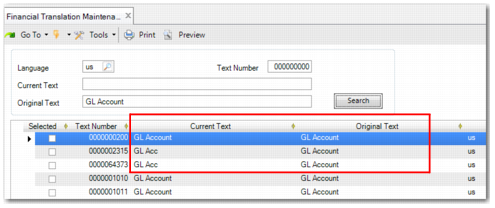
The original text is still saved in the system, and is displayed in the Original Text column, as displayed in
Financial Translation - Original Text. The other columns are Language, Label, Last Updated Date, Last Updated Time, and Last Updated User. Three additional columns—Component Code, Component Category, and Project—are hidden by default.
Financial Translation - Original Text
New Text For Selected Rows
You can change multiple rows simultaneously by using this field. Select the rows that are to contain the updated text and then type the text in this field. When you click Apply, the Current Text field in the grid is updated.
Make sure you click Save so that your changes take effect. You can view your changes when the next system trim takes place. The frequency of a system trim depends on organization policy. If you perform a second search before saving your changes, the changes are lost and the grid populates with the new data.