Printing
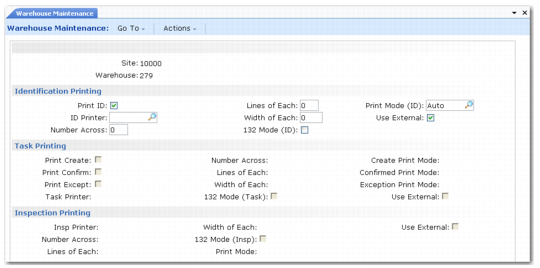
The Printing frame is shown in
Warehouse Maintenance, Printing.
Warehouse Maintenance, Printing
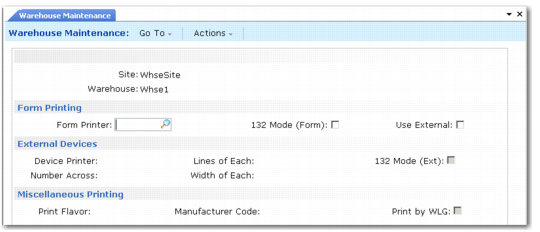
The frame is divided into several areas: Identification, task, inspection, form, external, and miscellaneous printing. You can control the printing of transaction details in each of the areas. These cover the following:
• Printing an identification of inventory coming into the warehouse, such as a pallet label
• Printing transactions for tasks when they are created
• Printing transactions for tasks when they are confirmed
• Printing exceptions when changes have been made to the original transaction; for example, a change to the put-away location or quantity
• Printing transactions relating to external devices
• Printing QA sampling inspection tags
• Printing to a specific printer for inspection results
See
Printing for additional details about print setup.
Each type of printing has a common set of fields that define print-related settings. Only the settings for the identification print fields are described here; settings for the other print events are the same, but you can use different printers or print parameters to accommodate different print tags or locations as needed.
The fields relating to identification printing are as follows:
Print ID
Enter Yes to print an identification of inventory coming into the warehouse; otherwise, enter No. If you enter No, you can ignore the other fields in this group.
ID Printer
Enter the name of the printer on which the IDs are to be printed.
Number Across
Enter the number of identifications that are to be printed across each page.
Lines of Each
Enter the number of printed lines in each identification.
Width of Each
Enter the width in character positions of the lines of the identification.
132 Mode
Enter Yes if the identifications are to be printed in 132 character position mode; otherwise, enter No.
Print Mode
Select a print mode to determine when output should be printed. The options are as follows:
AUTO | The system prints identifications automatically as soon as they are created. |
MANUAL | The system holds identification print requests until an online or batch process activates printing. |
AUTOSIG | The system prints identifications automatically but holds them until a signal to print is received. |
The signal to trigger AUTOSIG printing is normally a sign that the process creating print requests is complete and that all requested prints can be output at one time. This is particularly relevant when, for example, printing multiple transactions on the same task sheet.
Use External
Enter Yes if you want RDT users to be able to print the identifications on an external printer such as the local printer in a fork-lift truck. Enter No if the identifications must be printed on the ID printer.
Additional Printing
The following group of fields in the Miscellaneous Printing frame covers general print format:
Print Flavor
This field defaults to each work location group you set up within the warehouse. Select the Print Flavor code to determine the format of the printed output. Print Flavor codes are set up in Generalized Code Maintenance (36.2.13).
• A. Use the default print formats.
• B. Use a print template. The system lets you create your own templates from ASCII files, described in the next section. See
Print Templates.
Print by WLG
Indicate whether the sequence in the printed output is sorted by work location group.
If you are using barcode prefixes, update the Manufacturer Code field.
Manufacturer Code
Specify the code that identifies your company’s site. This code is a required component of serial shipping container codes (SSCC) used in some barcode pallet IDs. See
Serial Shipping Container Code (SSCC) for details.