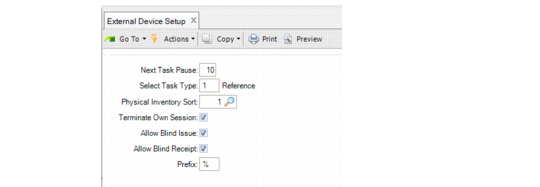
External Devices
You can use External Device Setup (4.23.22) to set up the radio frequency (RF) device used by warehouse staff.
External Device Setup (4.23.22)
Next Task Pause
Specify the time in seconds that the RF device pauses during the RF Next Task (1.1) or RF Select Task (1.2) options when there are no open tasks.
Select Task Type
Indicate whether the RF Select Task option is controlled by reference or by transactions:
1: Reference
2: Transaction number
PO Shipper ID Sequence
Enter the Sequence to be used when generating Po shippers in the External Device PO Shipper Receipt Function. These sequences need to be created using Sequence Definition Maintenance (whseqmt.p).
Physical Inventory Sort
Specify the tag-sorting method that the RF device uses during a physical inventory.
0 (the default): Sort by travel sequence: The system uses the last location scanned with any other RF function, or if it is the first action after login, the system uses the location entered in the RF login screen. This is the default setup if no entry exists in Generalized Codes Maintenance.
1: Sort by location name: The system uses locations by alphabetical order, starting with the first alphabetical location. Travel sequence is not considered.
2: Sort by count number: The system sorts by the count number.
For more information on conducting physical inventories within the warehouse, see your QAD Warehousing user documentation.
Terminate Own Session
Specify Yes to terminate your own user session on the RF. Occasionally, the RF can keep a user session running, even when the user is not logged into the RF.
Once activated, if the user logs into the RF, the system prompts to terminate the session. If the user responds with Yes, the system attempts to stop the currently running session of that user. Once the current session stops, the user can log in as usual.
Allow Blind Issue
Set this field to Yes so that RF users can conduct a blind issue (unplanned issue) from the RF device.
Allow Blind Receipt
Set this field to Yes so that RF users can conduct a blind receipt (unplanned receipt) from the RF device.
Prefix
Specify a symbol to use as a barcode separator—a prefix—that the system uses with scanned-in barcodes that comply with UCC/EAN-128 encoding standards. You set up barcode prefixes in Barcode Prefix Maintenance (4.23.17); see
Specifying Barcode Prefixes.
Entering a prefix lets EAN/UCC Barcode Testing (4.23.20) correctly display values in the Result field when the barcode string contains a similar prefix value, and you use the EAN-128
when128.p program. For information on this program, see
EAN-128 Barcodes.
When the prefix does not match stored prefixes within the system in the mfg_ctrl table, the system displays one of two errors:
• Defined prefix not found in the barcode: The prefix you entered is not defined in mfc_ctrl, and therefore, not available for use.
• Prefix does not match barcode: The prefix for the barcode does not match prefix-barcode records in mfc_ctrl.