RF Inventory Receipt
Using the RF device, warehouse staff can perform a variety of receipts, including:
• Distribution order receipts
• Sales order returns
• Purchase order receipts
• ASN receipts
• Unplanned receipts
• MO returns
• RMA receipts
The RF Receipt (1.8) option provides the following features for warehouse staff:
• Receive one or multiple pallets, with or without pallet IDs.When scanning, if a pallet ID is blank, the system prompts to generate a pallet ID.
• Perform unplanned receipts.
• Recover from the receipt processing when the system fails or halts unexpectedly.
• Several RF users can unload a truck simultaneously, except for ASN receipts, when only one RF user can perform the receipt and reconciliation process.
Since you scan for receipts by pallets and items and this can be several for your warehouse, warehouse staff can stop the receipt process by pressing the Cancel function (F4) at any time. When staff log onto the RF device again and enter the receipt function, the system returns them to the point at which they cancelled the receipt function; so, if warehouse staff previously scanned 200 pallets, for example, there is no need to rescan those pallets.
Use the following procedure to receive inventory using the RF device.
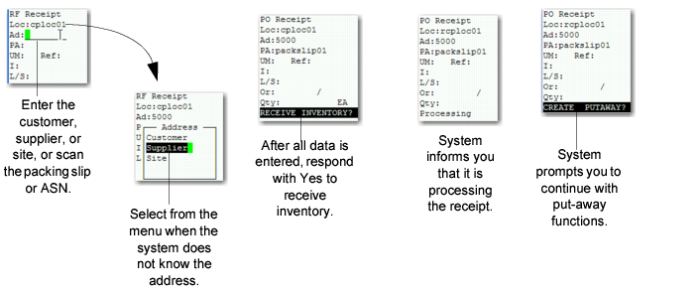
1 Log onto the RF, then enter the RF Receipt function (1.8).
2 Enter or scan the location where you are receiving inventory.
3 Enter a customer, supplier, or site, depending on the order type in the Address field or leave blank for a unplanned receipts.
Note: The system prompts you to enter a supplier, customer, or site if the order type is not clear; for example, when the customer or supplier have the same code. See
RF Receipt.
4 Optionally, scan or enter the packing slip/ASN in the PA field.
If you scan a packing slip or ASN, the system prompts you to receive without scanning. If you respond with Yes, the system processes the receipt with items from the ASN. If you respond with No, scan the pallets.
Once you finish scanning, the system prompts you to display (print) discrepancies between the inventory listed on the ASN and the received inventory you scanned. Select Yes to display the differences on the RF devices.
5 Enter the alternate UM of the pallet you are receiving.
The UM is the QAD Warehousing UM as defined in Alternate Unit of Measure Maint (4.5.1). If you leave UM blank, the system does not generate a pallet and you can receive without pallets.
6 Scan or enter a pallet.
Note: If you do not enter a pallet, the system prompts you to generate one.
7 Scan the items that belong to the pallet. This can be single items per pallet or many different items per pallet.
8 If WIP Lot is used, enter the Lot number in the Lot field.
9 Enter the order and line number.
10 Enter the quantity.
Note: You can enter a 0 (zero) to delete items/pallets from the receipt.
11 Continue scanning items and entering quantities for that pallet.
12 Press F4 to indicate the completion of pallet scanning. The system lets you scan another pallet.
13 Once done scanning all pallets for a receipt, press F4 to launch the receipt process.
The system prompts to receive the inventory. If you answer No, you can either delete all information you have scanned or leave it in the system for later processing. When you resume RF receipt processing, the system lets you complete your data scanning and launches the receipt process again.
Once the inventory has been received, the system prompts to generate the put-away tasks. If you answer No, the system does not generate put-away tasks.
Go to the RF Select Task (1.2) or Next Task (1.3) option to confirm system-created put-away tasks.
You can check the receipt processing using Transaction Detail Inquiry (3.21.1).
RF Receipt