Processing Shipments
Warehouse staff can ship material using the RF device from the warehouse with orders that were previously picked with QAD EE programs. Using just one RF shipment menu option, you can ship sales, distribution order; return material authorization; or return a purchase order as well as perform an unplanned issue.
Warehousing offers two shipping functions:
• Shipping with a pre-shipper: Uses the QAD Warehousing
Ship Truck functions; refer to
Truck Ship.
• Shipping without a pre-shipper: Uses the RF shipping option (1.9). The following topics discuss this option.
Shipping functionality through the RF device is based on shippers. You can ship orders created through:
• Picklist/Pre-Shipper - Automatic (7.9.1)
• Wave Planning module
• DO Pick List/Pre-Shipper - Auto (12.19.1)
• Sales Order Packing List (7.9.13)
• Distribution Order Picklist Print (12.17.19)
Additionally, RF shipment functions handle:
• Purchase Order Return (5.13.7)
• Unplanned Issues (3.7)
• Sales Order Shipments (7.9.15)
• Distribution Order Shipments (12.17.22)
• RMA Shipments (11.7.1.16)
Functionality included in the RF shipment program includes:
• Ship one pallet to one customer in two different orders, the same pallet to different customers, or one pallet for two different orders
• Ship the same pallet to different customers in the same process or transaction.
• Ship partial pallets or multi-item pallets
• Ship from the storage location group with Allow Issue set to Yes in Storage Location Maintenance.
You can change the RF screen layout or set up different flavors of the RF shipment screen to accommodate changes among your various warehouses. For example, you could set Flavor A to have more updateable fields, while Flavor B can be for pallets only. Typically:
• Flavor A prompts for location, address, item, lot, reference, and quantity.
• Flavor B prompts for location, address, and reference.
Note: You specify flavors in Warehouse Maintenance (4.1.1), Work Location Group Maintenance (4.3.9), or User Work Location Group Maint (4.11.3.13).
Use the following procedure for Flavor A:
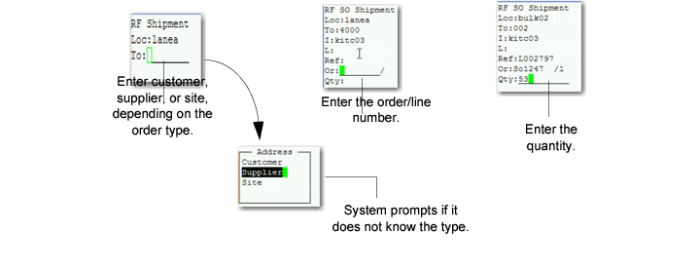
1 Select the RF Shipment (1.9) option.
2 Enter or scan the location from the label.
3 Enter or scan the address in the To field.
The system determines if the shipment belongs to a distribution order (site), sales order (customer), purchase order (supplier) or unplanned issue (blank).
If the system cannot determine the To address, it prompts you to select from a pop-up menu whether the address is a customer, supplier, or site; see
RF Shipment (1.9).
4 Enter or scan the item number from the label.
5 Enter or scan the lot from the label.
6 Enter or scan the reference from the label.
7 Enter or scan the quantity from the label.
8 When complete, follow the prompts to launch the shipment process.
RF Shipment (1.9)
Use the following procedure for Flavor B:
1 Select the RF Shipment (1.9) option.
2 Enter or scan the location from the label.
3 Enter or scan the address in the To field.
The system determines if the shipment belongs to a distribution order (site), sales order (customer), purchase order (supplier), or unplanned issue (blank).
4 Enter or scan the reference from the label.
5 When complete, follow the prompts to launch the shipment process.