QAD 2017 Enterprise Edition
>
User Guides
>
Warehousing
>
Order Management
>
Adding Warehouse Data to Orders
Adding Warehouse Data to Orders
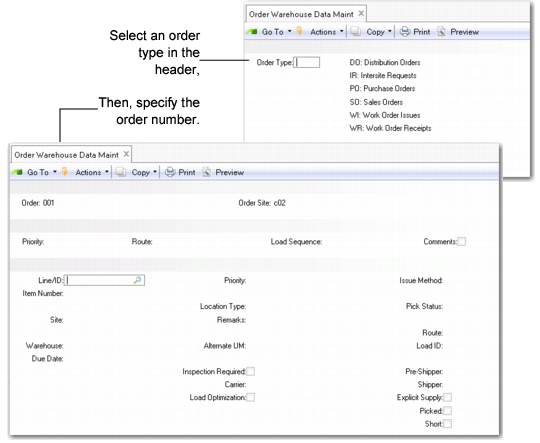
Use Order Warehouse Data Maint (4.13.1) to select one of the following order types and add warehouse details to the order data:
• Bulk pick orders
• Distribution orders
• Intersite requests
• Purchase orders
• Unplanned receipts
• Sales orders
• Work order issues or receipts
Note: You can display data for sales orders for configured kits using Order Warehouse Data Maint, then selecting SO, or using SO Warehouse Data Maint (4.13.3). To display kit configurations, set Show Configurations to Yes in either program.
Once you select the order, you can assign a transaction priority, routing code, or a sequence number to indicate the order for loading the items; see
Order Warehouse Data Maint (4.13.1).
For the line item data, you can assign a site or warehouse, due date, priority, location type, alternate UM, carrier, pre-shipper/shipper, load IDs routes, and so on. You can also specify the pick status and indicate whether:
• Inspection is required for the line item.
• The item is short or picked.
Most of the fields in the program are similar to those in core order maintenance programs. Unique fields are described in this section.
Order Warehouse Data Maint (4.13.1)
Short
Specify whether the inventory items are short. This field is used when you specify option 0 for the Shortage Definition field in Transaction Type Maintenance.
Carrier
Enter a valid carrier defined in Carrier Maintenance to be used for shipments for these orders.
pre-shipper
Enter a pre-shipper ID associated with the order.
Explicit Supply
Indicate whether you want shortage clearance functionality to be activated for this order line.
Load Optimization
Indicate if this order line is to be processed through load optimization functions in the Wave Transportation menu. The load optimization module works in conjunction with the wave planning module, which means that only sales and distribution orders can be selected for load optimization processing.
No: This order line is not included in load optimization.
Yes: The order line is pre-processed by a transportation management system (TMS) before starting the picking process in QAD Warehousing. The TMS either consolidates orders into shipments to reduce overall shipping costs or optimizes the loads by calculating routes with drop-off sequences. The TMS sends the optimized or consolidated loads back to QAD Warehousing for further processing.
You set up default load optimization parameters in Load Optimization Setup Maint. When you specify a ship-to address or an item in Load Optimization Setup Maint, the system sets this field to Yes at order entry.
When Yes and QAD Warehousing is enabled, warehouse staff cannot pick for the order using Picklist/Pre-Shipper - Automatic (7.9.1), Distrib Order Picklist Print, or Sales Order Packing List.
You cannot set this field to Yes for sequenced customer schedules. You cannot change the value of this field if the picking process has already started for the order line that was selected for load optimization.
Use programs in the Wave Transportation Menu (4.15.2) to set up a load. Use Order Batch Selection to create a selection of order lines to be processed by the TMS. Use Order Batch Export/Load Import to export/import data from and to the TMS. Use Carrier Service Assignment Maint to assign carriers or other services for TMS load optimization calculations. Use Load Maintenance to create, edit, or delete loads in the system.
Other Order Data Maintenance Programs
You can access orders individually by type using any of the following:
• Use SO Warehouse Data Maintenance (4.13.3) to add specific warehouse details to the standard properties for sales orders.
• Use PO Warehouse Maintenance (4.13.4) to add specific warehouse details to the standard properties for purchase orders.
• Use IR Warehouse Data Maintenance (4.13.5) to add specific warehouse details to the standard properties for intersite requests.
• Use DO Warehouse Data Maintenance (4.13.6) to add specific warehouse details to the standard properties of distribution orders. These details include the priority for task assignment, the internal routing for the order, and the load sequence.
In each program, enter the site from which the items on this distribution order will be shipped. When items are shipped on the order, inventory is reduced at the order site. Most fields are similar to core system order maintenance programs. Unique fields are as follows:
Priority
This field assigns a priority value to transactions. RDTs select the highest priority task as the next action: the lower the number you specify, the lower the priority.
Load Sequence
Optionally enter the load ID. Load IDs identify groups of orders that are combined in one warehouse transaction. The load sequence appears on reports and inquiries.
Picked
Specify whether the items are picked or not. This field is used when you specify option 1 for the Shortage Definition field in Transaction Type Maintenance. Option 1 updates the order detail record when picking starts to indicate a shortage.
Pick Status
This field is used by bulk picking functions to indicate the current order status as one of the following:
Blank: Default Order Status
S: Selected for Bulk Picking
A: Approved for Bulk Picking
Load Optimization
Indicate if this order line is to be processed through load optimization functions in the Wave Transportation menu. See
Load Optimization.