Modifying Bulk Pick Details
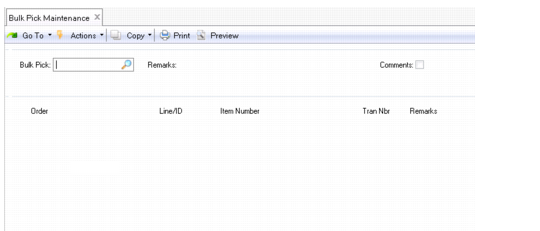
If you selected Create Bulk Picking Orders when approving order lines in Bulk Pick Selection Approval (4.14.4), the system created details under a single bulk pick number. Use Bulk Pick Maintenance (4.14.6) to modify the details of a previously saved bulk pick order; see
Bulk Pick Maintenance (4.14.6).
Bulk Pick Maintenance (4.14.6)
1 Enter the order number for the bulk pick, then click Next.
The system approves the order for picking, then displays the number of bulk picks, bulk pick details, and the number of warehouse transactions created.
As needed, you can delete the entire bulk pick by pressing Delete in the first Remarks field. If detail allocations exist for the bulk pick, a message is displayed asking whether you want to remove them.
2 Alternatively, select a line from the bulk pick. You can then change the details of the line, or delete the line by pressing Delete in the second Remarks field. Again, if detail allocations exist for the bulk pick, a message is displayed asking whether you want to remove them.