QAD 2017 Enterprise Edition
>
User Guides
>
Warehousing
>
Using Containers
>
Creating a Container Level Below a Pre‑Shipper
Creating a Container Level Below a Pre‑Shipper
Warehouse managers can create a container level below a pre-shipper using the Container Creation Utility (4.25.4). Warehouse managers should use this program primarily to make corrections; it should not be accessible to typical users.
Warehouse managers can manually link a box to a pallet by creating a container in DO Container Maintenance (12.19.7) for a distribution order; however, they must still link the item to the container using Pre-Shipper/Shipper Workbench (7.9.2).
To create a container level, warehouse managers can enter data for only the parent ID, ship-to code, container item, and site or location of the container they are creating; all other data entered is optional.
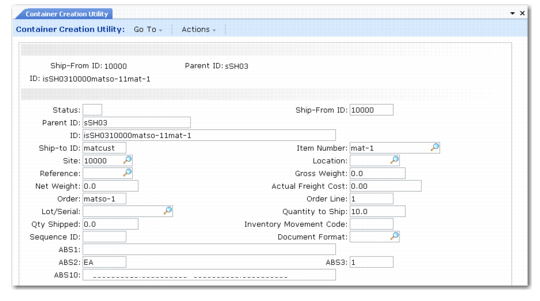
Container Creation Utility (4.25.4) shows the Container Creation Utility; fields are described after the figure.
Container Creation Utility (4.25.4)
Ship-From ID
Enter the ship-from code. This is the shipping site that you use for warehousing operations.
Parent ID
Enter a parent ID or leave this field blank. The parent ID is the upper container you want to link to the current container and typically starts with the letter c.
Note: If you leave this field blank, you can specify a parent ID after you click Next. The system displays the Parent ID field when it displays container details.
ID
Enter the identification code for a container below the pallet container. Precede the ID with the letter that corresponds to the abs_id for the container; for example, the letter c.
Status
Enter the status of the container:
S: Shipped
NS: Not shipped
Parent ID/ID
If you did not enter a parent ID/ID in the header, enter a parent ID for the upper container that you want to link to the current container or enter a container ID.
Ship-To ID
Enter the ship-to code for the destination of this container. This should match the ship-to code of the pre-shipper. Use SO Container/Shipper ID Inquiry (4.15.20.3) to find the ship-to code.
Site
Enter the warehouse site where this container is used.
Reference
Enter a reference number for the pallet to which the container you are creating belongs.
Net Weight
Enter the net weight of the container.
Order
Enter the order number for this container.
Lot/Serial
Enter the lot/serial number for this container.
Qty Shipped
Enter the quantity to ship for this container.
Item Number
Enter the container item ID. This should be the same ID as the one in the same-named field in Batch Picking Control (4.15.24).
Location
Enter the location code of the container you are creating.
Gross Weight
Enter the gross weight for the container you are creating. Typically, freight charges apply to the boundary weight.
Actual Freight Cost
Specify the active freight cost for the container. You must specify a freight list, freight class, and freight zone before establishing freight charges. For more information on freight charges, see
QAD Master Data User Guide.
Order Line
Enter the order line number for the container you are creating.
Quantity to Ship
Enter the quantity to ship for the container you are creating.
Inventory Movement Code
Enter the inventory movement code that is associated with the shipment.
Document Format
Enter the code that identifies the format of the printed document. See
Printing.
Sequence ID
Enter a sequence ID for the container you are creating.
ABS1 through ABS10
Enter the ABS identification number for the container you are creating. The abs_id uniquely identifies the shipper record. Container records are assigned to shipper records.
Linking Items to Containers
You must link an inventory item to the container you created using Pre-Shipper/Shipper Workbench (7.9.2) for a sales order or using DO Container Maintenance (12.19.7) for a distribution order.
• In the Ship-From ID field, enter the same ID that you entered in the same-named field in Container Creation Utility.
• In the Number field, enter the ID you created in Container Creation Utility in the ID field, including the letter c.