Print Paperwork Control Options
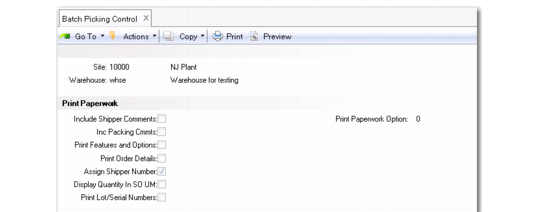
Use options in the Print Paperwork frame of Batch Picking Control (4.15.24) to set defaults for shipper printing when using the RF Print Paperwork function.
Batch Picking Control (4.15.24), Print Paperwork Frame
Print Paperwork Option
Indicate the type of message the RF displays when the system finds pending tasks (unconfirmed tasks) or finds that inventory is not on the truck when staff attempt to print shipper paperwork to ship items.
0: The system does not display messages and does not take action when either condition exists.
1: The system displays a warning message when either condition exists.
2: The system displays a message when either condition exists and prompts for user confirmation of the message before continuing.
3: The system displays an error message when either condition exists.
Include Shipper Comments
Enter Yes to include shipper comments when printing paperwork from the RF or No to exclude such comments.
Inc Packing Cmmts
Enter Yes to include packing comments when printing paperwork from the RF or No to exclude such comments.
Print Features and Options
Enter Yes to print order line item numbers followed by a list of features and options selected for the item or No to only print the item number.
Note: This setting applies to sales order shipper processing.
Print Order Details
This field determines whether the order number and order line number associated with line items on the shipper are included in the printed output when printing from the RF.
Assign Shipper Numbers
This field specifies whether you want the system to assign a shipper number when printing shippers from the RF. Assigning numbers converts pre-shippers to shippers on the RF.
In order for the system to generate a number, the NRM sequence for the pre-shipper/shipper must be an internal sequence generated by the system. If the assigned NRM sequence is external, the pre-shipper/shipper is skipped. To use an external sequence, you can assign the shipper number during shipper creation (if pre-shippers are not used), or during confirmation (if pre-shippers are used).
Display Quantity in SO UM
Specify Yes for the RF device to display quantities in the UM specified in the sales order.
Note: This setting applies to sales order shipper processing.
Print Lot/Serial Numbers
Specify whether a complete list of each of the lot/serial and lot reference numbers shipped print on the shipper when printing from the RF.
No: Each line item shipped is followed by a list of the lot/serial and lot reference numbers shipped.
Yes: Only the total shipped quantity prints for each line item.