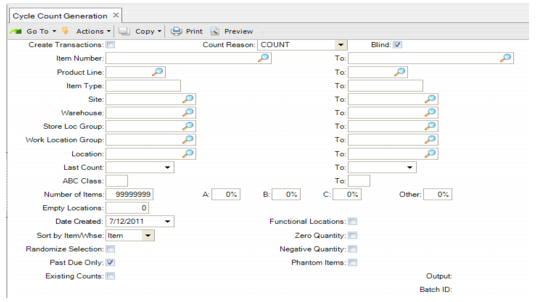
Generating a Cycle Count
Use Cycle Count Generation (4.8.12) either to:
• Create a report showing the items and locations that are counted, or
• Create cycle count transactions
Procedures to complete these tasks follow the figure for Cycle Count Generation.
Cycle Count Generation (4.8.12)
To create a cycle count report or transactions:
1 Select Cycle Count Generation (4.8.12).
2 Complete the fields as follows:
Create Transactions
With this option set to No, a report is generated of the items and locations that are counted without transactions being created. With it set to Yes, transactions are created.
Note: If the program is run with the Randomize Selection field set to Yes, items and locations selected need not match those of a previous run.
Count Reason
This value is attached to each transaction created, enabling cycle counts generated for a specific purpose—such as weekly random count—to be easily identified. This field defaults from Warehouse Management Control (4.24). See
Cycle Count Reason.
Blind
Indicate whether the system displays the quantity that RF users have to count during the cycle count.
No (the default): The system does not display quantities to count during a cycle count.
Yes: The system displays quantities to count during a cycle count.
Selection Ranges
Item, PL, item type, site, warehouse, SLG, WLG, location, last count date, ABC class. To select empty locations, selection criteria that apply only to items are ignored.
Number of Items
Specify the number of different items to select.
Empty Locations
Specify the number of empty locations to select. Empty locations are those that have no inventory record associated with them, even ones with zero or negative on-hand quantity.
Date Created
Specify a date for cycle count transactions for the item/location that the system uses as criteria when selecting items/locations to count. The system skips any items/locations that it creates prior to this date when selecting locations to count. The default is today’s date.
ABC Percentages
These function in the same manner as standard programs.
Sort by Item/Whse
Sorts the results by either item or warehouse.
Randomize Selection
If set to Yes, the identified number of items and/or empty locations are selected in a random order.
Past Due Only
Indicate whether to include only items that are passed their cycle count due date.
Existing Counts
Set to Yes to prevent the system from creating transactions for inventory that already has open cycle count transactions. Other transactions—for example, picks—are not relevant to the cycle count process.
Functional Locations
If set to No, only locations within storage location groups that are in functional internal routing groups are selected; for example dispatch locations are not selected. If set to Yes, locations from all storage location groups are selected.
Zero Quantity
This does not mean empty locations. Locations with zero on-hand inventory detail records are not considered empty. If this field is set to Yes, zero on-hand inventory detail records are included in the count; otherwise, they are not.
Negative Quantity
This does not mean empty locations. Locations with negative on-hand inventory detail records are not considered empty. If this field is set to Yes, negative on-hand inventory detail records are included in the count; otherwise, they are not.
Phantom Items
Indicates whether phantom items should be included.
3 Click Next, and then select the output destination for the cycle count.
Depending on what you selected in the Create Transactions field, the system either produces a cycle count report without creating transactions, or a report plus an actual cycle count.