You can select a sample from the resulting list to view its details.
Sample Inspection Maintenance (4.19.1) works the same as Sample Inspection Workbench, with the exception that you introduce the sample ID directly for which you enter the inspection results.
Enter details of the inspection status (Fail or Pass) and also additional information regarding the generation of return transactions and the quantity to be returned.
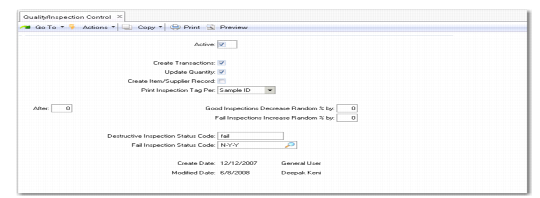
Note: The Create Transaction field defaults from Quality/Inspection Control (4.19.24). The return quantity depends on the test. If some pieces are destroyed during the test, the return quantity is different than the sample quantity. If the return quantity is always the same as the sample quantity, the Return Quantity prompt can be skipped by setting the Update Quantity field in Quality/Inspection Control to No.
Quality/Inspection Control (4.19.24)
Inspection Results lists the different actions that are performed depending on the test results.
Inspection Results
Destructive Test | Inspection Failed | Create Transaction | Actions |
No | No | Yes | • The sample is inspected. • A return transaction is created. • The release status is updated. |
No | No | No | • The sample is inspected. • No transaction is created; the sample stays in the inspection area. • The release status is updated. |
Yes | Yes/No | Yes/No | • The sample is inspected • No transaction is created; the sample stays in the inspection area and must be unplanned issue. • The release status is updated if the inspection does not fail. |
Note: If an inspection fails, the sample stays in the inspection area. The warehouse staff must perform an action in order to handle the inventory related to the sample. If the test is a destructive test, the warehouse staff must create an unplanned issue transaction. The sample does not automatically disappear from the system.