Importing Electronic Bills of Lading
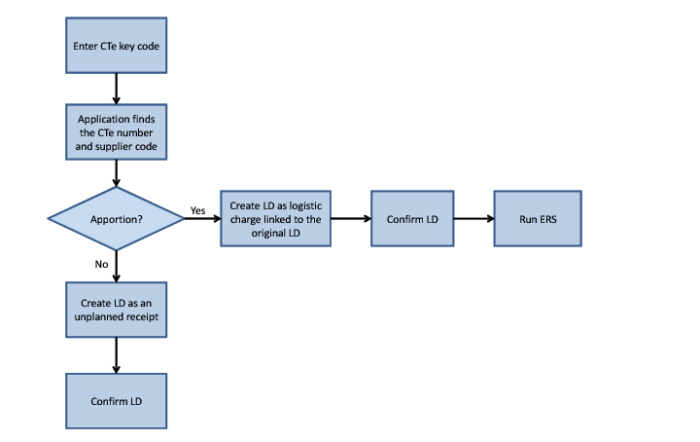
All carriers in Brazil create an electronic bill of lading instead of a paper one. When you import a bill of lading XML file, the system creates a legal document from the file that you can then confirm in Fiscal Confirmation (5.20.2). The flow involved in importing and apportioning a bill of lading is displayed in
Import Electronic Bill of Lading Flow.
Note: This functionality is available from QAD 2013 Enterprise Edition.
Import Electronic Bill of Lading Flow
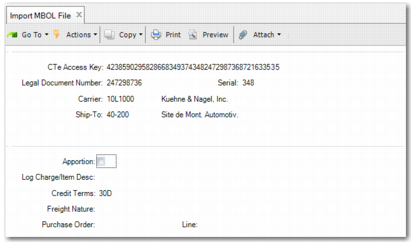
To import a bill of lading XML file, open Import MBOL file (5.20.3.5) and complete the fields as follows:
CTe Access Key
Enter the CTeAccess key. The access key must be 44 characters. The application looks for the CTeAccess key XML file in the directory specified in NFe Receiving Control (5.20.3.24.).
Legal Document Number
When you supply the CTeAccess key and click Next, this field is automatically populated.
Carrier
Enter the carrier for this bill of lading.
Ship-To
Enter a ship-to for this bill of lading.
Import Electronic Bill of Lading
Apportion
To create a legal document as an unplanned receipt, do not select Apportion. To create a legal document as a logistics charge, select Apportion.
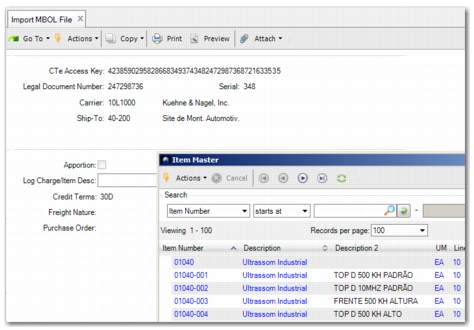
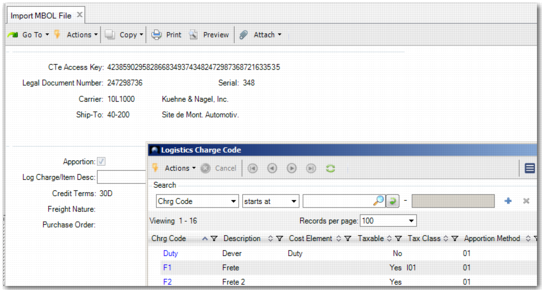
Log Charge/Item Desc
When you click this lookup, the Item Master is displayed when you did not select apportion, as displayed in
Import Electronic Bill of Lading - No Apportion. When you selected Apportion, the Logistics Charge Code browse is displayed, as displayed in
Import Electronic Bill of Lading - Apportion Charges.
Import Electronic Bill of Lading - No Apportion
Import Electronic Bill of Lading - Apportion Charges
Credit Terms
This field defaults to the value specified for the selected supplier.
Freight Nature
Enter the type of freight being transported.
Tax Usage
This field defaults to the value specified for the business relation. When no tax usage is specified, enter a valid tax usage. This field is mandatory.
Tax Environment, Tax Class, Taxable, Tax In
Complete these fields as appropriate for this bill of lading. Taxable must be selected.
Purchase Order
This field enables you to specify the purchase order related to the file so that ERS can then create the invoice.
Line
Enter the specific line of the purchase order.
The Select Files field is displayed, populated with the relevant bill of lading XML file. Click Next.
Output
Select an output for the uploaded file such as Page.
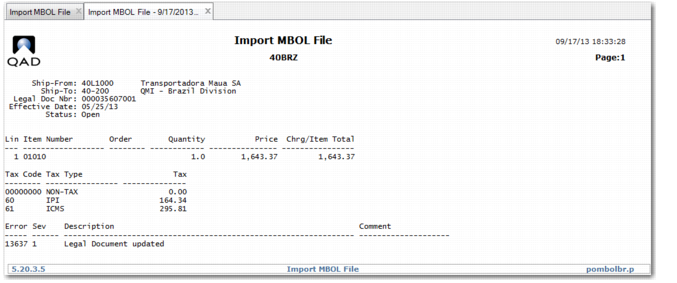
When you click Next, the MBOL file is uploaded and a result screen opens, as displayed in
Import Electronic Bill of Lading - Result Screen. You can confirm the transaction in Fiscal Confirmation.
Import Electronic Bill of Lading - Result Screen