Issuing and Receiving a Nota Fiscal Using Fiscal Receiving
If you did not use the electronic nota fiscal import option, you can issue or receive notas fiscais in Fiscal Receiving.
1 Open Fiscal Receiving.
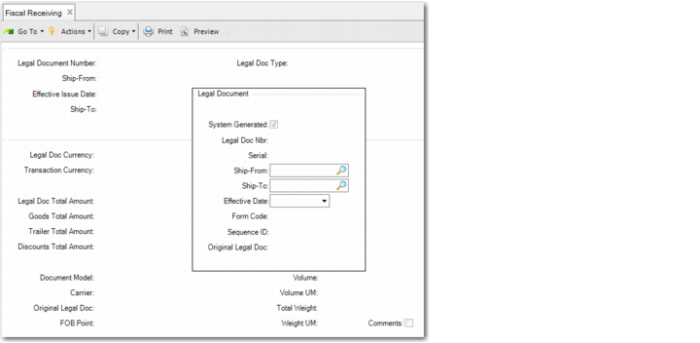
2 If you leave the Legal Document Number field blank and click Next, the Legal Document frame opens.
Fiscal Receiving, Legal Document System Generated
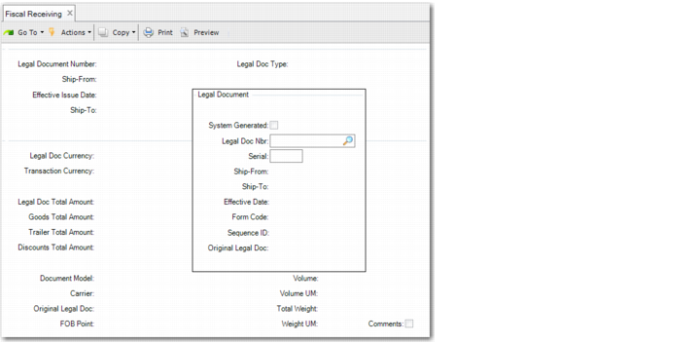
If you receive a
nota fiscal, leave the System Generated field unselected and click Next. The Legal Doc Nbr and Serial fields are active, as displayed in
Fiscal Receiving, Legal Document Not System Generated.
Specify a legal document number and a serial number and click Next.
Fiscal Receiving, Legal Document Not System Generated
4 Specify the Ship-From, Ship-To, and Effective Date. When you complete the Effective Date field, the application returns to the Ship-From field in the header. If the legal document number does not have nine digits, the system adds a zero to the left of the number.
5 Click Next.
6 The Form Code field displays 51 and the Sequence ID field displays the electronic
nota fiscal sequence. Form Code and Sequence ID are displayed only if you select System Generated in
step 3.
7 Click Next.
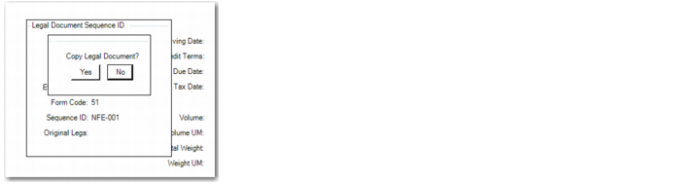
If System Generated is selected, the system prompts you to copy a legal document.
Fiscal Receiving, Copy Legal Document
8 If you are prompted whether to copy the legal document, click No.
A legal document number is assigned. Note this number for later.
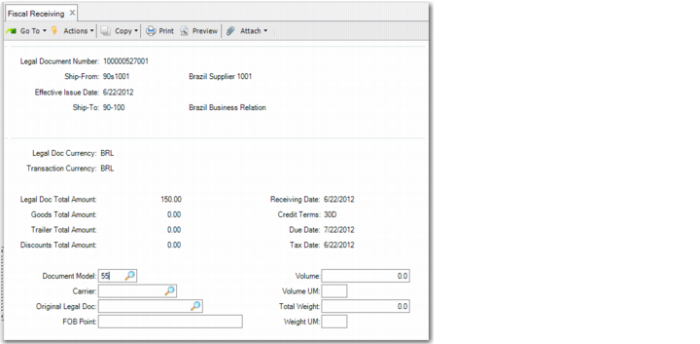
9 Specify the legal document total and credit terms and click Next.
10 Specify 55 in the Document Model field. This is the template type for imported electronic
notas fiscais if you selected System Generated in
step 3. If you did not select System Generated, you must select the correct Document Model.
Fiscal Receiving
11 Click Next.
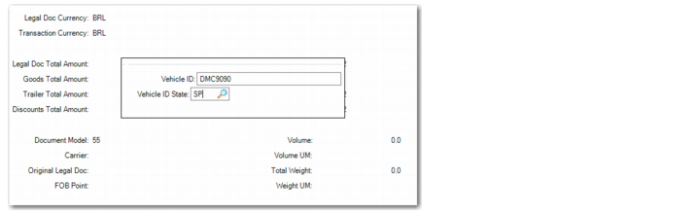
12 Specify the vehicle ID and vehicle ID state. These values are mandatory.
Fiscal Receiving, Vehicle Details Frame
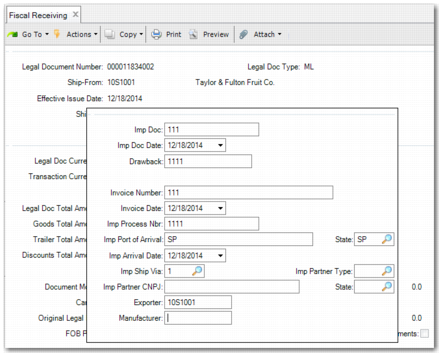
• Imp Port of Arrival
• State (both fields)
• Imp Arrival Date
• Imp Ship Via
• Imp Partner Type
• Imp Partner CNPJ
• Exporter
• Manufacturer
The entry in the Imp Partner CNPJ field must match the entry in the Federal Tax field in the Tax Information tab of the relevant Business Relation.
The Exporter field is used at header level for imports. The Manufacturer field is completed at legal document line level.
Note: The Exporter and Manufacturer fields are only available from QAD 2013 Enterprise Edition.
Fiscal Receiving, Import Process Number Frame
14 Click Next.
15 In the next frame, enter the associated document, order number, and item, unit price, and quantity details.
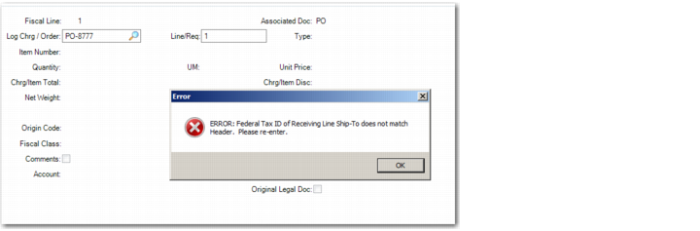
Note: When you specify the order and line number, the system validates whether the site specified in the purchase order has the same federal tax ID as the ship-to specified in the header of the legal document. If there is a mismatch, an error is returned, as displayed in
Fiscal Receiving, Federal Tax ID Mismatch. If the same mismatch occurs when physically receiving quantities in Purchase Order Receipts, the same error message is displayed.
Fiscal Receiving, Federal Tax ID Mismatch
16 Click Next. The frame in
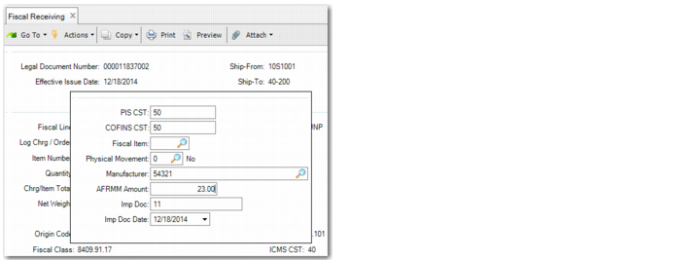
Import Details Frame is displayed. Specify the PIS, COFINS details, fiscal item type, and physical movement details. When the Ship Via field in
Fiscal Receiving, Import Process Number Frame contains the relevant entry and AFRMM is not set up as a logistics charge, the AFRMM Amount field is displayed. The AFRMM field must contain a value. When the legal document line contains a specific item from a specific supplier, the Manufacturer value automatically defaults from the Manufacturer field in Supplier Item Maintenance (1.19). If no default exists, the field is blank. However the field is mandatory so you must enter a value.
Note: The Physical Movement field is only available from QAD 2013 Enterprise Edition.
Import Details Frame
Note: By default, AFRMM is treated as a logistics charge. However, you can set up AFRMM as a separate charge by setting the generalized code field
QAD_I19_AFRMM_LC_Setup to No. AFRMM is then displayed in the frame in
Import Details Frame. It is also included in the xml file sent to SEFAZ. When this generalized code field is set to Yes or is not set up, AFRMM is treated as a logistics charge and is not displayed in this frame. To set up AFRMM as a separate charge, use Logistics Charge Code Maint (2.15.1). The setup is described in
Identifying Expense Types for Logistics Charges.
17 When you click Next, the frame in
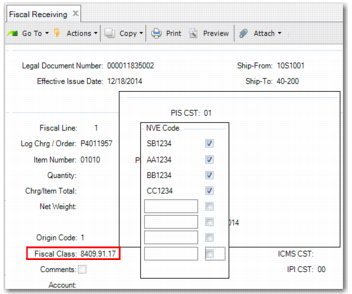
Sequence Frame NVE Codes displays. This frame enables you to enter NVE codes for the item line. The selected NVE codes defaults from the item code. You can also enter additional NVE codes. You can have up to eight codes.
Sequence Frame NVE Codes
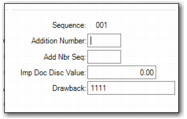
18 The same frame has a new level in the legal document line. The Imp Doc, Imp Doc Date, and Drawback come from the header. However, separate frames enable you to enter up to 100 sequence numbers with different additional numbers, additional number sequences, and drawback numbers. However, you can only enter one Imp Doc for each legal document line.(in other words, several sequences, but with the same Imp Doc number). The Add Number, Add Nbr Seq, and Imp Doc Disc Value fields do not default to a value from a previous frame. When you have completed the relevant fields, click Next.
Sequence Frame NVE Codes