Processing Fiscal Control Transactions Manually
Use Fiscal Ctrl Trans Maint (29.11.4) to manually register addition and subtraction transactions on the fiscal control account based on the legal documents you have issued or received. You can also make adjustments to existing transaction records on the control account such as matching addition transactions with subtraction transactions.
You can also create a transaction with a beginning balance without requiring an existing legal document. See
Creating a Transaction Without an Existing Legal Document.
When matching addition and subtraction transactions using Fiscal Ctrl Trans Maint, you must first specify the site and address for which you want to process transactions. You then specify an addition fiscal control transaction by indicating the corresponding legal document line. Next, you specify the tax usage, which indicates the fiscal control account to update. Finally, you specify the subtraction fiscal control transaction by indicating the corresponding legal document line, and then update the fiscal control account balance.
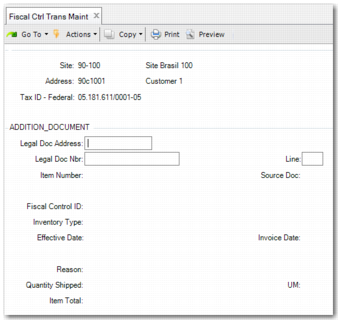
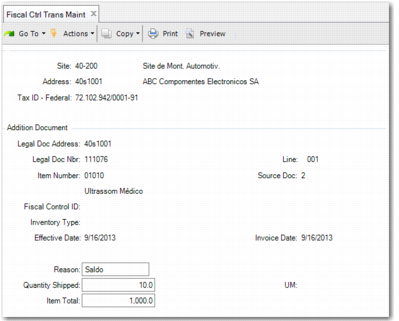
Fiscal Ctrl Trans Maint
Site
Specify the site that is associated with the fiscal control account you want to adjust. This field is mandatory.
Address
Specify the address associated with the fiscal control account you want to adjust. This field is mandatory.
Tax ID - Federal
Specify the federal tax ID of the company. This field is optional. If you do not specify a value, the system uses the address code to retrieve the corresponding tax ID.
Addition Document Frame
Legal Doc Address
Specify the address at which the legal document was issued.
Legal Doc Nbr
Specify the legal document number for which you want to register or adjust an addition transaction.
Line
Specify the nota fiscal line number.
Item Number
When you specify a nota fiscal number, the system automatically retrieves and displays the corresponding item number.
Fiscal Control ID
If you are adding a new record, specify the fiscal control ID.
Inventory Type
This field is read-only and displays the inventory type associated with the fiscal control ID as defined in Fiscal Control Acc ID Maint.
Effective Date
If you are adding a new record, specify the effective date. If you leave the field blank, the system records the current date.
After you fill in the Item Number and Effective Date, an NFe sub frame is displayed containing these two fields:
Document Model
Enter a valid document model
NFe Access Key
Enter the NFe access key for this legal document.
When you click Next, the main frame is automatically active again.
Invoice Date
Specify the issue date for the legal document.
Reason
If you are adding a new record, specify the reason.
Quantity Shipped
When you specify a nota fiscal number, the system automatically retrieves and displays the corresponding item quantity.
UM
When you specify a nota fiscal number, the system automatically retrieves and displays the corresponding item unit of measure.
Item Total
This field displays the total value of the item. The item total is the item quantity multiplied by the unit price.
Tax Usage Frame
Tax Usage
Displays the tax usage code that applies to this transaction.
Tax Environment
Displays the tax environment that applies to this transaction.
The tax environment determines which tax types apply to order transactions. The header environment is only a default since the From tax zone may change depending on the site associated with each order line.
Tax Class
Displays a tax class that applies to this transaction. Tax classes group customers and suppliers taxed at specific rates or that are tax-exempt. In Global Tax Management, tax classes help determine the default tax environment (set of tax types) for the transaction.
Taxable
Indicates if the items on this order are subject to tax.
Under Global Tax Management, taxes are based on the transaction tax environment, tax usage, and tax class. The tax environment represents the set of tax types that applies to the ship-from and ship-to sites/addresses and the customer tax class.
A tax status of Yes does not necessarily mean a tax amount is calculated. You can use tax types and zero-percent tax rates to report tax exemptions.
Tax In
This field determines whether the system calculates tax and adds it to the net price or assumes the tax amount is already included in the price.
No: Tax is calculated and added to line-item prices.
Yes: The prices include tax.
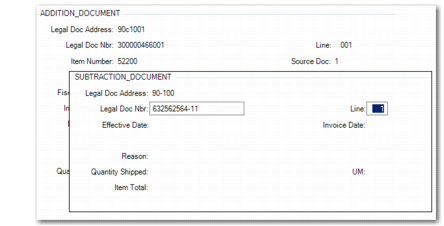
Subtraction Document Frame
Fiscal Ctrl Trans Maint, Subtraction Frame
Legal Doc Address
Displays the address for which the legal document was recorded.
Legal Doc Nbr
Specify the legal document number for which you want to register or adjust a subtraction transaction.
Line
Specify the legal document line number.
Effective Date
If you are adding a new record, specify the effective date. If you leave the field blank, the system records the current date.
Invoice Date
Specify the issue date for the legal document.
Reason
If you are creating a new record, specify the reason.
Quantity Shipped
When you specify a nota fiscal number, the system automatically retrieves and displays the corresponding item quantity.
UM
When you specify a nota fiscal number, the system automatically retrieves and displays the corresponding item unit of measure.
Item Total
This field displays the total value of the item. The item total is the item quantity multiplied by the unit price.
Creating a Transaction Without an Existing Legal Document
You can also create a transaction with a beginning balance without requiring an existing legal document. The flow in Fiscal Ctrl Trans Maint has just a few minor differences.
Note: This functionality is available from QAD 2013 Enterprise Edition.
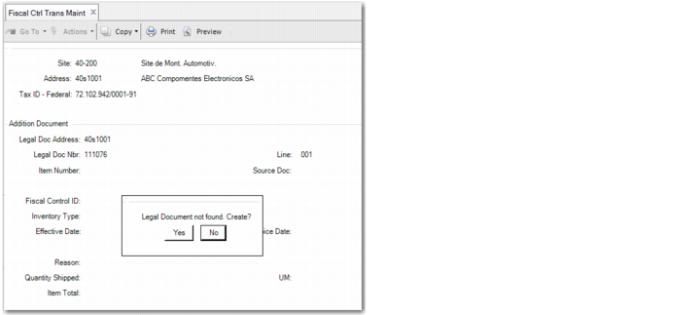
In the Addition Document Section, when you specify a document that does not exist, the system prompts you to create a new legal document, as displayed in
Fiscal Ctrl Trans Maint: Create New Legal Document. When you click Yes, a legal document is generated. The legal document is created with FC at the beginning of the name.
Note: When the legal document is created, FC is added at the beginning of the document number. Therefore, you can only specify a legal document number with ten characters.
Fiscal Ctrl Trans Maint: Create New Legal Document
Important: When you use this function to create a legal document, the programs Detailed Legal Document Report (7.10.7.4), DANFE Print (7.10.7.3), and Fiscal Receiving (5.20.1) are not able to find it.
Next, specify an item number and click Next. The
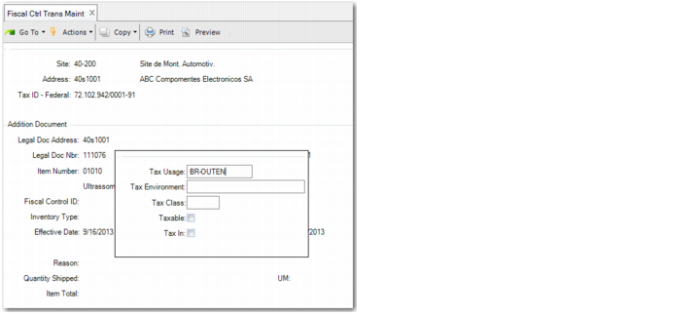
Tax Usage Frame is displayed after you enter the item number. The Tax Usage field must contain a value, as displayed in
Fiscal Ctrl Trans Maint: Specify Tax Usage.
Fiscal Ctrl Trans Maint: Specify Tax Usage
Next, complete the Reason, Quantity Shipped, and Item Total fields, as displayed in
Fiscal Ctrl Trans Maint: Specify Shipment Details. You can then continue to the Subtraction Document frame and complete transaction maintenance.
Fiscal Ctrl Trans Maint: Specify Shipment Details