Updating Unprocessed Fiscal Control Transactions
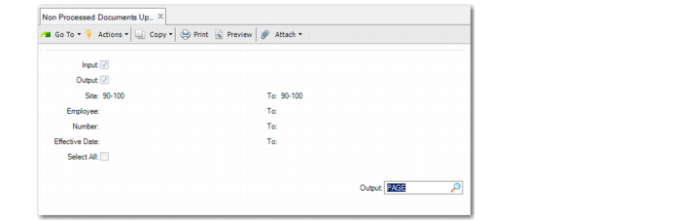
1 In the first frame of Non Processed Documents Update, enter search criteria to retrieve the relevant unmatched fiscal control transactions.
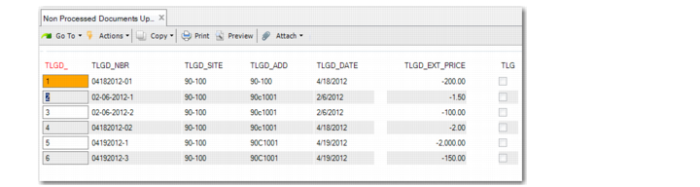
2 Click Next. The system retrieves unprocessed fiscal control transactions that match the search criteria, and displays them in the second frame.
Non Processed Documents Update, Second Frame
3 Use the up and down arrow keys to select a transaction you want to process.
4 Click Next twice.
The third frame becomes active.
Non Processed Documents Update, Third Frame
5 Click the SEL field to select the transaction.
6 Click Next.
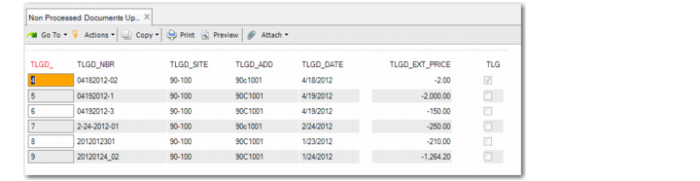
The focus returns to the second frame, where the transaction is now selected in the read-only field on the right.
Non Processed Documents Update, Second Frame
7 Use the up and down arrow keys to select the next transaction that you want to process.
8 Click Next twice.
The third frame becomes active again.
9 Click the SEL field to select the transaction.
10 Click Next.
The focus returns to the second frame, where the transaction is now selected in the read-only field on the right.
11 When you are finished selecting transactions to process, click Back.
The system displays a prompt: “Display items being issued.”
12 Click Yes.
The system displays a prompt: “Is all information correct.”
13 Click Yes if you made the correct selection. Otherwise, click No.
The system returns to the first frame.
Non Processed Documents Update, First Frame
14 Click Next to print a report on the transactions processed.