Updating Bank Details on Multiple Customer Invoices
This chapter describes the customer invoice update function that QAD has developed to meet Brazilian requirements.
OverviewIntroduces the Brazilian requirement and the QAD solution to address this.
Running the ReportDescribes how to use Customer Invoice Update Bank to update multiple invoices simultaneously.
Overview
Business Requirement
In Brazil, suppliers often determine the bank account to which the customer must make payment after the invoice has been created. The bank information on a customer invoice defaults from the Customer record. When creating a payment selection, you can only select invoices where the bank information matches the bank for which the selection was created. Therefore, suppliers often need to manually update bank details on a large mass of customer invoices, which is very time consuming.
QAD Solution
QAD has developed the Customer Invoice Update Bank report (27.1.1.6), which provides a utility that lets you update the bank details on multiple customer invoices simultaneously.
Running the Report
Use Customer Invoice Update Bank to update the bank details on customer invoices. You can run the report in View mode by setting the Update field to No. This displays a report on the invoices that will be updated when you run the report in Update mode.
When updating bank details, the new bank GL account you specify must be linked to the own bank number specified. The own bank number must be linked to the relevant payment format in Bank Payment Format Link (25.11.2), and the new bank details must be linked to the customer record in the Banking tab of Customer Create (27.20.1.1).
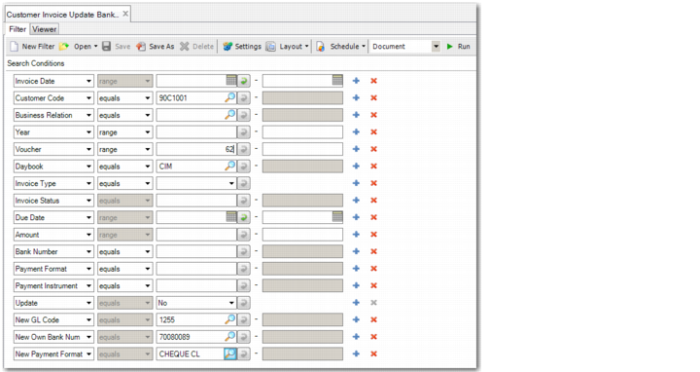
Customer Invoice Update Bank, Selection Criteria
The report includes the following selection criteria:
Invoice Date
Specify a range of dates to update invoices created during this period.
Customer Code
Specify the customer for which you want to update the bank details on invoices.
Business Relation
Specify the business relation for which you want to update the bank details on invoices.
Year
Specify a year or range of years to update invoices created during this period.
Voucher
Specify the voucher numbers for which you want to update bank details on invoices.
Daybook
Specify a daybook to update invoices posted to this daybook.
Invoice Type
Specify the invoice type. The options are Adjustment, Invoice, Invoice Correction, Credit Note, Credit Note Correction, Deduction, Finance Charge, and Prepayment.
Invoice Status
Specify the invoice status code to retrieve invoices with matching codes that meet the other selection criteria.
Due Date
Specify the range of due dates to update invoices due during that period.
Amount
Specify a range of amounts to update invoices with matching amounts.
Bank Number
Specify the own bank number that you want to replace on customer invoices.
Payment Format
Specify the payment format used on the invoices you want to update.
Payment Instrument
Specify the payment instrument used on the invoices you want to update.
Update
Select Yes to update customer invoices with the bank details specified in the New GL Code, New Own Bank Number, and New Payment Format fields.
Select No to list the customer invoices that meet the selection criteria and that will be updated when the report is run in Update mode.
New GL Code
Specify the new bank GL account with which you want to update the invoice records that match the selection criteria.
New Own Bank Number
Specify the new own bank number with which you want to update the invoice records that match the selection criteria.
New Payment Format
Specify the new payment format with which you want to update the invoice records that match the selection criteria.
Example:
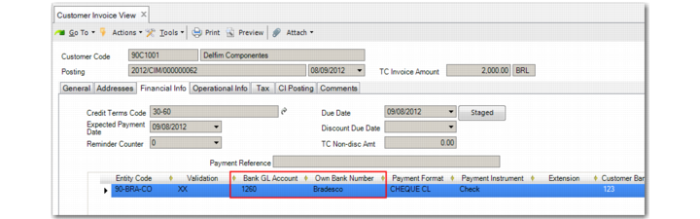
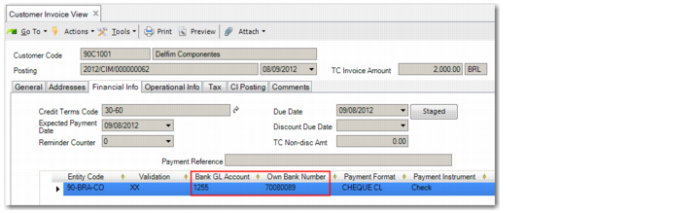
In this example, you will update a customer invoice that currently uses bank GL account 1260 and own bank number Bradesco to use bank GL account 1255 and own bank number 70080089.
Customer Invoice View
Run Customer Invoice Update Bank with the Update field set to No and specify the relevant bank GL account, daybook code, payment format, and own bank number to retrieve the details on the invoice you want to update. The system displays a report on the invoice, which includes two staged payments. No updates have been made to the bank details on the invoice.
Customer Invoice Update Bank Report, View Mode
After you review the report and are satisfied with the results, rerun the report with the Update field set to Yes to update the bank details on the customer invoice.
Customer Invoice Update Bank Report, Update Mode
Review the invoice in Customer Invoice View (27.1.1.3). Note that the bank details have been updated.
Customer Invoice View, Updated Bank Details