QAD Solution
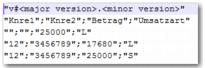
QAD has developed the ZM Report in CSV format to meet this requirement. The QAD solution produces a monthly CSV file; it does not produce a quarterly CSV file.
Prerequisites
Setting up the Generalized Code for Report Content
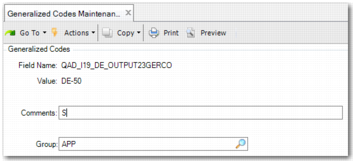
Ensure that you create a generalized code of the format QAD_I19_DE_OUTPUT<Entity> for each combination of entity and tax code that you want to appear in the report.
Generalized Code for the ZM Report
Field Name
QAD_I19_DE_OUTPUT<Entity>, where <Entity> is the entity code.
Value
Specify the tax code.
Comments
Specify the supplier type using the appropriate letter. The applicable letters are described in
Supplier Activities Related to the ZM Report.
Including Entities in a Group
You can include a group of related entities in the ZM Report.
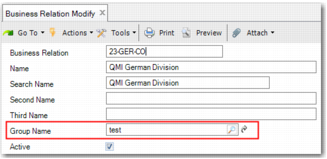
Related entities are displayed in the business relation record. Open Business Relation Modify (36.1.4.3.2) and click the lookup on the Group Name field, as displayed in
Business Relation Group Name. The related entities for this business relation are displayed here. You can set up entities as part of a group in Corporate Group Create (36.1.4.2.1).
Business Relation Group Name
Report Access
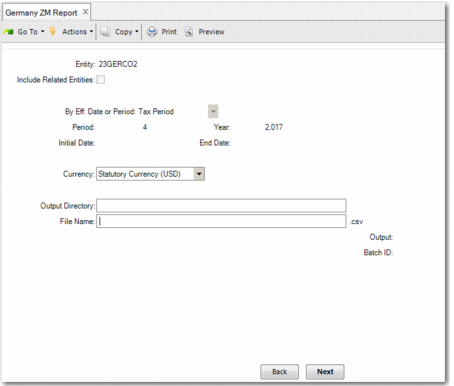
Access Germany ZM Report (36.5.8.12.4).
Germany ZM Report (36.5.8.12.4), Selection Criteria
Entity
Specify the entity for which you want to run the report.
Include Related Entities
To include entities in the same corporate group as the entity specified in the Entity field, select this field. For more information on relating entities to one another, see
Including Entities in a Group.
By Eff. Date or Period
Use the drop-down menu to specify whether the declaration is based on a tax period or GL period, or on a tax date or GL effective date range.
Period, Year
Specify the period and year for the declaration. This field only applies when you select Tax Period or GL Period from the By Eff. Date or Period drop-down menu.
Initial Date, End Date
Specify the initial date and end date for the declaration. This field only applies when you select Tax Date or GL Effective Date from the By Eff. Date or Period drop-down menu.
Currency
Specify the currency in which the data must be extracted. The options are:
• Base currency
• Statutory currency
The extracted information must be in Euros.
Output Directory
Specify the directory to which the file is saved.
File Name
Specify the file name for the report. This field is mandatory. The report generates a CSV file and a PRN file.
If the output file you specify already exists, the system prompts you to indicate whether or not you want to overwrite the existing file of the same name. If you select No, you must specify a different output file name.
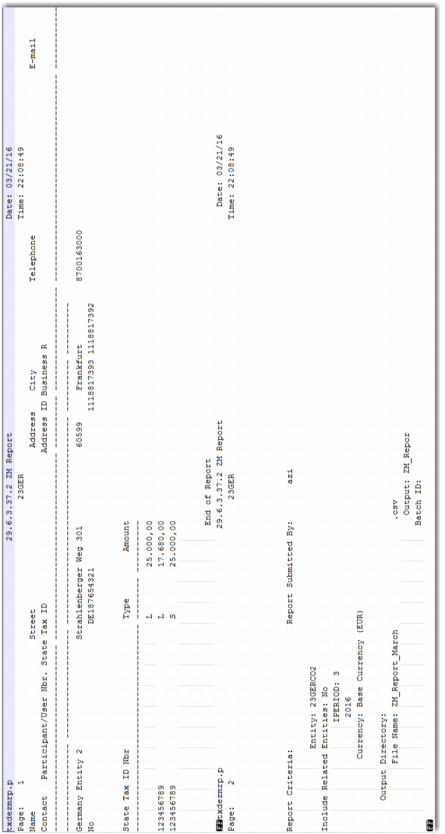
Report Result
Germany ZM Report Result, PRN File
Germany ZM Report Result, CSV File