QAD Solution
QAD has developed Spain SII Declaration (36.5.8.10.1) to meet this requirement. You can use Spain SII Declaration to create declarations for three of the registration books related to the SII system:
• Issued invoices register
• Received invoices register
• Special Intra-Community transactions register
The QAD solution includes the ability to communicate electronically with the AEAT through Web services.
You can create, validate, and send XML format requests related to the AEAT Web service using the Spain SII Declaration menu option.
The solution also allows you to keep note of SII declarations that you make directly through the AEAT Web service.
You can also view invoice statuses and error information returned from the Web service, and send updated declarations to the Web service.
Process Flow
2 Create and validate the SII declarations using the Spain SII Declaration menu. For more information, see
Using Spain SII Declaration.
4 If you submit the SII declarations directly on the AEAT Web site, use the Spain SII Upload Return XML menu to record the XML response from the Web site. For more information, see
Uploading AEAT XML Responses.
5 If the submission to the AEAT Web site contains an error, there are browses and CSV files available to view the error information sent from the AEAT Web service. You can also view the overall status of the submission, or individual invoice statuses. For more information, see
Viewing SII Declaration Invoice Statuses.
6 If necessary, you can send a correction invoice to replace an invoice that was previously accepted by the AEAT Web service. Similarly, you can send an updated invoice to replace an invoice that was previously rejected by the AEAT Web service. For more information, see
Resubmitting Invoices.
SII Declaration Prerequisites
Specifying a Substitute Address for a Foreign Company
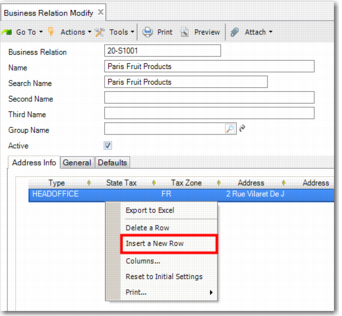
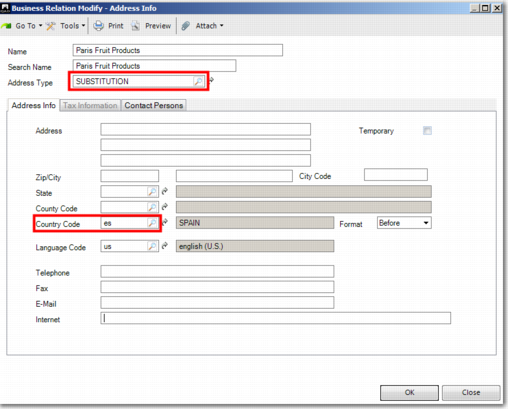
If your company, a customer, or a supplier is based outside of Spain, create a new address of type SUBSTITUTION in the associated business relation. Set the Country Code field to ES.
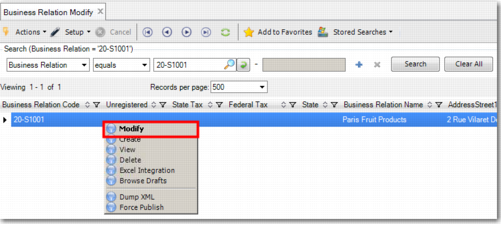
Business Relation Modify (36.1.4.3.2)
Business Relation Modify, Address Info, Frame 1
Business Relation Modify, Address Info, Frame 2
=
Address Type
Use the Address Type field to mark this address as the substitution address.
Country Code
Set the country code to ES.
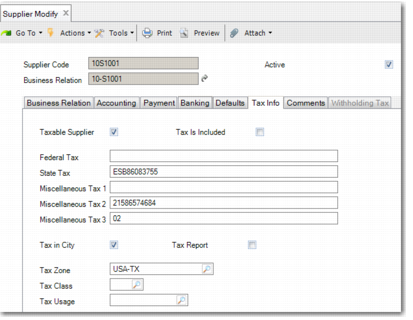
Record the tax identification number or NIF (Número de Identificación Fiscal) of your customer or supplier in the State Tax field of the Tax Info tab of Customer Modify (27.20.1.1) or Supplier Modify (28.20.1.2).
Specifying a Company ID for Foreign Suppliers and Customers
To specify the company ID number and description for a foreign supplier, or customer, use the Tax Info tab of Supplier Modify or Customer Modify.
Supplier Modify (28.20.1.2), Tax Info
Miscellaneous Tax 2
Specify an ID number to identify the company.
Miscellaneous Tax 3
Based on
ID Types, specify the ID type that corresponds with the ID number in the Miscellaneous Tax 2 field.
ID Types
ID Type | Description |
02 | NIF-VAT |
03 | Passport |
04 | Official identification document issued by the country or region of residence |
05 | Residence certificate |
06 | Other supporting document |
07 | Not registered |
Creating Certificate Files for AEAT Web Service Communication
Important: This section assumes that you have installed the AEAT Web Service Authorization Components listed in QAD Spain Internationalization Extension Installation Guide. It also assumes that you have a certificate file in .p12 or .pfx format. If you have a file in .pfx format, substitute .pfx for .p12 in the commands listed in this section.
Create a certificate and private key file to authorize communication with the AEAT Web service:
1 To convert the .p12 file into two files—a certificate file and a private key file—in .pem format:
a Extract the certificate file from the .p12 file; use the command:
openssl pkcs12 -in <CERTIFICATE_FILENAME1>.p12 -out <CERTIFICATE_FILENAME2>.pem -clcerts
where <CERTIFICATE_FILENAME1> is the name of the .p12 certificate file and <CERTIFICATE_FILENAME2> is the name of the .pem certificate file.
Note: When prompted, enter the password for the .p12 file and specify a new password to apply to the .pem certificate file.
b Extract the private key file from the .p12 file; use the command:
openssl pkcs12 -in <CERTIFICATE_FILENAME1>.p12 -out <KEY_FILENAME>.pem -nocerts -nodes
where <CERTIFICATE_FILENAME1> is the name of the .p12 certificate file and <KEY_FILENAME> is the name of the .pem private key file.
When prompted, enter the password for the .p12 file.
This step results in two new files:
• A certificate file, certificate.pem, with a password
• A private key file, certificate_key.pem, without a password
2 Provide QAD application users with read and execute access to these files:
chmod 644 <FILENAME>
where <FILENAME> is one of the two .pem new files.
Depending on your local IT setup, you can grant access to a group of users.
Configuring Communication with the AEAT Web Service
Use Spain SII Communication Control File, Spain SII Web Service Control File, and Spain SII Web Service Browse to set up and view parameters for communicating with the AEAT Web service.
Spain SII Communication Control File (36.5.8.10.22) allows you to specify:
• Authentication information
• Folder locations for XML requests to, and responses from, the Web service
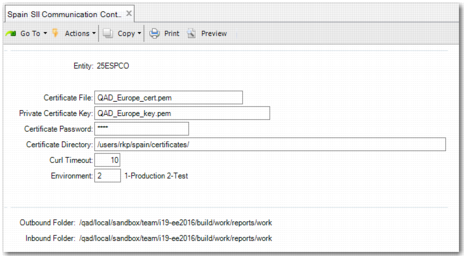
Spain SII Communication Control File (36.5.8.10.22), Selection Criteria
Entity
Specify the entity for which you want to prepare an SII declaration.
Certificate File
Specify the .pem file name for the digital certificate that authorizes your company to connect to the SII Web service.
Private Certificate Key
Specify the private certificate key.
Certificate Password
Specify the certificate password, which is required to connect to the AEAT Web service.
Certificate Directory
Specify the directory in which the digital certificate is stored.
Curl Timeout
Specify the amount of time in seconds until the system tries to access the Internet address of the AEAT Web service.
cURL is a command line tool used to send files using URL syntax and is used to communicate with the AEAT Web service.
Environment
Specify the AEAT environment type. Possible values are:
• 1: Production AEAT environment
• 2: Test AEAT environment
Outbound Folder
Specify the path to the directory in which XML-format requests are stored. These files are sent to the AEAT Web service electronically using SII Authorization.
Inbound Folder
Specify the path to the directory in which XML-format responses are stored. The inbound response file names have a specific format; for more information, see
Using Spain SII Declaration.
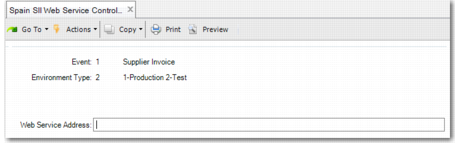
Use Spain SII Web Service Control File (36.5.8.10.20) to specify the URL for each Web service event (transmission type) and environment combination. There are three possible events and two possible environments, so there are six possible URLs.
Spain SII Web Service Control File (36.5.8.10.20)
Event
Specify a value to indicate the transmission (event) type. Possible values are:
• 1 – Supplier Invoice
• 2 – Customer Invoice
• 3 – Special Intra-Community transaction
Environment Type
Specify the environment type for which you are adding a URL. Possible values are:
• 1 – Production AEAT environment
• 2 – Test AEAT environment
Web Service Address
Specify the Web service address for the production or test environment type to which you must transmit files of the type indicated in the Event field.
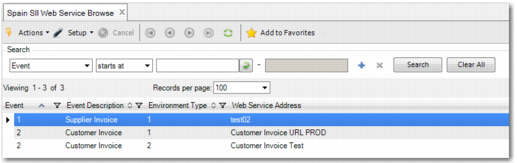
You can use Spain SII Web Service Browse (36.5.8.10.18) to view the settings that you specify in Spain SII Web Service Control File.
Spain SII Web Service Browse (36.5.8.10.18)
Configuring SII Declaration Version
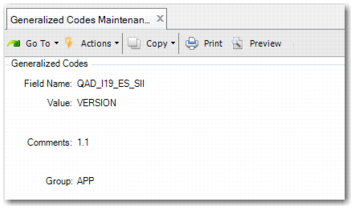
Use Generalized Codes Maintenance (36.2.13) to specify the SII version for which you want to create the declarations.
By default, Spain SII Declaration generates an SII Declaration that complies with version 1.1 of the SII Declaration.
If you want to generate a declaration that complies with a different version of the SII Declaration, create the QAD_I19_ES_SII generalized code.
Generalized Codes Maintenance (36.2.13)
Complete the fields:
Field Name
Set the field to QAD_I19_ES_SII.
Value
Set this field to VERSION.
Comments
Specify the SII Declaration version number.
Click Next to save the settings.
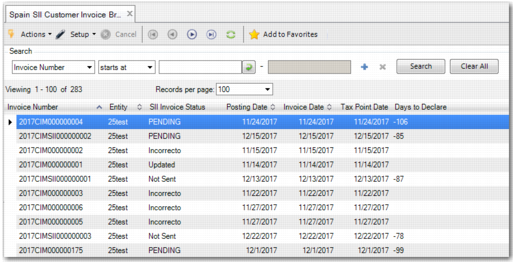
Spain SII Customer Invoice Browse (36.5.8.10.15) and Spain SII Supplier Invoice Browse (36.5.8.10.14) give details of all existing invoice records.
Spain SII Customer Invoice Browse (36.5.8.10.15)
The Days to Declare field specifies the amount of days remaining to declare said invoice. This value initializes as the invoice date specified in
Spain SII Control File (36.5.8.10.24) plus four days. Invoices returned from the Spanish government do not have a value printed in this field.
Configuring SII Declaration Settings
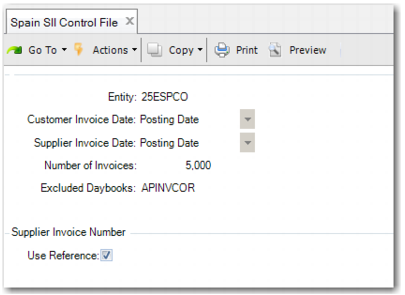
Use Spain SII Control File (36.5.8.10.24) to specify whether the invoice date reported in an SII declaration is the issue date, posting date, or tax point date. Use the Customer Invoice field to specify the type of date used for issued invoices; use the Supplier Invoice field to specify the type of date used for received invoices. These settings apply to special intra-Community transactions also.
Spain SII Control File (36.5.8.10.24)
Complete the fields:
Entity
Specify the entity for which you want to set the invoice date types.
Customer Invoice Date
Specify the type of date used for issued invoices in SII declarations.
Supplier Invoice Date
Specify the type of date used for received invoices in SII declarations.
Number of Invoices
Specify how many invoices to print in each XML file. If there are more invoices than the value specified, another XML file is generated.
Excluded Daybooks
Specify a comma-separated list of daybooks for which related invoices should be excluded from the SII declaration.
Use Reference
If selected, the SII declaration prints the Reference field from the supplier invoice. Otherwise, the declaration prints the year, daybook code, and voucher of the supplier invoice.
Click Next to save the settings.
Setting Up Daybooks for SII Declarations
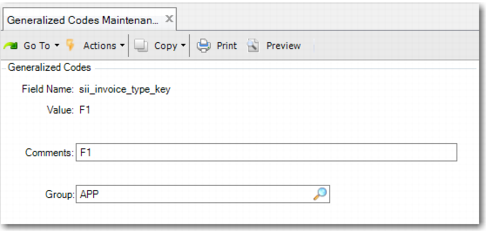
Before setting up daybooks, you must create the possible values for the Invoice Type Key field in Daybook Create (25.8.1.1) in Generalized Codes Maintenance (36.2.13).
Generalized Codes Maintenance (36.2.13)
Field Name
Set this field to sii_invoice_type_key.
Value
Specify the Invoice Type Key value that you want to set up.
Comments
Specify the Invoice Type Key value that you want to set up.
The various Invoice Type Keys that must be set up are listed in the table:
Invoice Type Key Field Values and Descriptions
Invoice Type Key | Description |
F1 | Invoice |
F2 | Simplified Invoice |
F3 | Invoice issued to replace simplified invoices previously issued and filed |
F4 | Invoice summary entry |
F5 | Imports (DUA) |
F6 | Other accounting support material and documents support entitlement to the deduction |
R1 | Corrected Invoice - Error based on Law and Art. 80 One, Two and Six LIVE |
R2 | Corrected Invoice - Art. 80 Three LIVE - bankruptcy |
R3 | Corrected Invoice - Art. 80 Four LIVE - bad debt |
R4 | Corrected Invoice - Others |
R5 | Corrected Invoice - Simplified corrected invoice |
LC | Customs - Complementary Liquidation |
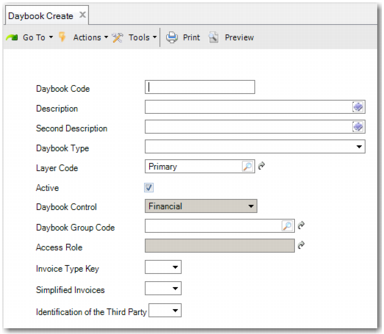
Create daybooks for SII declarations using Daybook Create (25.8.1.1).
Daybook Create (25.8.1.1)
Invoice Type Key
Specify the Invoice Type Key that you want to use for this daybook.
Simplified Invoices
Set this field to Yes to generate the invoices in this daybook as simplified invoices.
Identification of the Third Party
If the invoices generated in this daybook require the identification of the customer or supplier, set this field to Yes.
Specifying the Separator for CSV Files
The QAD solution produces CSV files related to the validation of the declaration.
By default, the values in the CSV files are separated by a semicolon.
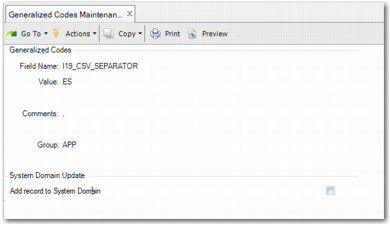
You can specify a custom CSV separator by creating a Generalized Code record as shown in
Generalized Codes Maintenance.
Generalized Codes Maintenance
Field Name
Specify the field name I19_CSV_SEPARATOR.
Value
Specify the country code. For this report, enter the code ES to run for Spain.
Comments
Specify the custom separator that you want to use.
Group
Specify the group APP in this field.
Configuring Tax Rate Settings for SII Declarations
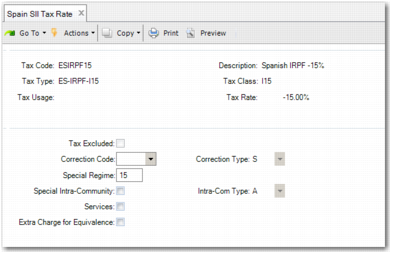
Use Spain SII Tax Rate (36.5.8.10.26) to specify tax code information that is required in SII declarations.
To add the information:
Spain SII Tax Rate (36.5.8.10.26), Screen 1
2 Complete the fields:
Tax Code
Specify the tax code for which you want to enter SII-related information.
Description, Tax Type, Tax Class, Tax Usage, Tax Rate
These fields populate automatically based on the value that you specify in the Tax Code field.
Tax Excluded
If you select this field, the Not Subjected (NoSujeta) part of the XML with Excluded Tax information is printed. If there is setup with any value for this flag, this tax code will be printed in the SII declaration.
If you have not completed the setup for the Tax Code in Spain SII Tax Rate, the invoice will not be printed.
Correction Code
If this tax code relates to an issued invoice for a correction, use the drop-down menu to identify the particular issued invoice type. Possible values are R1, R2, R3, R4, and R5, which are categories of issued invoices described in SII legislation.
Special Regime
Specify the special regime tax code, as defined by the Spanish Government.
When there is a transaction of Successive Tract (Tracto Sucesivo), defined by the special regime tax code 15, the tax point date is different from the posting date. An extra date with the field title Date of Operation (Fecha de Operación) is declared in the XML file.
To send the invoices dated from January 1 to July 31, 2017, the special regime tax code 14 must be specified for invoices received and the tax code 16 must be specified for invoices issued. Entering the code 14 will create two extra fields in the XML file for accounting date and deductible fee, represented by the value 0. The code 16 will create one extra field in the XML file for non-exempt type, with the value S1 for non-exempt invoices.
Special Intra-Community
If this tax code applies to special intra-Community transactions, select this field.
Services
If this tax code relates to services, select this field. If this tax relates to goods, do not select this field.
Extra Charge for Equivalence
If this tax code relates to an equivalence surcharge, select this field.
3 Click Next.
If you completed the Correction Code field, complete the related Type field. Possible values for this field are S (Substitution) and I (Differences), which are types of corrected invoices described in SII legislation.
If you completed the Special Intra-Community field, complete the related Type field. Possible values for this field are A and B, which are types of special intra-Community transactions described in SII legislation.
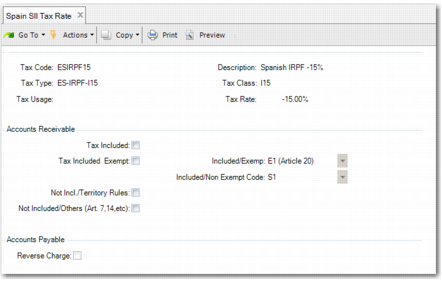
Spain SII Tax Rate (36.5.8.10.26), Screen 2
5 Complete the Accounts Receivable fields:
Tax Included
Select this field if the tax code is included in SII declarations related to accounts receivable transactions.
Note: You must select one of the following three fields.
Tax Included Exempt
If tax is not included, set this field to No and specify a value for one of the following fields, based on SII legislation:
• Not Incl./Territory Rules
• Not Included/Others (Art. 7, 14, etc)
If tax is included, set this field to Yes and redefine the Exempt code.
Not Incl./Territory Rules, Not Included/Others (Art. 7, 14, etc)
See the explanation for the Tax Included Exempt field. This field relates to the ImportePorArticulos7_14_Otros XML tag—amount in euros if the attachment relates to art. 7.14, others—and the ImporteTAIReglasLocalizacion XML tag—amount in euros if the attachment is for operations not subject to the TAI rules of location.
6 Click Next.
If you completed the Tax Included Exempt field, complete the related Included/Exempt field. Possible values for this field are E1–E6, which represent exemption reasons listed in SII legislation.
If you completed the Not Incl./Territory Rules or Not Included/Others (Art. 7, 14, etc) fields, complete the related Included/Non Exempt Code field. Possible values for this field are S1 and S2, which represent Classification of Subject/Non-Exempt transaction type categories listed in SII legislation.
7 Click Next.
Complete the field in the Accounts Payable section:
Reverse Charge
Indicate if this tax relates to a reverse charge.
8 Click Next to save your updates and close the menu.
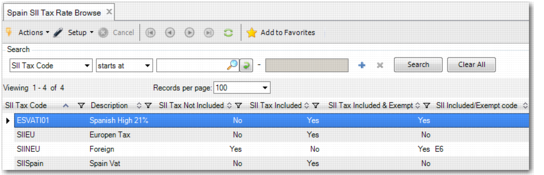
You can use Spain SII Tax Rate Browse (36.5.8.10.27) to review the settings that you entered in Spain SII Tax Rate.
Spain SII Tax Rate (36.5.8.10.26)
Including Entities in a Group
You can include a group of related entities in an SII Declaration.
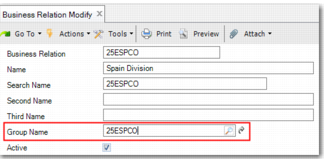
Related entities are displayed in the Business Relation record. Open Business Relation Modify (36.1.4.3.2) and click the lookup on the Group Name field, as displayed in
Business Relation Group Name. The related entities for this business relation are displayed here. You can set up entities as part of a group in Corporate Group Create (36.1.4.2.1). The first nine characters of the Miscellaneous Tax 1 field for each of the related entities must be the same.
Business Relation Group Name
Creating, Validating, and Submitting SII Declarations
You can use Spain SII Declaration (36.5.8.10.1) to create the three types of SII declarations. You can also use this menu to check that the XML content complies with the format prescribed by the government. Finally, you can use this menu to send the declaration to the AEAT Web Service. For more information, see
Using Spain SII Declaration.
Alternatively, you can use Spain SII Declaration to create and validate SII Declaration content, and then submit this content to the AEAT Web site directly. If you submit a declaration in this way, you must upload the response from the AEAT Web site to the QAD application so that your records are up to date. For more information, see
Using Spain SII Declaration and
Uploading AEAT XML Responses.
Regardless of how you submit SII declarations, the QAD solution provides browses, an error log, a CSV output file, and Customer or Supplier Invoice menus so that you can view any errors related to invoices in the declarations, and check the status of an invoice. For more information, see
Viewing SII Declaration Invoice Statuses.
Using Spain SII Declaration
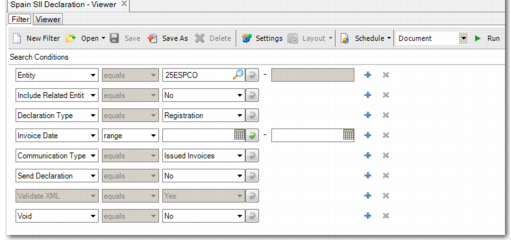
Spain SII Declaration (36.5.8.10.1), Selection Criteria
Entity
Specify the entity for which you want to make the declaration.
Include Related Entities
To include entities in the same corporate group as the entity specified in the Entity field, select this field. For more information on relating entities to one another, see
Including Entities in a Group.
Declaration Type
For original declarations, select Registration. For updates to declarations that you have previously sent, select Amendments.
Invoice Date
Specify the invoice date range for which you want to make the declaration.
Note: Use Spain SII Control File to specify whether the invoice date is the issue date, posting date, or tax point date of the invoice. For more information, see
Configuring SII Declaration Settings.
Communication Type
Specify whether the SII declaration relates to issued (customer) invoices, received (supplier) invoices, or special intra-Community invoices (for transactions within the EU).
Send Declaration
If you want to send this SII declaration to the AEAT Web service, set this field to Yes.
Validate XML
If you want to validate the XML content in the generated SII Declaration file, set this field to Yes.
Void
If you are sending a correction invoice for an invoice that was previously marked as Approved (Correcto) or Accepted with Errors (Aceptado Con Errores) by the AEAT Web service, set this field to Yes. This setting instructs the AEAT Web service to discard the version of the invoice that was previously sent, and to record this version of the invoice in the VAT registration book.
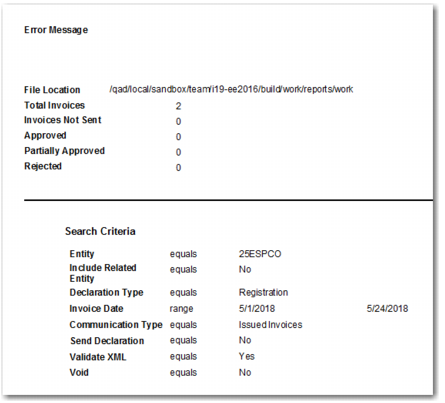
Click Run to create the SII Declaration content; the Declaration result appears, as in
Spain SII Declaration Result.
Spain SII Declaration Result
This result includes:
Error Message
Displays the overall error with the declaration.
File Location
The location of the declaration.
Total Invoices.
The total number of invoices available to send.
Invoices Not Sent
The total number of invoices that were not sent due to errors can be viewed in
<PREFIX>_EXCEL.csv, as described in
Result Files.
Approved
The total number of invoices that were approved.
Partially Approved
The total number of invoices that were partially approved.
Rejected
The total number of invoices that were rejected.
Result Files
Depending on the selection criteria that you specify, running Spain SII Declaration produces two or more files in the Inbound directory that you specified in
Configuring Communication with the AEAT Web Service:
• <PREFIX>_EXCEL.csv, which contains the list of validated invoices in the declaration.
• <PREFIX>_ERROR.csv, which contains the list of invoices that have been removed from the declaration due to errors. This file is only created when the Validate XML field in the Spain SII Declaration selection criteria is set to Yes.
• <PREFIX>_IN.xml, which is the XML file for transmission to the government. The names of the _IN.xml files will add to the order number of the file at the end, for example, _IN_1.xml, _IN_2.xml. The number of created XML files depends on the Number of Invoices value from the Spain SII Control File.
• <PREFIX>_IN_Return.xml, which is the XML file returned by the government. This file is only created when the Send Declaration field in the Spain SII Declaration selection criteria is set to Yes. The names of the _IN.xml files will add to the order number of the file at the end; for example, _IN_Return_1.xml, _IN_Return_2.xml. The number of created XML files depends on the Number of Invoices value from the Spain SII Control File.
For each filename, <PREFIX> is <DATE><TIME>_<COMMUNICATION_TYPE>_<DECLARATION_TYPE>, where:
• <DATE> is in the format required by SII legislation—DDMMYYYY.
• <TIME> is the AEAT server time, in the format required by SII legislation.
• <COMMUNICATION_TYPE> is either AR_SALES, AP_PURCHASES, or IntraComm.
• <DECLARATION_TYPE> is A0 for Registration, and A1 for Amendment, based on the Declaration Type field in the Spain SII Declaration selection criteria. If you set the Void field in the Spain SII Declaration selection criteria to Yes, <DECLARATION_TYPE> is VOID.
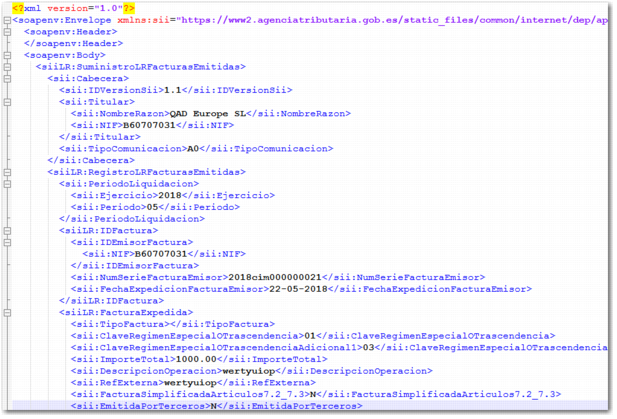
Spain SII Declaration, XML Result for Issued Invoices
Uploading AEAT XML Responses
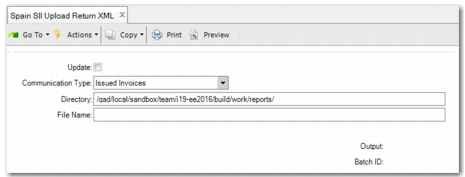
You can submit SII declarations to the AEAT Web site directly—after creating and validating the content using Spain SII Declaration. If you submit a declaration in this way, you must use Spain SII Upload Return XML (36.5.8.10.5) to upload the response from the AEAT Web site to the QAD application so that your records are up to date.
Spain SII Upload Return XML (36.5.8.10.5), Selection Criteria
Update
If you to update the QAD application based on the AEAT XML response file, select this field.
Communication Type
Specify the type of SII Declaration that this XML response from the AEAT Web service relates to.
Directory
Specify the directory that contains the file returned by the AEAT Web service.
File Name
Specify the XML response file returned by the AEAT Web service.
Viewing SII Declaration Invoice Statuses
Regardless of how you submit SII Declarations, the QAD solution provides browses so that you can view the status of the invoices:
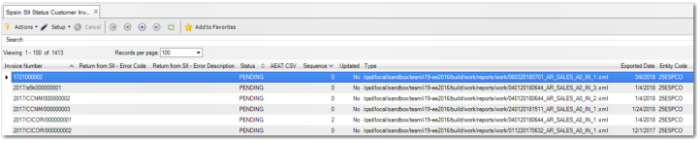
• Spain SII Status Customer Browse (36.5.8.10.11)
This browse allows you to view the status of customer invoices in the declaration that you sent to the Web service. It also includes error columns and a Sequence column that shows you how many times an invoice status was changed. Declarations can be sent for multiple entities, so the browse includes an Entity Code column. The largest sequence value is the most recent invoice status change.
Spain SII Status Customer Invoice Browse (36.5.8.10.11)
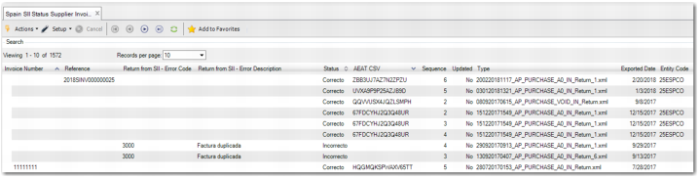
• Spain SII Status Supplier Invoice Browse (36.5.8.10.12)
This browse allows you to view the status of supplier invoices in the declaration that you sent to the Web service. It also includes error columns, reference columns, and a Sequence column that shows you how many times an invoice status was changed. Declarations can be sent for multiple entities, so the browse includes an Entity Code column. The largest sequence value is the most recent invoice status change.
Spain SII Status Supplier Invoice Browse (36.5.8.10.12)
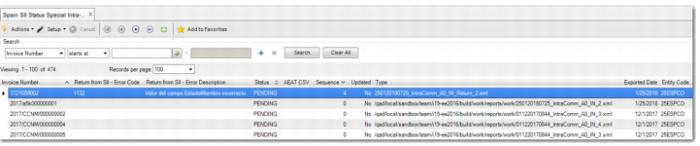
• Spain SII Status Special Intra-Community Browse (36.5.8.10.13)
This browse allows you to view the status of special intra-Community transactions in the declaration that you sent to the Web service. It also includes error columns and a Sequence column that shows you how many times an invoice status was changed. Declarations can be sent for multiple entities, so the browse includes an Entity Code column. The largest sequence value is the most recent invoice status change.
Spain SII Status Special Intra-Community Browse (36.5.8.10.13)
Resubmitting Invoices
You may want to resubmit an invoice:
• As a correction invoice for a previously accepted invoice.
To submit a correction invoice for a previously accepted invoice, use Spain SII Update Status (36.5.8.10.6) to set the invoice status to Void. You can then submit the correction invoice in Spain SII Declaration, setting the Void field in the selection criteria to Yes.
Note: You can only set the invoice status to Void when the current invoice status is Approved (Correcto), Accepted with Errors (Aceptado Con Errores), or Updated, and when the invoice balance is zero.
• As an update to a previously rejected invoice.
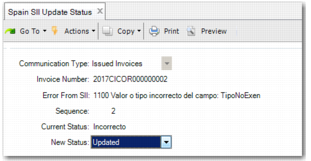
If an invoice that you previously submitted to the AEAT Web service was rejected, you can resubmit an updated version of the invoice. If the resubmission is accepted, it is important to mark the invoice as an updated invoice. To do so, use Spain SII Update Status.
Spain SII Update Status (36.5.8.10.6)
Communication Type
To update the status of a customer invoice, set this field to Issued Invoices. To update the status of a supplier invoice, set this field to Received Invoices. To update the status of an invoice related to an special intra-community transaction, set this field to Special Intra-Community.
Invoice Number
To update the status of a particular invoice, specify the number of the invoice.
Error from SII, Current Status, Sequence
These fields populate automatically, based on the invoice number.
New Status
If you want to replace the (submitted) invoice with a correction invoice, set this field to Void. The status can only be set to Void when the current invoice status is Approved (Correcto), Accepted with Errors (Aceptado Con Errores), or Updated and when the invoice balance is zero.
If you have updated the invoice to correct an error that caused the initial invoice to be rejected, and you want to keep a record of this action, set this field to Updated.