Configuring Excelerator Settings
By default, the global Excelerator settings are stored in the QXtendWorkbookConfig.xml file in the My Documents\QAD\QAD Excelerator folder.
1 In the Ribbon, click the Developer tab.
2 In the QAD Excel Features group, select the features of Excelerator that you want to turn on:
• Enable Export: Lets you export data from the Excelerator worksheet into CSV files.
• Enable QAD Queries: Lets you query data in QAD applications through the QXtend Outbound Query Service.
• Enable Data Grid View: Lets you view data in a data grid view.
• Enable Change Workspace: Lets you change the current domain and entity.
3 In the QAD Configuration group, click QXtend Settings.
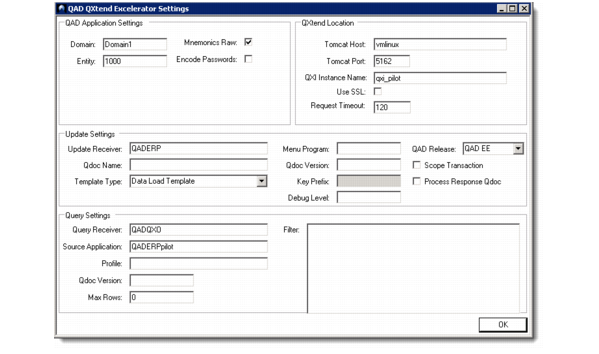
4 In the QAD QXtend Excelerator Settings screen, set up proper settings for Excelerator to work with QXtend and QAD applications.
QAD QXtend Excelerator Settings
QAD Application Settings
Domain and Entity
Specify the domain and entity of the QAD Enterprise Application you want to query data from and load data into.
Mnemonics Raw
Specify whether allow QXtend to process the raw value of a mnemonic field or the mnemonic itself. For example, the EMT Type field in Customer Maintenance is stored as a mnemonic. The raw value is 01; however, the mnemonic displayed on the screen is NON‑EMT.
Encode Password
Specify whether you want to encode your password for accessing the target QAD Enterprise Applications. Encode Passwords is used if the QXtend application is running with <encodedPasswords> set to true. (This value is set in the qxtendconfig.xml configuration file in QXtend Inbound.)
QXtend Location
Tomcat Host and Tomcat Port
Provide the host and port information for the QXI server.
QXI Instance Name
Specify the Webapp name, which is the name of the Web service used to connect to QXtend Inbound.
Use SSL
Select this option if using Secure Socket Protocol https encryption. Enabling this is only applicable if QXtend has been configured to run under SSL.
Request Timeout
Enter, in seconds, the maximum wait time for responses from QXtend Inbound.
Update Settings
Update Receiver
Specify the QXtend Inbound receiver to use to load data into the target QAD application.
QDoc Name
Displays the name of the QDoc API the worksheet relates to. The field defaults from the schema imported into the worksheet.
QDoc Version
Displays the version of the QDoc API the worksheet relates to. The field defaults from the schema imported into the worksheet.
Menu Program
The menu program the QDoc API is mapped to. (Optional: this information is used when retrieving menu-specific column labels and authenticating Query requests.)
QAD Release
Specify the QAD release the worksheet is interacting with.
Template Type
Select the default Excelerator worksheet template type to use when creating worksheet templates.
There are two Excelerator worksheet template types:
• Data load template
It is the system default worksheet template type and used for loading or updating master data into QAD Enterprise Applications.
When you use this template type, the Process Response QDoc option is cleared by default since no message processing is required for QXtend responses.
• Business transaction template
Use this template type when you want to create from Excelerator new business transaction records (for example, sales orders) in QAD Enterprise Applications that require the target system to generate key field values or business document numbers (for example, sales order numbers).
This feature is realized by using the key prefix. When processing the updates to QAD, the temporary key prefix is removed and replaced with the system-generated key (e.g. the sales order number).
Key Prefix
Specify a key prefix (for example, tmp#) to identify key fields or business document numbers of business transaction records (for example, sales order numbers of sales orders) in the worksheet that you want the target QAD application to supply values for. You can then use the key prefix to create temporary key field values (for example, tmp#1, tmp#2, tmp#3 ...) for new records in the worksheet. When the data is sent for processing through the Update QAD function, QXtend replaces the temporary key field values from the requests with values generated by the target QAD application. When Excelerator receives responses containing the system-generated key field values, it updates the worksheet with the new key field values.
The prefix must and can only be defined when the worksheet template type is Business Transaction Template.
The value you enter here defaults to the Key Prefix field in the Design Template dialog box when you design worksheet templates.
Debug Level
Specify the debug level for financial QDocs only. Refer to
Debug Levels for the available level options.
Debug Levels
Level | Description |
1 | Logs the start and end of all entry-level business methods. Entry-level methods are called from outside the business logic. |
2 | Logs the start and end of all methods and procedures, internal and external. |
4 | Logs parameter values of business methods. This level is only available when level 1 or level 2 is active. |
8 | Logs all read or update database queries. |
16 | Logs details of all database update (create, modify, or delete). |
32 | Analyzes performance and logs possible memory leaks in the business code. |
Scope Transaction
Select this option if you want each update from Excelerator to be treated as a whole transaction in QAD. If any error is encountered, the entire update will be backed out.
Process Response QDoc
Specify whether you want Excelerator to process response QDocs returned from QXtend and update the worksheet with any new data.
Yes (Selected): Excelerator processes response QDocs containing detailed business data (the suppressResponseDetails attribute is set to false) returned from QXtend. Any new data in the response messages will be updated into the worksheet.
No (Cleared): The Excelerator ignores any response QDocs returned from QXtend. The suppressResponseDetails attribute is set to true in the request sent to QXtend Inbound, which limits the data contained in the response to processing status and exception messages, excluding any business data to enhance the message processing performance of QXtend Inbound. You should set the option to No for data load templates.
You can only specify this option for data load templates. For business transaction templates, the option is always set to Yes and cannot be changed.
Query Settings
Query Receiver
Specify the receiver to use to query data from the source QAD application. The receiver must be a receiver listed under the Outbound module receivers defined in QXtend Inbound.
Source Application
Specify the source application instance name.
Profile
Specify the name of the profile in QXtend Outbound that defines the format of the queried data.
Note: The format must be compatible with the request XSD that the worksheet was built from. This is important because the format of the query response data must map to the table and field names defined in the worksheet. The table name and field names are case-sensitive.
QDoc Version
Specify the QDoc version.
Max Rows
Enter the default maximum number of records to retrieve into a worksheet during data query. Enter zero (0) to retrieve all matching rows.
Filter
Enter a valid Progress query to use as filter criteria to filter records. The filter must be a valid Progress ABL WHERE clause and can only be defined against the top-level table of the QXO business object; for example:
cm_site = 'SITE1' and (cm_addr >= '0100' and cm_addr <= '100')