How QAD ensures data accuracy
Error Checking
Once you have the data loaded into your worksheet, you can use any of the standard Excel functionality to review and massage this data, making a mass change to a data value or filling in missing data.
For example, there are several finished goods with no Part Group. Go ahead and categorize the connectors as automotive products and assign them the Promotion Group IND.
Make a couple of mistakes – you will see how it picks them up automatically when you try to update QAD.
Demo
1. In item 02001, enter Promotion Group AFTERMKT (not set up yet in Generalized codes)
2. In item 02005, enter Promotion Group IND, Group VLVE (typographical error in Group)
3. In item 02006, enter Promotion Group IND, Group VALVE (correct entry)
Key Points
• Standard Excel functionality
• Familiar tool to most users
• Simple and fast
Update QAD
Once you have the data the way you want it, uploading it back into the QAD Enterprise Application is as simple as pressing a button.
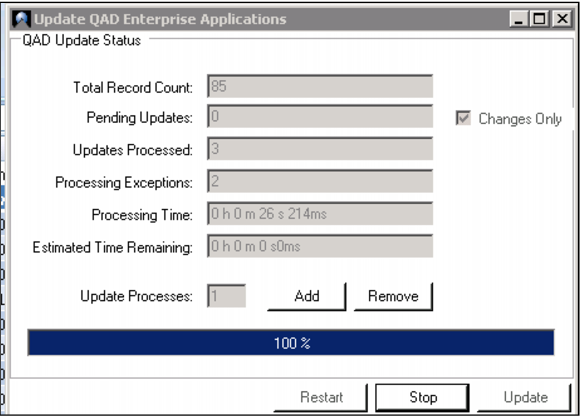
You can process all lines in the worksheet, or just upload the lines that you have changed. Note how Q-Xtend shows you the number of changes to be processed, and tracks any exceptions.
Demo
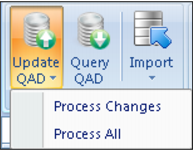
1. Click Update QAD

icon
2. Select Process Changes
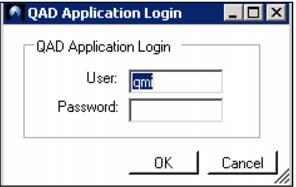
3. Enter User qmi, Password <blank>
4. Click OK
5. Click Yes
Key Points
• Standard security applies
• Processes all lines or changes only
• Tracks processing errors
o Updates processed
o Processing exceptions