How QAD saves time
Data Validation
During the upload, the system verifies the data using the same validation that you would go through if you were entering the data manually.
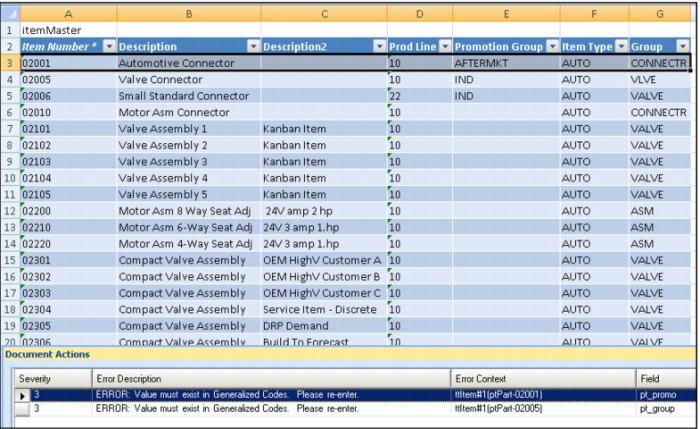
In this example, you made a couple of typographical errors – entering an incorrect Promotion Group and a bad Item Group code. These were caught during the upload and errors generated.
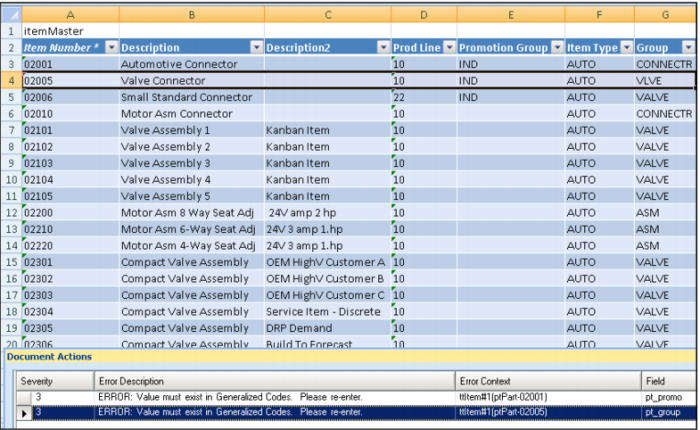
You can see each processing error in the Document Actions portion of the worksheet. Click on any error and it takes you directly to the erroneous line so you can correct the entry. The message tells you what field is in error.
Once corrected, run the upload again. Can you see how it just selects these two items if you select to process only changes?
Demo
1. In Document Actions, double-click first error message
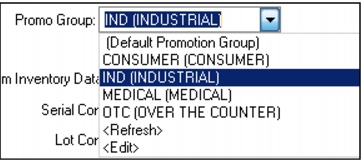
2. In Worksheet item 02001, enter Promotion Group IND
Note: if you really wanted to add a new Promotion Group for AFTERMKT, you would need to set this up as an approved code in QAD ERP using Generalized Codes Maintenance.
3. In Document Actions, double-click second error message
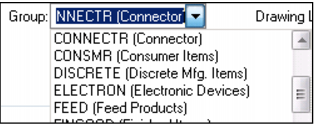
4. In Worksheet item 02005, enter Group VALVE
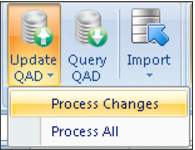
5. Click Update QAD

icon
6. Select Process Changes
7. Enter User qmi, Password <blank>
8. Click OK
9. Click Yes
Key Points
• Processing errors captured and displayed on worksheet
• Button on Excel toolbar to show/hide errors
• Simple to correct and reprocess; Security verified each time
• Errors not cleared until you run the update again
Verify Change
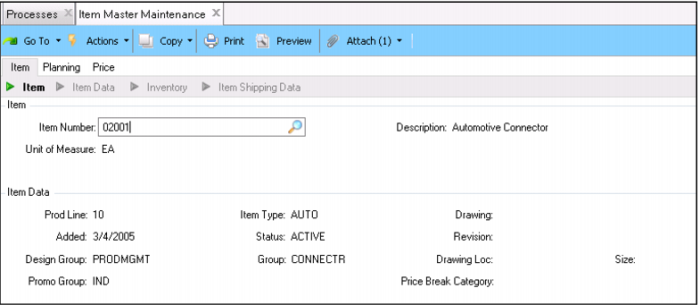
Now all three items have been correctly updated. You see this immediately in the QAD Enterprise Application.
Demo
1. Switch to QAD Enterprise Application
2. Select 1.4.1 Item Master Maintenance
3. Enter item 02001
Note: Promo Group
4. Click Next 2 times
5. In Promo Group, click drop-down
6. In Group, click drop-down
Key Points
• Changes immediately reflected in QAD Enterprise Application
• Generalized Codes validation ensures correct values