QAD QXtend 1.8.7
>
Demo Guide
>
Demonstration Summary
>
How QAD makes it easy to manage multiple operations
How QAD makes it easy to manage multiple operations
Change Workspace
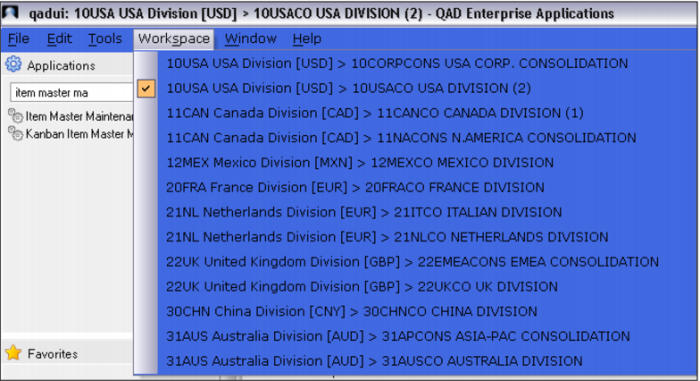
Most companies use QAD Enterprise Applications to manage multiple operations. For example in this demonstration, QMI has operations in the USA, Canada, Mexico, France, Netherlands, UK, China and Australia. These operations are each in different workspaces, but they produce many of the same products.
If you share data with other operations and you wanted to make this change in multiple places, it is easy. All you do is select Change Workspace and upload the data again!
Demo
1. In QAD Enterprise Application, click Workspace drop-down
2. Switch to Excel worksheet
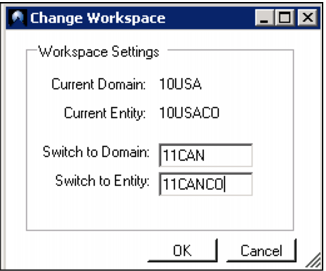
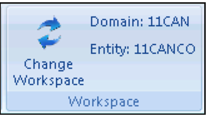
3. Click Change Workspace

icon
4. Enter Switch to Domain 11CAN, Switch to Entity 11CANCO
5. Click OK
6. Delete all of the lines in the spreadsheet except the three items you changed
7. (Optionally) Click Update QAD

icon
8. Select Process All
9. Enter User qmi, Password <blank>
10. Click OK
11. Click Yes
Key Points
• Manage data for one or more workspaces (domains)
• Simplifies mass changes
• Enables coordination of data
• Not used for data synchronization of all data – tools exist in Q-Xtend to do this