Verify QXO Server Installation
This test verifies that the QXO Server was correctly installed, the required AppServer was correctly configured, and the QXO user interface was correctly installed and configured.
To perform the test, do the following:
1 Ensure that the Tomcat AppServer is running.
2 Ensure that the Progress AppServer is running.
3 Ensure that the QAD Enterprise Applications production and qxevents database servers are running.
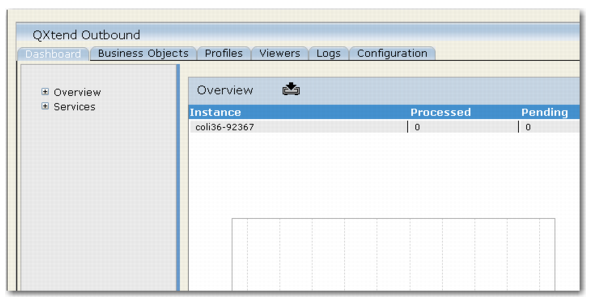
4 Start a browser session on the client and set the URL to:
http://<qxtendhost>:<port>/<QXO webapp>
QXO Dashboard
Note: See User Guide: QAD QXtend for details about the administrative functions.
If your system is not configured properly, the following message can appear when you try to display the QXO Console:
Unable to start Appserver AppServer://servername:9999/QXOSession appserver com.qad.qxo.proxy.QXOProxy
This message indicates that one of the following has occurred:
• The AppServer did not start on the server servername, possibly because of configuration problems.
• The configuration file for the QXO UI (environmentmanager.xml) was not correctly modified to point to the AppServer. Verify that:
• The name of the server running the AppServer is correct.
• The correct port is specified for the NameServer with which the AppServer is registered.
• The name of the AppServer is correct. The default name is qxoui_AS. If multiple AppServers are running on the same machine, you can modify the name.