Installing QXtend
QXtend Installation Settings
QXtend installation involves the automatic or manual population of fields on one or more screens. During installation, hovering over a field label displays the corresponding parameter name. Likewise, hovering over the field displays the fully resolved parameter as a tool tip. For more information on dynamic parameter referencing, see
Tokens.
QXtend Installation Settings
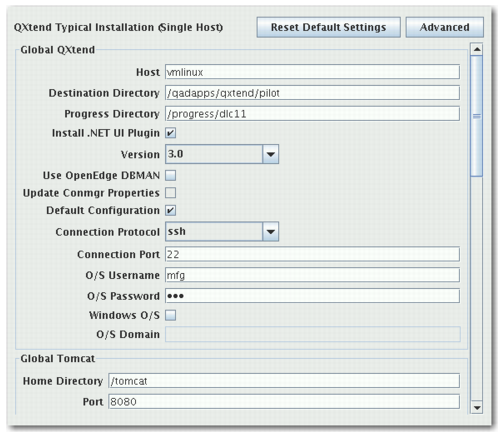
1 In the Global QXtend panel, make the following selections and change the following fields as necessary:
Host
Enter the name of the host where the QAD Enterprise Edition qaddb is installed.
Destination Directory
Enter the directory where the QXtend adapter is located.
Progress Directory
Enter the location of the Progress directory that this QXtend installation uses.
Install .NET UI Plugin
Select this check box if you want to install the .NET UI plug-in.
Version
Select the .NET UI version from the drop-down list.
Use OpenEdge DBMAN
Select this check box to use DBMAN to manage the QXO and qxevent databases. This box is enabled only if you specify QAD EE 2011.1 or later.
Update Conmgr Properties
Select this check box to update the $DLC/properties /conmgr.properties file using the installer. Not selecting this box allows you to update the file manually. This box is only enabled if Use OpenEdge DBMAN is selected.
Default Configuration
Select this check box to load QXtend with an initial set of default configuration parameters. See
Default Configuration for more information.
Connection Protocol
The connection protocol for the UI connection pool. The options are telnet and ssh.
Connection Port
The connection port for the UI connection pool. The default values are 23 for telnet and 22 for ssh.
O/S Username
The user name for the destination host operating system.
O/S Password
The password for the destination host operating system.
Windows O/S
Select this box if the destination host uses the Windows operating system.
O/S Domain
The name of the domain to which the destination host belongs. The field is only enabled if the destination host operating system is Windows.
2 In the Global Tomcat panel, make any necessary changes to the following fields:
Home Directory
Home Directory. Enter the home directory where Tomcat is installed.
Port
Enter the Tomcat port number.
3 In the MFG/PRO panel, make the following selections and change the following fields as necessary:
Version
Use the drop-down list to select the QAD Enterprise Applications version that the adapter is being installed against.
Service Pack
Enter the number of the service pack in use.
Home Directory
Enter the home directory where the QXtend adapter is installed.
Propath
If not populated automatically, enter the MFG/PRO source code (xrc) directory to use during QXtend Adapter compilation.
Database Type
Select Progress, Oracle, or Other, depending on the type of database that QAD Enterprise Applications uses. Other refers to non-Progress and non-Oracle databases.
Database UTF
Whether the database codepage is UTF.
Internal Codepage
Enter the name of the codepage used in memory.
Stream Codepage
Enter the name of the codepage used for stream I/O.
Additional Connection Params
Enter any extra parameters required to compile the QXtend adapter.
Dataserver Connection Params
Used if the database type is Other. Specify the parameters to use to connect to the database through Progress.
Progress Directory
Enter the location of Progress that this instance of the QXtend adapter uses. This version is the same Progress version required by QAD Enterprise Applications.
QRA Source Directory
The QRA Source Directory. It is only needed for QAD 2014 EE and later.
Extra Propath Entries
Extra entries to append to the Propath.
QDT Directory
Enter the location of the QDT. The location is only applicable if you are installing against QAD Enterprise Edition.
Environment Name
Enter the configuration name that was specified in QDT.
MFG DB Start Script
Enter the location of the script that starts the QAD Enterprise Applications databases.
MFG DB Conn .pf
Enter the full path (including the file name) of the connection parameter file that the client session uses.
Financial AppServer
Enter the name of the AppServer for Financials. The name is only applicable if you are installing against QAD Enterprise Edition.
Financial NameServer Port
Enter the NameServer port that the Financials AppServer uses. The port is only applicable if you are installing against QAD Enterprise Edition.
.NET UI Home Directory
Enter the location of the .NET UI Progress code.
4 In the MFG/PRO Database panel, make the following selections and change the following fields as necessary:
Physical Name
Enter the physical name of the qaddb for QAD Enterprise Applications.
Connection Type
Select Local or Network.
Multi-user
Select this option if your database is operating in multi-user mode. If you use this option, the database must be running during QXtend installation. If you do not use this option, shut down the database before installing QXtend.
Database Directory
The database where the QAD Enterprise Applications qaddb is installed. Enter the directory if the connection type is Local.
Host
Enter the name of the host where the QAD Enterprise Applications database is installed.
Service Name
Enter the network service that the QAD Enterprise Applications qaddb uses.
5 In the MFG/PRO Admin Database panel, make the following selections and change the following fields as necessary:
Physical Name
Enter the physical name of the QAD Enterprise Applications admin database.
Connection Type
Select Local or Network.
Multi-user
Select this option if your database is operating in multi-user mode. If you use this option, the database must be running when you install QXtend. If you do not use this option, shut down the database before installing QXtend.
Database Directory
Enter the name of the database directory where the QAD Enterprise Applications admin database is installed.
Host
Enter the name of the host where the QAD Enterprise Applications admin database is installed.
Service Name
Enter the network service that the QAD Enterprise Applications admin database uses.
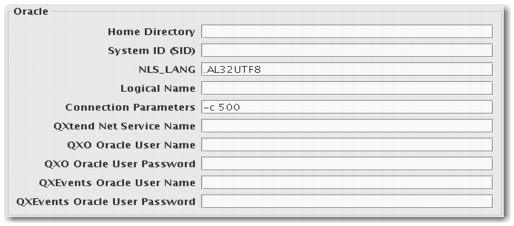
6 If the QAD Enterprise Application is running on an Oracle database, and you select Oracle as the Database Type, a new panel appears at the bottom of Typical Installation. Refer to the following figure.
Oracle Settings
Enter the necessary information in the Oracle screen:
Home Directory
The home directory for the Oracle database.
System ID (SID)
The system ID for the Oracle database.
NLS_LANG.
The NLS_LANG environment variable setting for the Oracle database.
Logical Name
The logical name of the Oracle database.
Connection Parameters
Additional Oracle database connection parameters.
QXtend Net Service Name
The Oracle net service name for QXtend.
QXO Oracle User Name
The Oracle user name for the QXO database.
QXO Oracle User Password
The Oracle user password for the QXO database.
QXEvents Oracle User Name
The Oracle user name for the QXEvents database.
QXEvents Oracle User Password
The Oracle user password for the QXEvents database.
7 QXtend provides two installation methods: Typical and Advanced.
Typical Installation is a simplified install process that automatically fills the QXtend installer fields with parameters for a default QXtend installation. For detailed information regarding default installation parameters, see
Typical Installation Parameters.
Advanced Installation allows you to individually enter the parameters to create a custom QXtend configuration. You are also able to add additional QXtend adapters and QXO Events Databases according to the number of QAD Enterprise Application installations. Finally, if you want to modify any of the default configuration parameters, use QXtend’s advanced installation mode.
To continue with a typical installation, click Next and go to
Review the Pre-installation Summary.
To perform a custom installation, click Advanced and go to
Advanced Installation.