Connection Pools
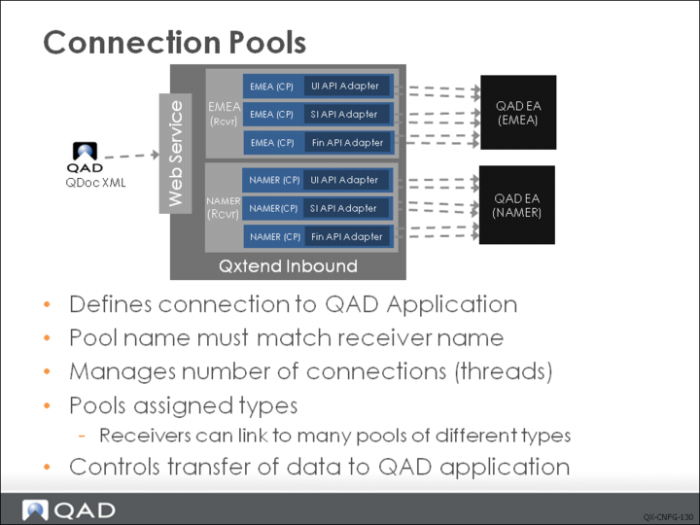
QXI connection pools provide connections from QXtend to specific instances of QAD applications. The connections enable request data passed into QXtend to be loaded into the target QAD application using the APIs that are available. The collection of connection pools available in QXI is managed by the Connection Pool Manager.
Connection pools are assigned a name that must match the name of the receiver it is intended to process data for. If the names do not match, QXtend cannot pass data from the receiver to the connection pool that ultimately loads the data into the target application.
The settings on the connection pool also control the number of connections that are available to process requests; the minimum and maximum pool size are standard settings on a connection pool. Once the maximum number of connections has been reached, no new connections are created. The maximum pool size settings shows the maximum number of requests that can be processed simultaneously.
There are different types of connection pool; the connection pool type controls how data is moved from QXtend to the target application; for example, the UI API uses a telnet or ssh connection to load data, whereas the SI API uses a connection to the Progress AppServer and the Fin API is one kind of SI API but use a connection to Financial AppServer. When creating an instance of a connection pool, the details required to establish the connection to the QAD Application can vary considerably depending on the connection pool type.
The combination of the connection pool name and pool type uniquely identifies a connection pool. A receiver can be linked to one or more connection pools depending on the APIs used. This allows requests to one receiver to use different API mechanisms to access the QAD application logic. The relevant connection pool required to process the request is identified from the API name, and version details that are stored within QXtend.
Connection Pool Manager
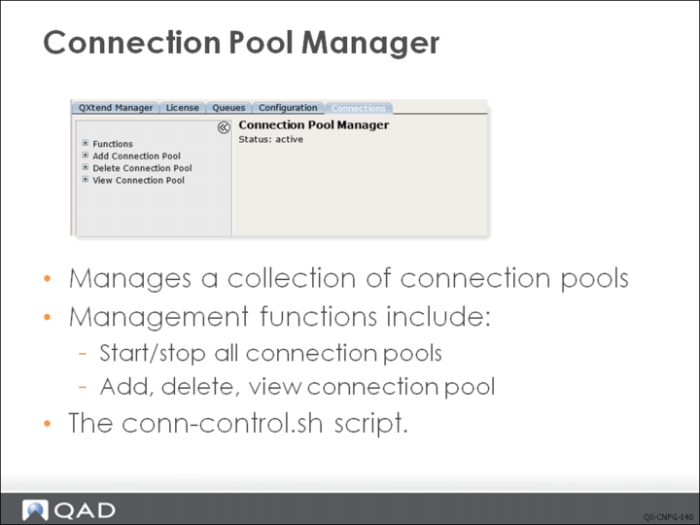
You access the Connection Pool Manager by selecting the Connections tab. The Connection Pool Manager provides a centralized management console that allows users to maintain their required connection pools. The target QAD applications may require several connection pools per instance depending on the APIs being used.
Connection pools can be individually created, deleted, updated, stopped, or started from this console. You also can stop and start all connection pools by clicking Restart Connection Pool Manager.
In addition to managing connection pools on the administrative UI, you can also use the connection pool manager script to start, stop, restart, and shut down connection pools, as well as query the connection pool status. The script is at WEB-INF/scripts directory of the QXI web application.
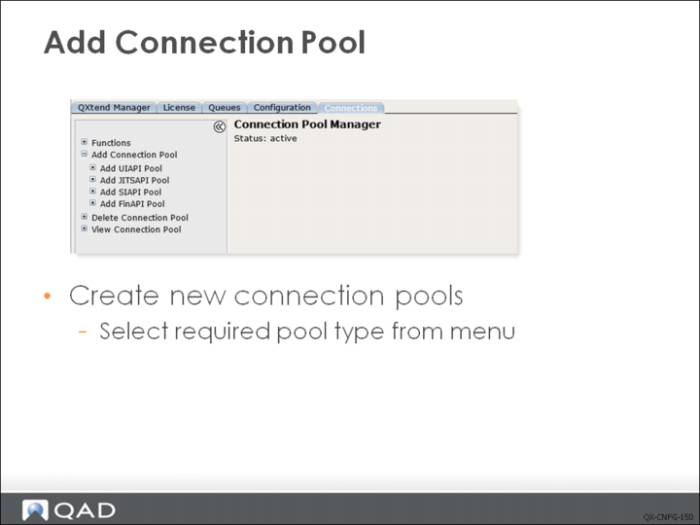
Adding a Connection Pool
Adding a UI API Connection Pool
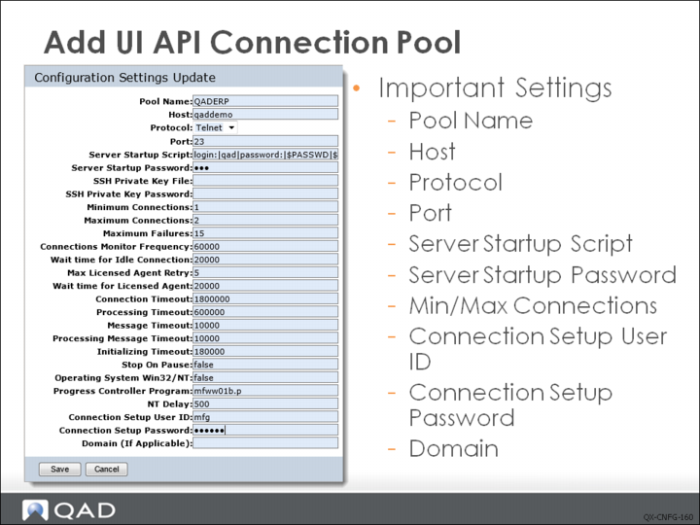
The UI API connection pool type leverages a telnet connection to log in to the QAD application and load data from QXtend. Many configuration parameters are defined against the UI API connection pool; however, most of these settings do not need to be changed as they are for advanced performance tuning and configuration (for details see User Guide: QAD QXtend).
The following parameters must be configured correctly to establish a connection:
Pool Name
– The name that you want to assign to the connection pool instance. Remember that this must be exactly the same name as the Receiver and it is also important to remember that QXtend Inbound is Case Sensitive so the names must match exactly including the case of the letters.
Host
Hostname of the machine where the QAD Application instance is running, the UI API Adapter opens a telnet connection to the host machine and use the name given here to establish that connection.
Protocol
The protocol for the connection. Available options are Telnet and SSH. If SSH is chosen, two other parameters are enabled, SSH Private Key File and SSH Private Key Password. However the two parameters are not mandatory for ssh communication since ssh can work with or without public/private key pairs.
Port
The port number that is available on the host machine for telnet or ssh communications. The default is 23 for telnet communication and 22 for ssh communication.
Server Startup Script
When UI API Adapter opens a connection, it uses this script to login to the host machine and launch a QXtend specific startup script. This setting scripts the actions that must be performed to successfully login and start the connection. The script is effectively prompt value pairs the first entry is a prompt that is displayed during each step of the login process and the second entry is the value that needs to be entered. The prompts are simple to identify by using a telnet session to log into the machine and launch the connection startup script, record these prompts and actions and these are the values that need to be entered into this parameter.
The following pre-formatted script is provided that needs to have the correct values substituted when the Add UI API connection pool option is selected:
loginPrompt|userid|passwordPrompt|$PASSWD|osPrompt|startScript
For a valid connection pool login script, it should be changed to something like this:
login:|mfg|Password:|$PASSWD|$|/dr01/scripts/client.qxtend
Note: The password is not supplied as plain text to ensure that the password is protected.
Server Startup Password
Holds the password that is used by the Server Startup Script, the value of the password is masked.
Minimum Connections
The minimum number of idle connections that the connection pool will try to maintain. If the minimum connections is 2 and the pool has 2 idle connections, and then one of the connections is assigned to the busy status the connection pool will automatically start another connection to maintain a minimum of 2 idle connections.
Maximum Connections
The maximum number of connections that can be created for this connection pool. Once the maximum number of connections has been reached the connection pool stops trying to spawn new idle connections.
Connection Setup User ID
The user ID that is used to login to the QAD Application. The startup script defines the user to connect to the host machine and this is the QAD Application user.
Connection Setup Password
Password required for the specified user ID to login successfully into the QAD Application, this password is not shown in plain test.
Domain
The QAD Application domain to use when logging into an application version that supports the QAD Domain architecture.
Adding an SI API Connection Pool
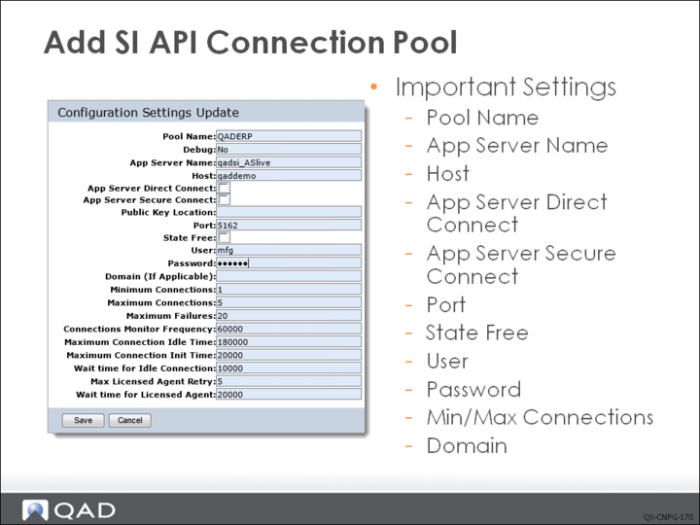
The SI API connection pool type uses a the Progress AppServer technology to execute QAD Business Services without using a telnet session and therefore requires a different set of connection parameters to access the services. There are many configuration parameters that are defined against the SI API connection pool. However, many of these settings do not need to be changed as they are for advanced performance tuning and configuration (for more information on the parameters see the User Guide: QAD QXtend).
Pool Name
The name that you want to assign to the connection pool instance, remember that this must be exactly the same name as the Receiver and it is also important to remember that QXtend Inbound is Case Sensitive so the names must match exactly including the case of the letters.
AppServer Name
The name of the AppServer that is hosting the Business Services that need to be accessed by QXtend. This is the name that has been configured in the Progress ubroker.properties file.
Host
Hostname of the machine where the Progress AppServer instance is running the SI API Adapter connections to the machine hosting the Progress AppServer and uses the name given here to establish that connection.
App Server Direct Connect
Specify whether you want QXtend Inbound to directly connect to the AppServer.
App Server Secure Connect
Specify whether you want the connection pool to connect to an SSL-enabled AppServer. This way the communication is encrypted and cannot be monitored on network. The parameter Public Key Location is only used when App Server Secure Connect is set to true.
Port
Enter the port number for the AppServer or the NameServer, depending on your App Server Direct Connect setting. If you select the App Server Direct Connect option, enter the port number for the AppServer. Otherwise, enter the port number for the NameServer that is controlling the AppServer instance.
State Free
Specify in which operating mode the connection pool can connect to AppServer.
Yes: The connection pool can only connect to AppServer when operatingMode is State-free.
No: The connection pool can only connect to AppServer when operatingMode is Stateless.
User
The user ID that is to be used to login to the QAD Application instance.
Password
Holds the password that is used to login to the QAD Application, the value of the password is masked.
Minimum Connections
The minimum number of idle connections that the connection pool will try to maintain. If the minimum connections is 2 and the pool has 2 idle connections and one of the connections is assigned to the busy status, the connection pool will automatically start another connection to maintain a minimum of 2 idle connections.
Maximum Connections
The maximum number of connections that can be created for this connection pool. Once the maximum number of connections has been reached the connection pool stops trying to spawn new idle connections.
Domain
The QAD Application domain to use when logging into an application version that supports the QAD Domain architecture.
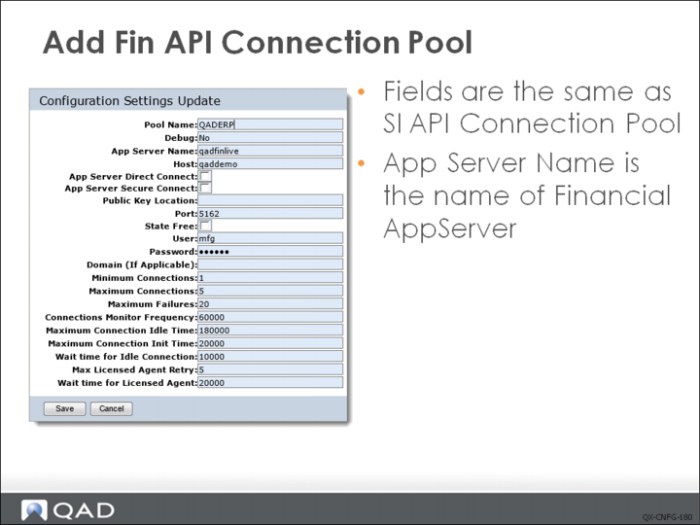
Adding an Fin API Connection Pool
Managing Connection Pools
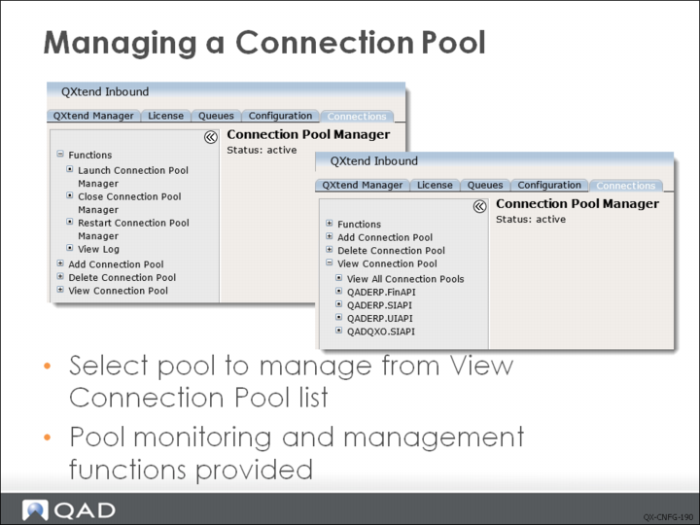
You can stop or start all connection pools by using the Close Connection Pool Manager, Launch Connection Pool Manager, and Restart Connection Pool Manager options from the Function node on the navigation tree menu. However, to manage an individual connection pool it is recommended that you navigate to the page for the specific connection pool and use the options that affect the current connection pool only.
To access the management page for a connection pool, navigate to the Connection Pool Manager and expand the View Connection Pool node on the tree menu. Then select the pool you want to manage from the list to display the management screen for that pool.
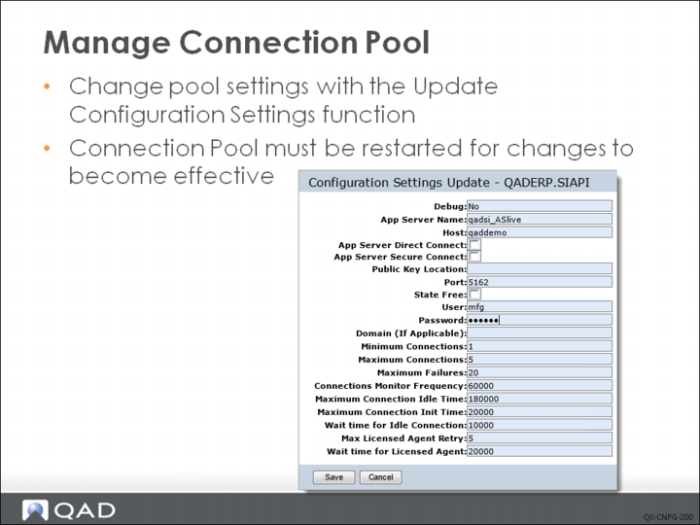
The Configuration Settings Update page on the Connections tab contains functions for managing a connection pool. The advanced user can configure the pool to ensure optimal operation, as well as adjust the size of the connection pool. To change the connection pool configuration, select Update Configuration Settings in the Functions menu. If the configuration of a connection pool is modified, the pool must be restarted for those changes to take effect since pool settings are cached when the pool is started.
The Connections node on the menu tree contains options for viewing the current status of your connection pools:
• All: Displays all connections in the pool and current status.
• Busy: Displays connections that are processing an API request.
• Idle: Displays the connections that are idle and available to process requests.
• Initializing: Displays the connections that are been started.
When setting up a new connection pool, you must ensure that idle sessions are being created before trying to process any requests to QXI.
Viewing a Connection Pool
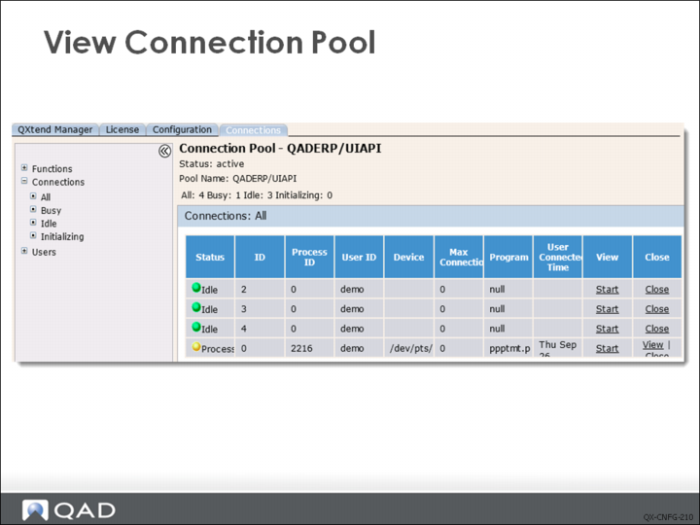
When viewing a connection pool, you can see the current status of the connection pool. Idle sessions are available to process requests; busy sessions are currently processing requests.
When a connection is busy processing a request, the program shows the API that is being executed. In the example above, the Program is set to ppptmt.p (Item Maintenance).
If the connection pool is a UI API pool, the View column lets you start a viewer that shows the underlying character screen used to load data into the QAD application. This is useful when debugging errors.
Deleting a Connection Pool
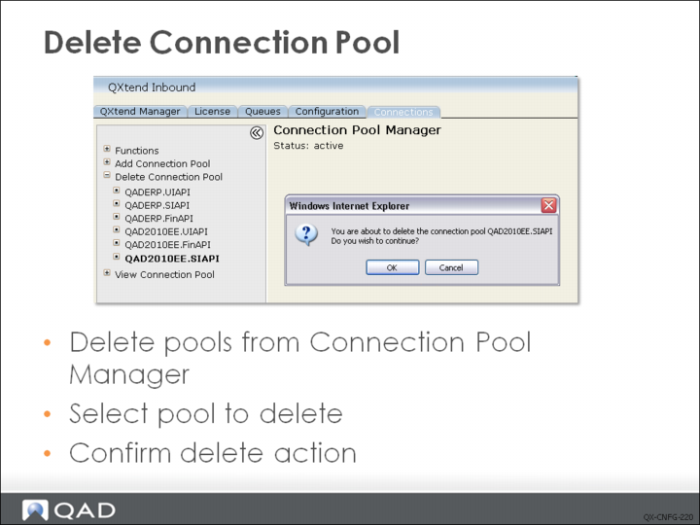
You can delete individual connection pools by using the Connection Pool Manager. Expand the Delete Connection Pool node to view a list of all connection pools currently configured in the QXtend instance. To delete a pool, select the pool from the list. The system prompts you to confirm the delete. When the delete is confirmed, the connection pool and all its connections are removed from the QXI configuration.
Exercise: Connection Pools
The following list shows a number of key concepts used in connection pools in QXI. In each statement below, fill in the correct term from the list.
QAD applications | pool type |
pool name | UI API |
connection pool name | receiver |
maximum number of connections | idle sessions |
request data | Connection Pool Manager |
SI API | Fin API |
1 QXI connection pools provide connections from QXtend to specific instances of ______.
2 The connections enable ______ passed into QXtend to be loaded into the target QAD application using the APIs that are available.
3 You use the ______ to administer the connection pools available in QXI.
4 When creating a connection pool, the assigned _____ must match the name of the ______ it will process data for.
5 No new connections are created once the ______ has been reached.
6 QXI uses three types of connection pool: the _____ pool type, the _____ pool type and the ______ pool type.
7 Pool type _____ connects to the Financials AppServer.
8 A connection pool is identified by the unique combination of ______ and ______.
9 When setting up a new connection pool, you must ensure that ______ are being created before trying to process any requests to QXI.