Edit QDoc Request (Request Data)
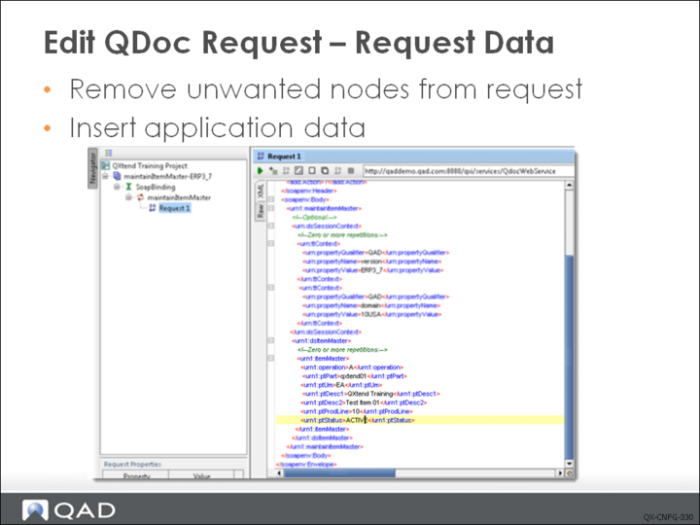
The request data section of the SOAP–BODY contains the actual application data that needs to be loaded into the target QAD application.
When a new WSDL project is created in SOAP UI, by default it includes every XML node defined in the API interface definition: in the case of QXtend, in the QDoc XML schema. This means that if you create a project for a Sales Order, the sample message will contain hundreds of XML nodes/fields—and iterations such as Comments, Tax, and so on—that may not be required.
The first task when editing the request data is to identify the nodes/fields required to successfully process the transaction you are trying to load into the QAD application. The best approach is to only supply the values in the request that are definitely required, as this will help to minimize the amount of data being passed across the network.
Once the sample request has been trimmed down to the required elements, the next step is to update the request with the application data that you want to load. The nodes in the XML are named to represent the data elements that will be loaded: for example <soNbr></soNbr> represents the location in the message for the sales order number. Update the nodes with the application data; for example, <soNbr>SO12345</soNbr> defines a sales order number of SO12345. When processed this value will be used to update the existing order, or to create a new one with the specified number. All nodes in the request should be updated to contain data that needs to be loaded.
In the example, a new item is being created with the item number = qxtend001, unit of measure = EA, Description 1 = QXtend Training, Description 2 = Test Item 01, and Status = AC. Other values not defined in the request are assigned default values.
Additional Notes
The different adapters supported by QXtend behave differently when values are removed/omitted from the XML. The following list describes how each adapter handles removed nodes.
• UI API adapter: When adding, fields are assigned the default value configured within the application. When modifying existing data, the value is left unchanged.
• Fin API adapter: When adding, fields are assigned the default value configured within the application. When modifying existing data, the value is cleared and any data previously stored in the field is lost. When modifying a record, ensure that all data for the financial component is included in the request, otherwise unexpected errors may occur when processing the request resulting in lost data.
• SI API adapter: When adding, fields are assigned the default value configured within the application. When modifying existing data, the value is left unchanged.
Process Request
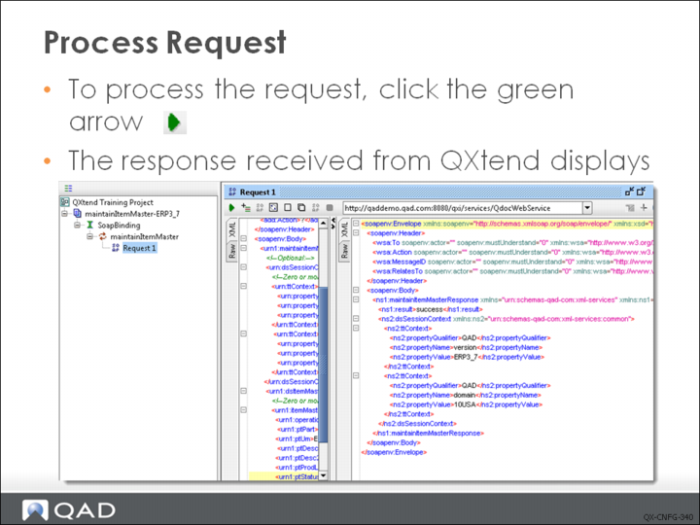
The final step is to process the request you have built by invoking the QXtend WebService, and passing the QDoc XML message from SOAP UI to QXI. The green arrow icon in the Request window executes the Web Service call and passes the XML to QXtend.
The request is processed and SOAP UI waits for the response from QXI. When the response is received it display in the response section of the Request Message window. The response details indicate the status of the response; the <ns1:result></ns1:result> node contains the status, which should be success, error, or warning.
Errors that occur during message processing display in the dsExceptions area of the response message.