Source Applications
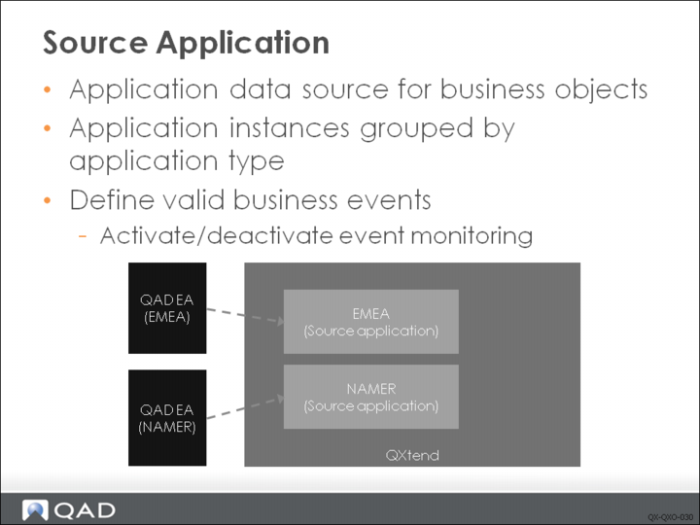
Source applications supply the business events and business data that drive QXO. Business events are raised by the source application and identify when changes have been made. The business event also identifies which instance of the business object has been changed. This data identifies the data that needs to be extracted by the event service. The event is used to locate the business objects to extract. The source application is configured to connect to the source application and extract the data.
The source application is assigned a unique name that identifies the instance. The source application also defines a set of databases that collectively contain all of the data for that application. The configuration contains all the information required to connect to the application database and extract data when processing an event. The source application contains a list of all valid events for that application, including which of those events types are active. Changing an event type to inactive in the source application will prevent QXO from processing any events of that type that are raised.
Source Application Types
Source application instances are linked to a specific source application type. The type enables multiple instances of a QAD application release to be created. Instances of a source application type share the same set of application databases; those databases must have identical schema definitions.
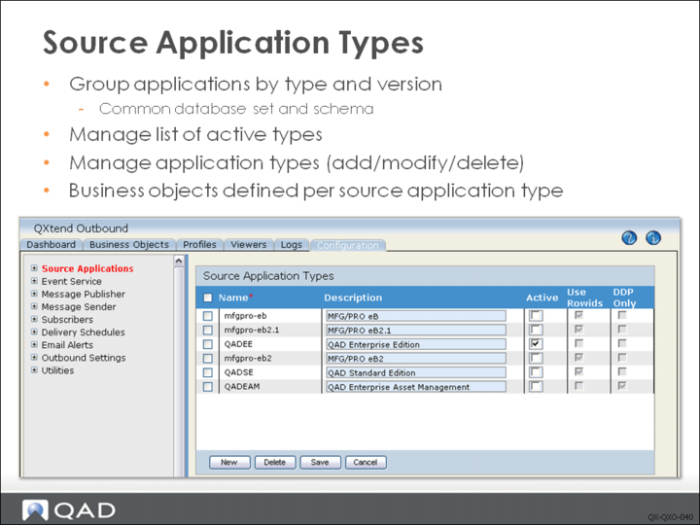
Source applications can only be created for active source application types. To view the active source applications types, select the QXO Configuration tab and then select the Source Applications node in the tree menu. You can then modify the Active attribute for each type. The Active check box also controls the list of source application types displayed in the Business Objects and Profiles maintenance screens—only active source application types display.
QAD QXtend ships with a predefined list of source application types and associated business objects and profiles. You can create your own types and group your application instances under your specific type. The source applications section of QXO lets you add, modify, or delete types.
The Use Row IDs flag that is associated to a type determines how QXtend identifies the exact row of data in the source application that was changed as part of the business event that was sent to QXO. When the Use Row IDs check box is selected, the Progress rowid of the table that was changed is used to identify the changed row. When the Use Row IDs check box is not selected, the source application is responsible for publishing a unique ID for every event. If Progress rowids are used, you must be careful when performing a dump and load of any source application databases as this will change the rowid of every record. When performing a dump and load, use the mass rowid synchronization utility to synchronize the rowids in QXtend with the new rowids in the source application instance. For details see User Guide: QAD QXtend.
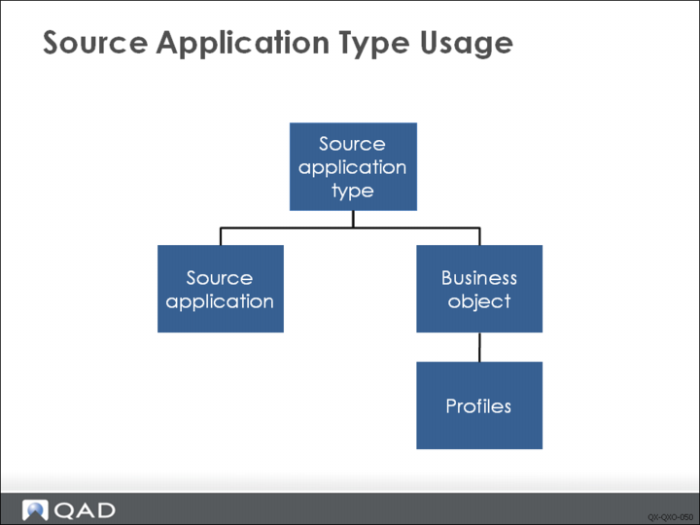
This slide shows how the source application type is used within QXO to group source applications and business objects into common categories that are valid for specific QAD application releases.
As described earlier, the source application defines the set of database connections—all source applications of the same type share the same set of databases and schema. The schema information of the connected databases is used to build the business objects that are available to a source application. Business objects therefore must be specific to a source application type to ensure that the tables and fields used in the business object are valid for any instance of a source application type. If the business objects were not linked to the source application type, definitions could not be shared among source applications; instead, you would have to define business objects for each source application.
Creating a Source Application
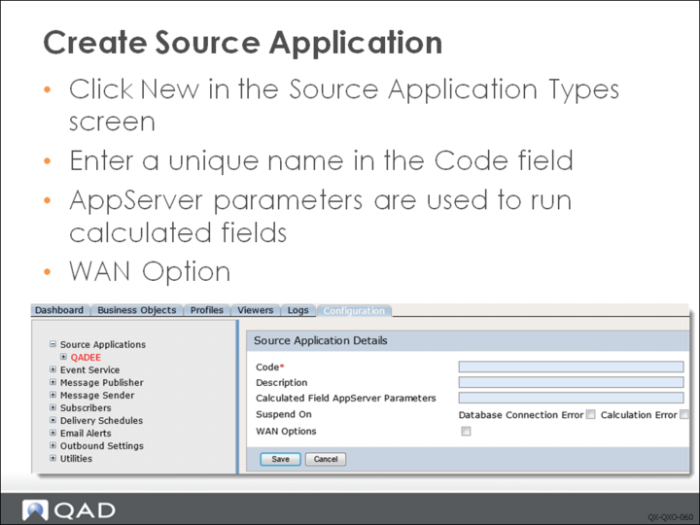
To create a source application, select the Configuration tab, and then click the Source Applications node in the tree menus. Select the source application type you want to create and then click New. Complete the following fields:
Code
The name for the source application instance. Use a meaningful name that identifies the data source and describes the location and type of the source application.
Description
(Optional). Use a meaningful description that identifies the source application instance.
Calculated AppServer Parameters
(Optional). The parameters required to connect to a Progress AppServer. The AppServer can be used to execute calculated field programs that require a connection to the source application database set.
Business objects can contain fields that need to execute business logic to derive a value that is not stored directly in the database. These types of calculations that need database access are executed on a Progress AppServer. The values you enter are used to connect to the AppServer. Typically you need to enter the name of the AppServer and the name of the host the AppServer is running on. For example:
–AppService qxocalc_AS –h qxdemo
Suspend on. (Optional)
Specify whether to suspend the source application on one or both of the following errors: database connection error and calculation error. All QXO services only process events and messages of active source applications and ignore events and messages of suspended Source applications.
In addition, suspended source applications cannot be connected for any UI operations, such as source application configuration. For more information, refer to User Guide: QAD QXtend.
WAN Options
Enabling WAN Options can help to achieve better system performance and reliability when QXtend connects to a source application through a Wide Area Network. When it is selected, three options are displayed: Database Connection Max Retry Limit, QXtend Adapter AppServer Parameters, and Monitor Events. Please refer to User Guide: QAD QXtend for details.
Click Save to create the new source application. You now need to configure the database connections and event types.
Managing Database Connections
Source applications connect to a set of databases that contain the source application data; every source application for a specific type must be connected to the same set of databases. Also, those databases must be connected with the same logical database name.
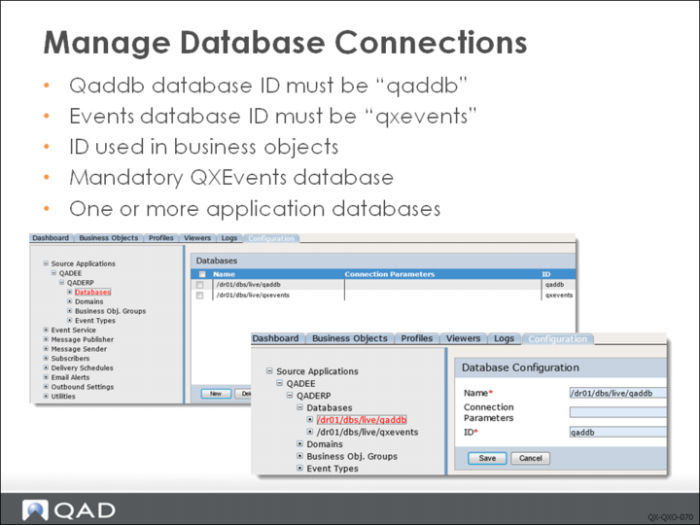
You can add, modify, or delete database connections. After creating a source application, navigate to the Databases menu option under the source application instance in the Source Applications node. Here you can create new database configurations.
To create or modify a database configuration, complete the following fields:
Name
The physical name of the database. When connecting with a Progress shared memory connection, this is the full path to the database. To connect using shared memory, QXO must be running on the same host as the database. Client-server connections require only the physical name of the database—no path is required. The other connection parameters are defined later. The value entered here are the same values as required by the –db Progress connection parameter.
Connection Parameters
(Optional). A string that contains the connection parameters required to connect to a Progress database in client-server mode. Typically these parameters are the host name and the service name for the database; for example:
–H qxdemo –S mfgprod-service
ID
Specify the ID of the database connection. For the qaddb and qxevents databases, the ID must be qaddb and qxevents respectively, regardless of their logical database names. This ID is used when populating the business object with data to ensure that the data is pulled from the correct table in the correct database.
Source applications always have a minimum of two databases defined:
• QXEvents: This database is written to by the source application and stores the details of events that have been raised and not yet processed. Events are deleted from this database once QXO has extracted the data related to the event. The ID for every source application instance must be called qxevents; otherwise transaction processing in QXtend will fail.
• Application database(s): At least one application database must be configured. The application databases are the source for the business object data that QXO extracts. You can configure as many databases as required to connect to all data sources. Typically QAD implementations have additional side databases that contain information required for customer-specific customizations. In this scenario the side database can be connected to and data extracted.
Managing Event Types
QXO listens for events of the source application, which can raise different events. However, the events that a source application can raise are common to the source application type. This means that a source application type has a specific set of events that can occur, which are specific to the type and version of the application.
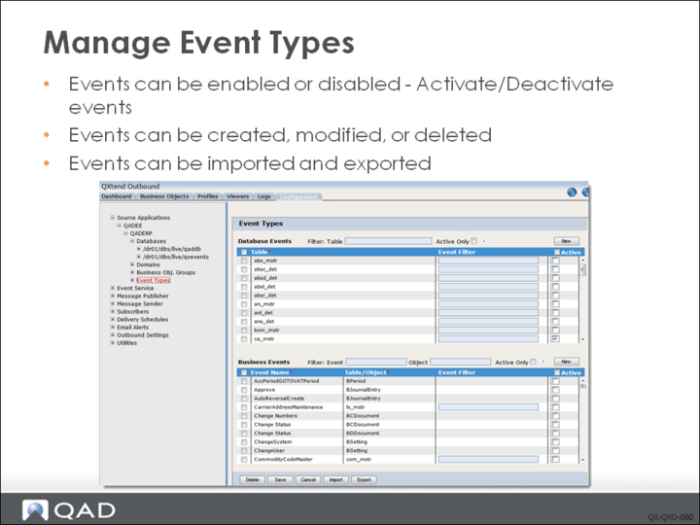
You manage events for a specific source application using the Event Types node under the Source Application node in the tree menu on the Configuration tab. The Event Types page lists all events that can occur in the source application. Only the events that have the Active check box selected are processed in the source application and by QXO.
The default list of event types installed with QXtend does not include all possible event types that could be required; QXO allows you to create new event types. QXO also allows you to modify or delete event types for a source application. When adding a new database table event, ensure that the replication write and replication delete triggers are set up to publish the changes that are made to the database table.
The Filter panel on top of the events lists can be used to search for specific event types.
By clicking the import button, events can be imported from the event file of the source application type which is resided in the events folder under the source application type folder.
By clicking the export button, events can be exported to the event file of the source application type (will overwrite the event file).
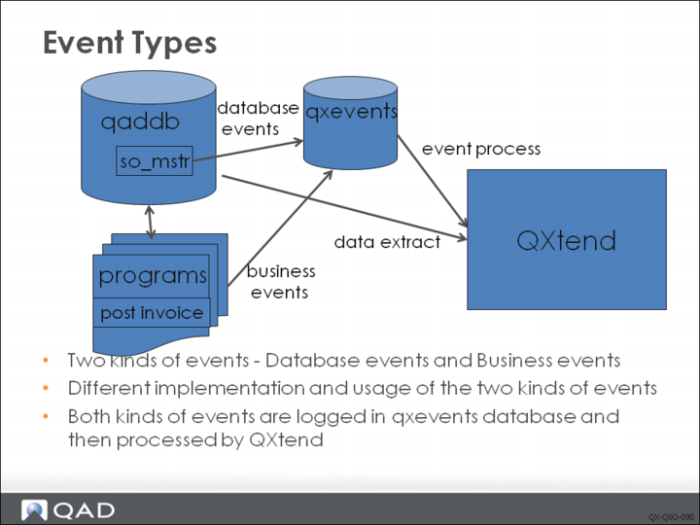
There are two kinds of events:
• Database Events (Database Triggers): Events raised by databases relate directly to changes in a specific database table. The event name must match the name of the table in the application database that has changed; most events are triggered from database schema triggers.
• Business Events (Named Events): Events raised from within the business logic, they have a meaningful names which reflect their business semantics and at the same time they are also linked to the affected database table name.
Business events enhance your control over when a business object is extracted, including the ability to trigger processing at crucial stages within a workflow.
For example, a sales order typically has a well-defined life cycle, from entering the sales order into the system, through processing the shipment, then printing and posting related invoices. If user only wants to extract sales order when related invoices have been posted, user can activate the InvoicePost business events and then QXtend can extract sales order data when this events is processed. This can hardly be implemented by using so_mstr database triggers as the database trigger will generate events for every data change to so_mstr table.
By default, QADSE and QADEE include some business events that are commonly used, like ItemMaintenance, SalesOrderMaintenance, etc. User can customize QAD Enterprise Application programs to add business events as needed. This is an advanced topic.
Comparing to QADSE, QADEE includes more business events. They are business events for QAD Financials business objects and typical event names for QAD Financials business objects are Create, Modify, Delete, etc. More details will be given in
Direct Data Publish.
There is no default business events for eB, eB2, and eB21.
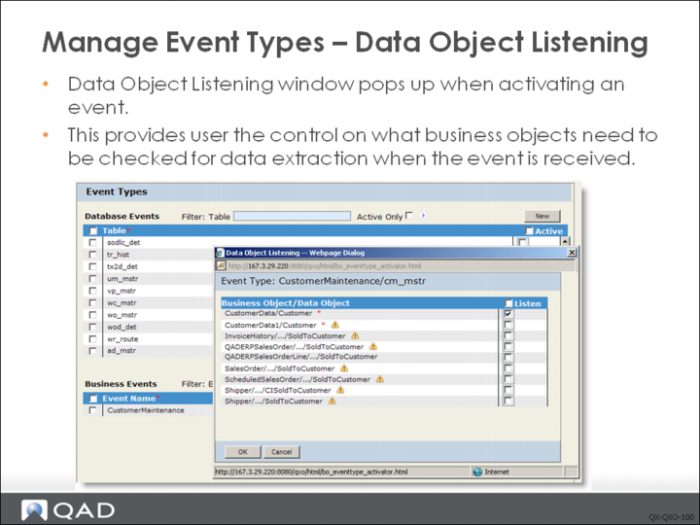
If you selected the Active check box, the Data Object Listening window pops up. The window displays all the business objects and data objects associated with the event type using the following formats:
• BusinessObject/DataObject * for data objects at the top level of business objects with the asterisk indicating that it is a top-level data object
• BusinessObject/.../DataObject for data objects at lower levels of business objects. To see the full path of a data object under the business object, move the mouse cursor over or double-click the abbreviated pathname.
Select the data objects you want to listen to the event type; then click OK.
You must activate the event types as well as configure the data objects to listen to the event types before any data extraction can take place. No data will be extracted for an inactive event type or an active event type with no data objects set to the listening mode. Also, do not activate any event types or turn on the listening mode for any data objects you do not plan to register with any event service to be processed.
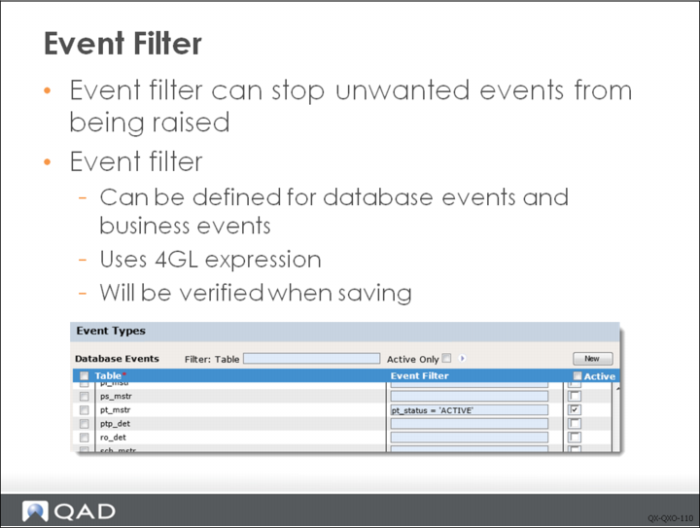
Event filter is a filter on database records that determines whether an event should be raised. You can use Event Filter to prevent unwanted events from being raised, instead of having the event service or publisher determine its usability. It is especially useful when you want certain events from tables with high-volume data changes.
Event filter can be defined for database events or non-DDP business events. Event filter uses Progress 4GL expressions and will be verified when you save the configuration.
Event filters are kept in the qxevents database and the queries are executed by trigger code. If an event is triggered but the data does not meet the filter criteria, no event record is created. This can improve system performance especially when you want certain events from tables with high volume data changes.
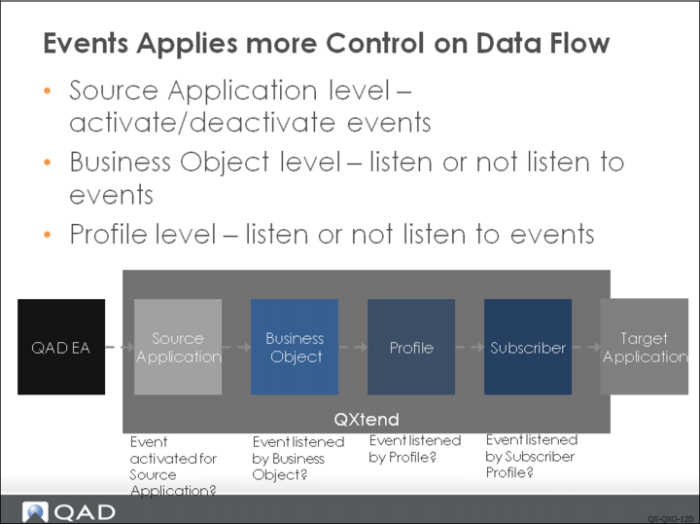
Events allow user to apply more control in data flow. For example, one external application is interested in any change to a sales order in QAD Enterprise Application, while another application is only interested in sales orders that have been posted. In this situation, we can use different event types (so_mstr and InvoicePost) to control the data delivery to different applications.
• At the Source Application level, user can activate/deactivate events, as we just learned.
• At the Business Object level, user can configure whether an activated event is listened by a business object.
• At the Profile level, user can configure whether an activated event is listened by a profile.
• At the Subscriber level, user can configure whether an activated event is listen by a subscriber profile.
Exercise: Source Applications
The following list shows a number of key concepts used in the source applications in QXO. In each statement below, fill in the correct term from the list.
qxevents | instances |
application database(s) | source application |
business events | events |
name | mass rowid synchronization utility |
1 ______ are raised by the ______ and identify when changes have been made.
2 The source application is assigned a unique ______ that identifies the instance.
3 Source application ______ are linked to a specific source application type.
4 When performing a dump and load, you can use the ______ to synchronize the rowids in QAD QXtend with the new rowids in the source application instance.
5 Source applications will always have a minimum of two databases defined: the ______ database and the ______ database.
6 The events raised from within the business logic are called ______.