Services
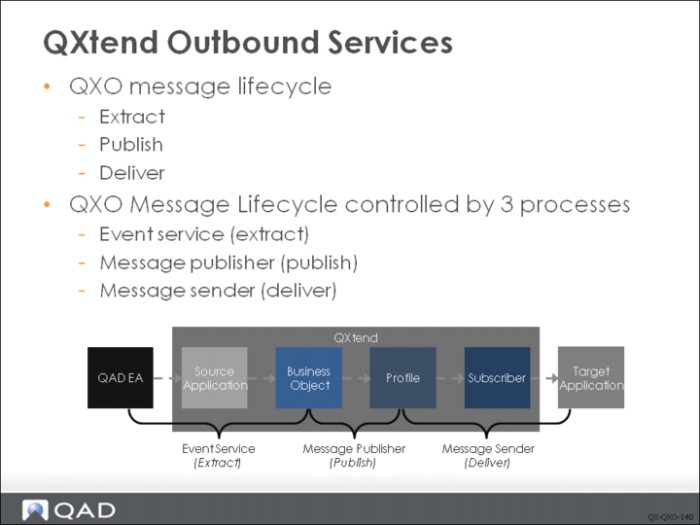
Taking an event that is raised in the source application and delivering the data about that event to interested applications has three phases. Each phase can be scaled to support high message throughput requirements. The three phases are:
• Extract: Changes to data in a QAD Enterprise Application are extracted from the source application database using a format matching the structure defined in the QXO business object definition. Extracted data is stored in QXO as an instance of the business object.
• Publish: The stored business object instance data is mapped into the profiles defined against the business object. Any calculated fields and/or fixed values defined against the profile are calculated and/or assigned during this phase.
• Deliver: Profile messages generated in the previous phase are passed to each of the subscribers that have registered an interest in the profile message. The message is delivered to the target application using the details configured on the subscriber.
Outbound message processing services are responsible for moving a message through these phases. After a message has completed one phase, it is made available to the next service to take it through the next phase. The QXO services are:
• Event service: Responsible for the extract phase of the message life cycle. The event service retrieves source application events and identifies the business objects that need to be extracted. The event service uses the configuration details in the source application configuration to connect to the source and extract the necessary data. It then stores the data as a business object instance.
• Message publisher: Controls the publish phase of the life cycle. The message publisher identifies the next unpublished business object message and then identifies the profile’s messages views that need to be created. The publisher creates each message and stores it for delivery.
• Message sender: Handles the delivery phase. The message sender locates the next message to be delivered and controls the process of sending the message to the QXO subscriber, which identifies the target application.
Event Service
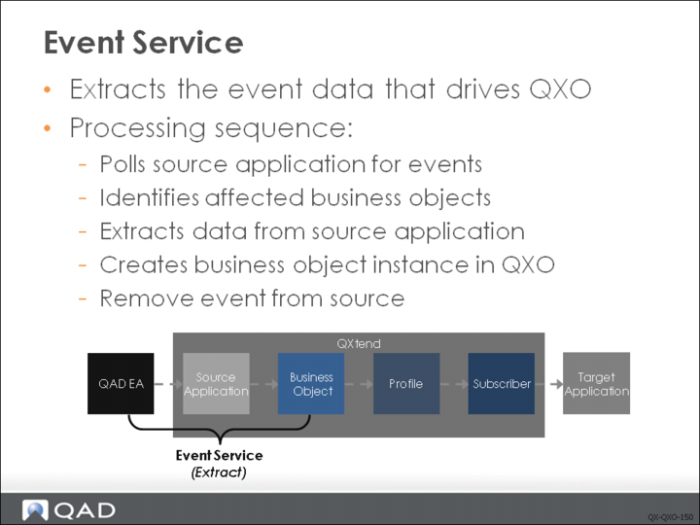
The first phase of the QXO message lifecycle is the extract phase, handled by the event service. In this phase application business events are monitored. The relevant application data related to the business event is extracted and stored in QXO.
The event service extracts data from the data source and stores it in QXO using several steps:
1 Poll for event. Application events are logged by the source application into the qxevents database that is part of the QXO source application database set configuration. The events service uses the source application configuration information to connect to the qxevents database and searches for unprocessed events. If no events are present, it disconnects. When pending events are located, the event details are logged in the QXO database.
2 Identify affected business objects. All of the business objects that contain the table the application event was raised against are identified. Part of the identification process includes establishing whether or not extraction is required. To do this, the filters defined on the business object are evaluated. If the data does not meet the filter criteria, that business object is dropped from the affected business object list. The list of affected business objects drives the next step in the processing.
3 Extract data. Using the business object definition and the mapping from the business object to the tables in the source application, the business objects in the list built in step 2 are populated with data from the source application. Extraction uses native Progress ProDataset capabilities to load the data into the business object instance.
4 Create business object instance. The data extracted from the source application is compared to the previous message for the same business object instance. If none of the data contained in the business object has changed, no further action is taken—the event is ignored. If the application data has changed, the business object instance is stored in QXO as XML for processing by other QXO services.
5 Delete event. The application event in the data source is removed from the pending event queue by deleting the record.
Event Service Configuration
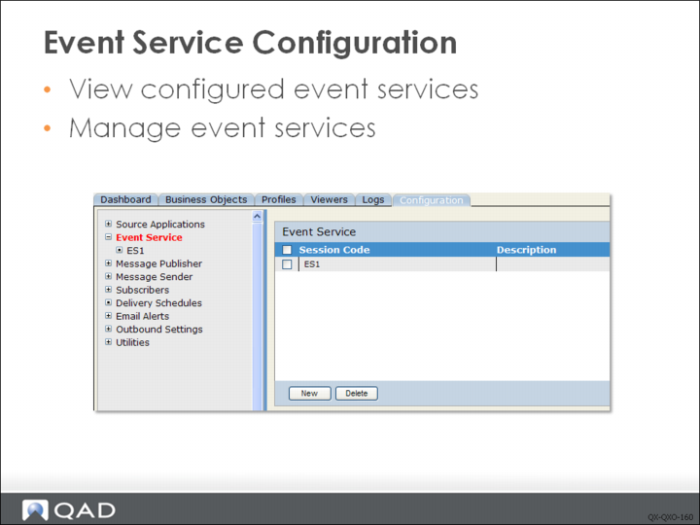
Event services are managed using the Configuration tab. You can view existing event services by selecting Event Service in the tree menu on the Configuration page. Click New or Delete to create or delete a selected event service. To modify an event service, select the event service name from the tree menu.
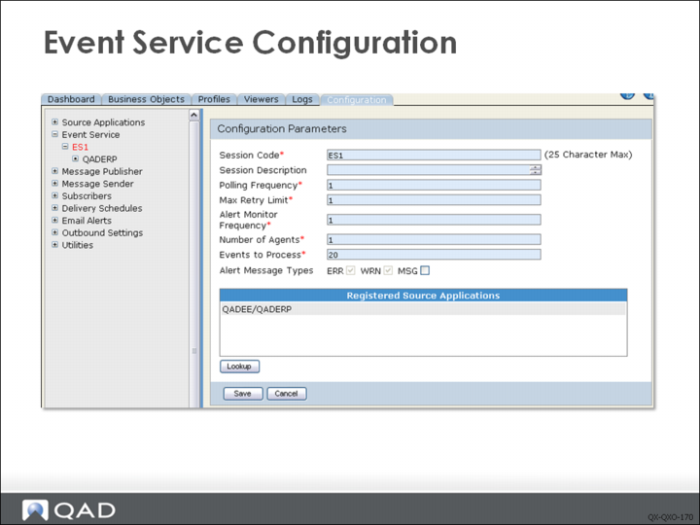
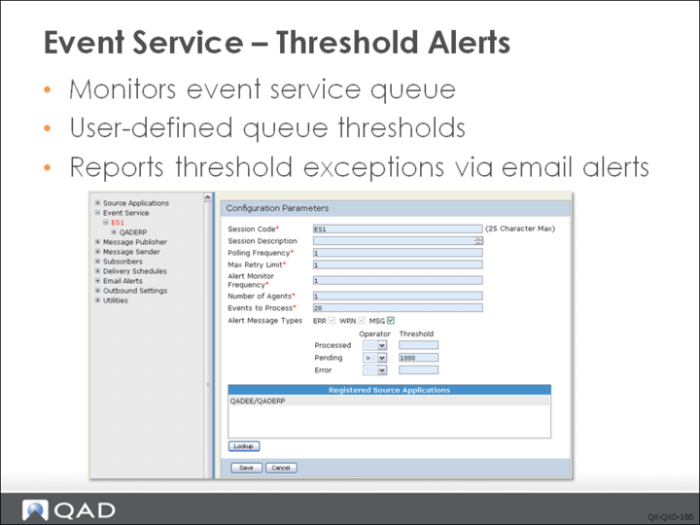
The Configuration Parameters screen of the Event Service allows you to define its behavior by completing the following fields:
Session Code
Enter a code (maximum 25 characters) for this service. Using a naming convention such as ES<serviceName> helps to identify the service as an event service.
Session Description
Enter a description.
Polling Frequency
Enter the number of seconds the service should wait between polls of the qxevents database. The qxevents database from the source application database set is polled to pick up any pending business events. The time delay specified here allows the event service to sleep before polling for pending events and prevents the event service from consuming valuable CPU resources.
Max Retry Limit
Enter the maximum number of times during a single session that the service will attempt to reprocess a failed application event (maximum 9999).
Alert Monitor Frequency
Specify the number of minutes between alert messages when the Alert Message Type is set to MSG and thresholds have been set.
Number of Agents
Specify the number of agents to start for the service when the service is started. Starting multiple agents increases the volume of messages that can be processed by the event service; in high volume environments, multiple event services can be started to meet the message throughput requirements.
Events to Process
Enter the maximum number of events to be processed by a source application before switching to a different one. This is used only when an event service is defined with more than one source application, and is used to ensure throughput across all registered source applications. If message throughput across the source applications is not acceptable, you might want to configure an event service per source application.
Alert Message Types
Check the message types that you want to be raised as alert conditions for this profile. Choose one or all of the following:
• MSG (used for metric-related alert messages)
• ERR (errors)
• WRN (warnings)
The Alert Message Types setting works in conjunction with the email alerts functionality of QXO. The alert message types are only acted upon when email alerts are configured.
Threshold Alerts
The event service processes events raised by the source application; this processing triggers other processes within QXtend that deliver data to subscribing applications. The data that passes through QXtend is often critical to the execution of the organization’s business processes; therefore it is important that any bottlenecks in message processing are identified and alerts are raised. The threshold alerts enable the configuration of thresholds that can be used to identify potential problems early on, and help minimize the impact on the organization of any issues within QXtend.
To enable threshold alerts, select the MSG check box. You can then configure thresholds for the following:
• Processed: Monitors the number of messages processed by the event service.
• Pending: Monitors the messages waiting to be processed by the event service. This metric helps to identify how much work is backed up for the event service, and is important if there are critical messages backed up in the queue. You could start another instance of the event service to remove the backlog quickly.
• Error: Monitors the errors raised during event service processing. This can be used to identify potential problems that cause large volumes of errors to be raised.
If a defined threshold is reached, an email alert is raised. Another alert will not be raised—although processing will continue—until the value specified in the Alert Monitor Frequency has elapsed. For example, if the Pending value is set to greater than 20 and the Alert Monitor Frequency is set to 10, if there are 100 messages pending, an alert would be raised. If 10 minutes later there are still more than 20 pending messages, another alert is raised.
Source Applications
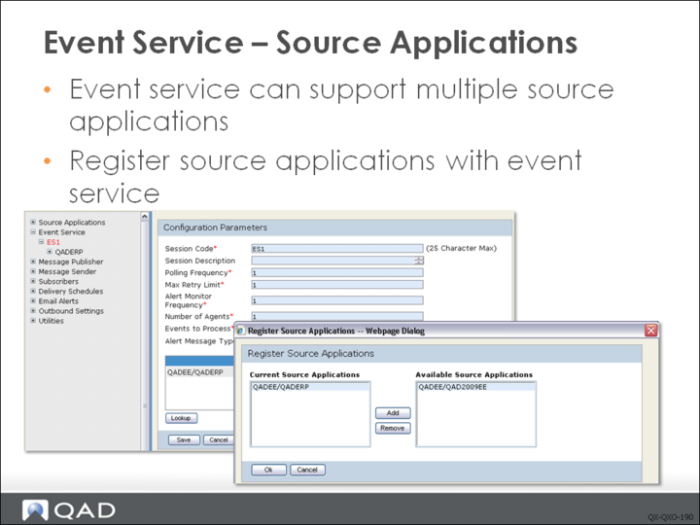
A single event service can monitor events and extract data from one or more source applications. The source applications that an event works with are maintained in the Registered Source Application section of the event service Configuration Parameters page. Click Lookup to display the configured source applications, then select the source applications that the event service will process events for.
Note: When adding multiple source applications to an event service, remember that the system will only process the number of events specified in the Events to Process parameter before moving on to service the next source application in the list. If a source application might have a high volume of critical messages, you should configure an event service that only services that source application.
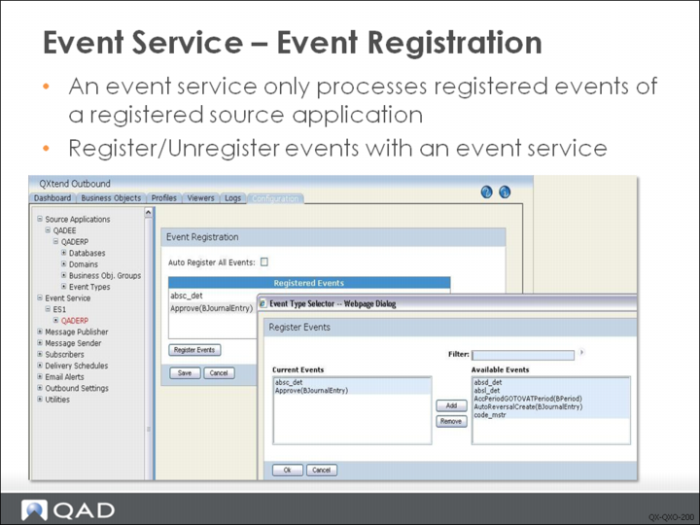
A single event service only process registered events of a registered source application.
By default, the Auto Register All Events checkbox is checked and all active events of the registered source application will be processed by the event service.
To register only some of the active events of a registered source application, uncheck the Auto Register All Events checkbox and click the Register Events button which will popup the Register Events dialogue within where current active events of the registered source application can be registered or unregistered with the event service.
Note: When an event of a source application is deactivated it will be automatically unregistered from the related event services. When an event of a source application is activated it will be automatically registered to those event services where the Auto Register All Events checkbox is checked.
Message Publisher
The second phase of the QXO message lifecycle is the publish phase, which is handled by the message publisher. In this phase unpublished business object instances are mapped into the relevant profile formats, and any calculated fields defined against the profile are evaluated.
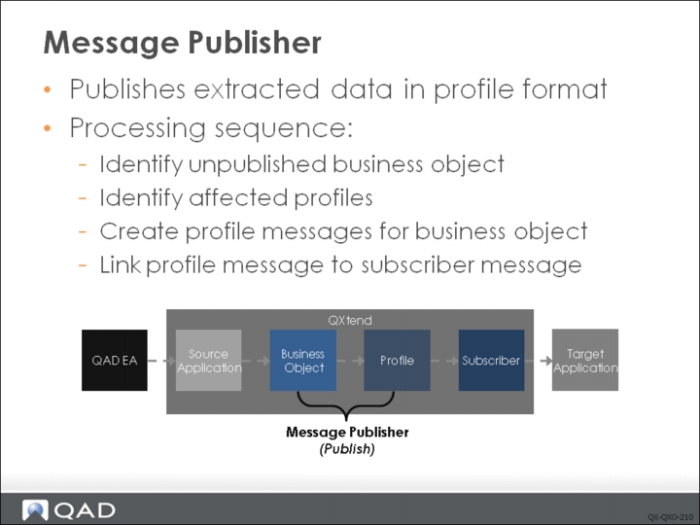
The message publisher’s purpose is simple: to publish data from the business object in the format required by the profiles that are defined against the business object, and then to store that data in QXO. To complete this process several steps are required:
1 Identify unpublished business objects. Business objects are extracted continuously; the message publisher looks for business objects that have not yet had the profile messages created for them. However, the message publisher only looks for business objects that it is responsible for publishing, which allows individual publishers to be created for high volume business objects, allowing a flexible, scalable infrastructure. The message publisher takes the first unpublished instance that is ready to be published and starts the publishing process.
2 Identify profiles. All of the profiles for the business object that are subscribers are identified. QXO does not create profile messages for profiles that do not have any active subscriptions. The publisher then takes this list of profiles and evaluates any filters defined against the profile. If the data in the business object does not satisfy the filter’s criteria, the profile is dropped from the list. Finally a check is performed to see if any data on the profile has changed. Since the profile is a subset of the business object, the business object might not contain any changes to the data in the profile. If no data changes are to be published, the profile is removed from the list, leaving the list of profiles that need to have messages created.
3 Create profile messages. Each profile identified in the list generated in Step 2 is created from the business object instance. As part of this process any calculated fields in the profile are evaluated. The profile is then stored in the QXO database as XML. If there is no profile message needs to be created from a business object instance (which is called raw message as well), the business object instance will be deleted.
4 Link profile message to subscriber. In this step the system creates a link to the profile message for each of the subscribers that have registered to receive updates from the profiles created in Step 3. The link is stored in the Subscriber Messages queue, available in the Subscriber Messages viewer. This information is used by the sending process to determine which profile messages need to delivered, and to which subscribers. Once the messages are linked to the subscriber, they show as pending requests in the Subscriber Messages viewer page.
Configuring the Message Publisher
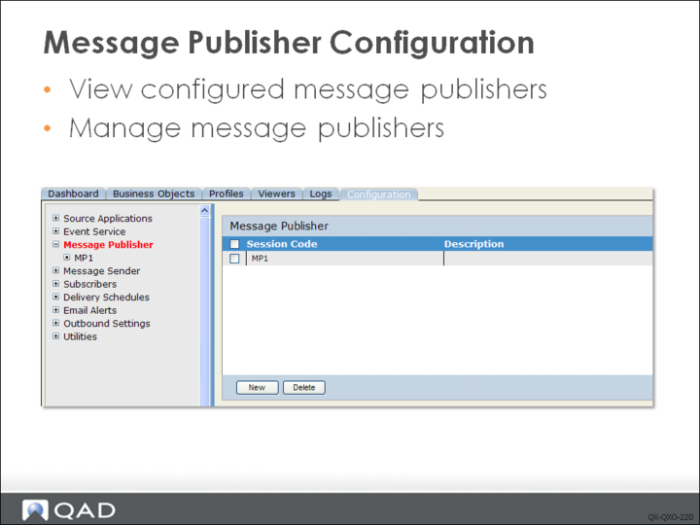
Message publishers are managed via the Configuration tab. To view existing message publishers, select the Message Publisher node in the tree menu. Use the New and Delete buttons to create and delete message publishers. To modify a message publisher, select the name of the message publisher from the tree menu.
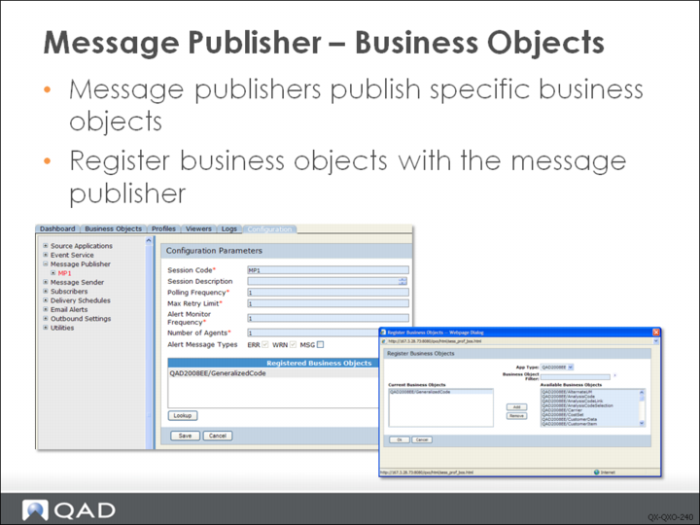
Use the Configuration Parameters screen of the selected message publisher to define its behavior. Complete the following fields:
Session Code
Enter a code (maximum 10 characters) for this service. Using a naming convention such as MP<serviceName> helps to identify the service as an event service.
Session Description
Specify a description (maximum 15 characters).
Polling Frequency
Enter the number of seconds the service should wait between polling unpublished business object queue in the qxodb. The qxo database is polled to pick up pending business objects. The time delay specified here allows the message publisher to sleep before polling for pending business objects, preventing the message publisher from consuming valuable CPU resources.
Max Retry Limit
Enter the maximum number of times during a single session that the service will attempt to reprocess a failed application business object (maximum 9999).
Alert Monitor Frequency
Specify the number of minutes between alert messages when the Alert Message Type is set to MSG and thresholds have been set.
Number of Agents
. Specify the number of agents to start for the service when the service is started. Starting multiple agent increases the volume of messages the Message Publisher can processed; in high volume environments, you can start multiple instances to meet message throughput requirements.
Alert Message Types
Check the message types that you want to be raised as alert conditions for this profile. Choose one or all of the following:
• MSG (used for metric-related alert messages)
• ERR (errors)
• WRN (warnings)
The Alert Message Types setting works in conjunction with the email alerts functionality of QXO. The alert message types are only acted upon when email alerts are configured.
Note: The configuration of threshold alerts for the message publisher is the same as the event service. However, the threshold values apply to the number of profile messages being created.
Business Objects
Message publishers work on a defined set of business objects that have been registered with it; this allows for flexible configuration during QXtend implementation. The message publisher publishes messages for business objects that are registered with it; this is useful if many messages must be processed quickly since having a dedicated message publisher ensures faster message processing. Messages that are low volume and non-critical can be grouped onto a single message publisher.
Click Lookup to display the selection box. Then select the application type, enter any filter for the business object search, and click the arrow next to the Business Object Filter field to execute a search; the business object list displays. Select the business objects you want to register, then click Add to register the business objects with the message publisher.