Subscribers
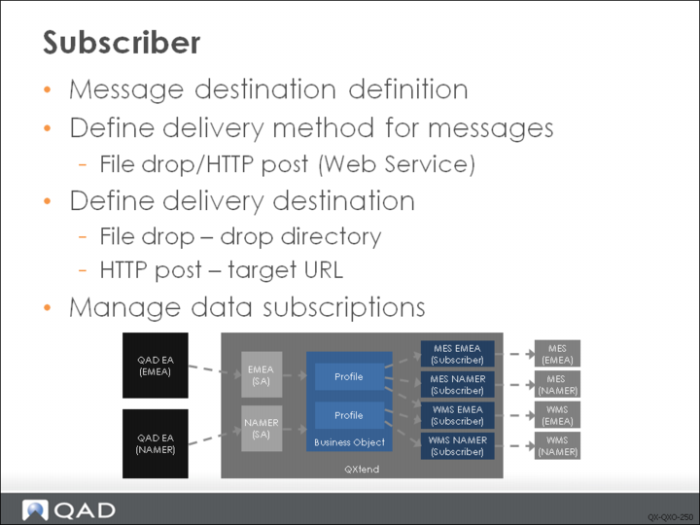
Before messages can be delivered, QXtend needs to know where to deliver the messages. Subscribers are used to define a message destination. To define a subscriber, the following configuration information needs to be provided:
• Delivery method: QXO can deliver messages to destination applications using either of two major methods. The simplest method creates a file containing the published data in an operating system directory to which the server has write access; this method is called the file drop method. The other method (Web Service method) is essentially a simple http(s) post; the target of the post can be a Web Service, but the mechanics of the delivery are the same. The http post delivery method has a few types: one type invokes the QXI Web Service; one type invokes QAD Alerts Web Service; one type invokes QAD BPM Service; and one type invokes any other Web Service or http post. These types are discussed later.
• Destination: For the selected delivery method, this defines the location where the message data should be delivered. The file drop delivery method requires that you provide the full path to the directory where the message should be created; this can be a path to a location on a network so long as the QXO server can access it. The Web Service delivery methods require you to provide the full URL for the service/http post; the URL must be accessible from the server and can use either http or https protocols.
• Data subscription: Destination applications (subscribers) are only interested in a certain set of data messages produced by QXO–they do not want to receive data that is of no interest. This is handled in QXO in the subscriber configuration by registering only the profiles that need to be delivered, ensuring that only required messages are sent.
QXO supports multiple source applications; however, a subscriber might only be interested in data from a subset of source applications. Subscriber configuration allows you to restrict the source applications that a subscriber receives data from.
Configuring Subscribers
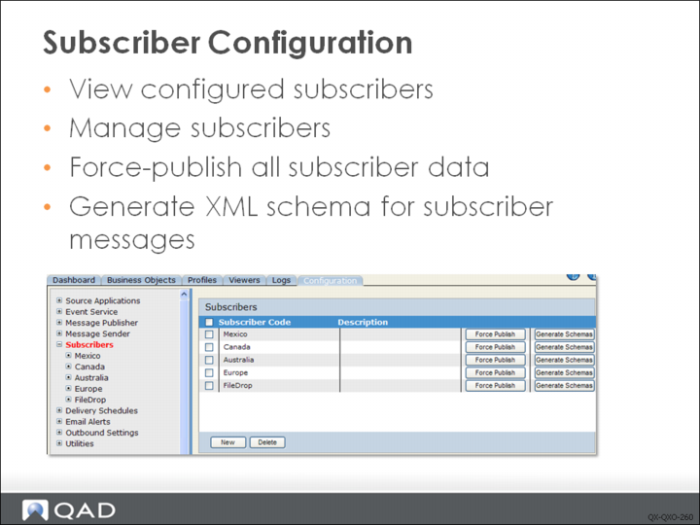
Subscribers are managed via the Configuration tab. You can view existing subscribers by selecting the Subscribers node in the tree menu. Use the Add and Delete buttons to create and delete subscribers. To modify a subscriber, select the name of the subscriber from the tree menu.
The Force Publish option allows you to force QXO to publish all data for some or all of the profiles registered with the subscriber. When the process is initiated, QXtend connects to the source application and creates events for all relevant data in the application; this forces QXO to process all data in the source application, synchronizing the data in QXO with the source application data.
Warning If the source application contains a large volume of relevant data, this could trigger many events that take a long time to compile; this is entirely dependent on the data in the source application.
The Generate Schemas option creates XML schemas that define each of the message types registered with the subscriber. XML schema define the content of the message, including the field data type that is published by QXO.
File Directory Service
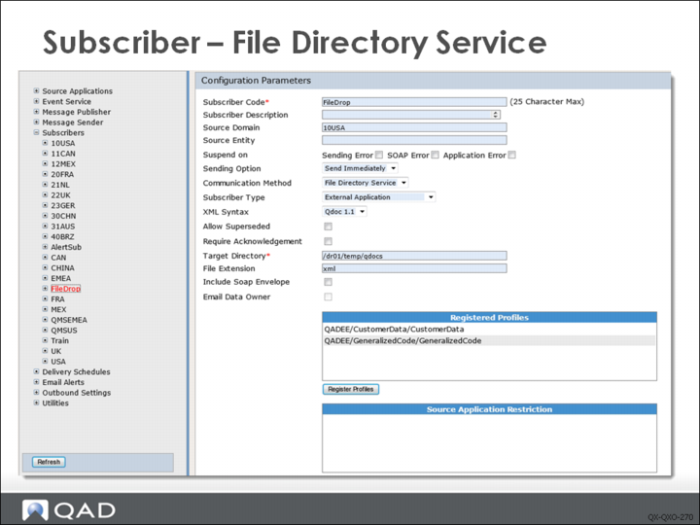
The Configuration Parameters screen of the subscriber allows you to define the delivery method, destination, and data subscription along with other parameters that are required by QXtend or affect the processing of messages delivered to the subscriber. The configuration parameters are described below:
Subscriber Code
Enter a code (maximum 10 characters) for this subscriber. The name should clearly identify the subscriber and, if necessary, its location.
Session Description
Enter a description for the subscriber.
Source Domain
When data is published from a QAD application that supports the domain infrastructure, the domain from which the data was published is identified. This field is used if the subscriber is only interested in receiving data from a certain domain within the source application. Typically you might enter Master Data Synchronization, where master data such as customers, exchange rates, and so on are maintained in the master domain and then replicated to other application domains. This allows the subscriber to receive updates only from the master domain.
Source Entity
Similar to the Source Domain parameter, this field is used with the QAD EE releases in which financial data is owned by an entity rather than a domain. This restricts messages that are sent to the subscriber to only those that originate from the specified entity.
Suspend on
Specify whether to suspend the subscriber on one or more of the following errors: sending error, SOAP error, and application error. Message Sender does not send messages to suspended subscribers and suspended subscribers can be resumed later through the UI or a batch process script.
Sending Option
The two possible values are Send Immediately or Use Delivery Schedule.
• requests that messages are delivered to the subscriber as soon as possible, there will be a delay depending on the number of pending message but messages will be sent at the earliest possible time.
• Use Delivery Schedule allows you to define a schedule that determines when messages are delivered. Delivery schedules are user-defined. When using a delivery schedule, messages are marked with an earliest sending time to determine when a message is eligible for delivery. The message is not sent until that date and time has passed.
Delivery Schedule
This option only displays when Sending Option is set to Use Delivery Schedule. You can select a defined delivery schedule from the drop-down list. Messages for this subscriber will be delivered using the selected schedule.
Communication Method
Defines the delivery method to use when sending the message. The five methods are File Directory Service, Web Service, QXtend Web Service, QAD Alerts and QAD BPM. This example above is specific to the File Directory Service.
Subscriber Type
Specify the type for the subscriber. The options on this drop-down represent the valid applications that have been registered with QXI. The combinations of communication method and subscriber type decides permission of using free messaging.
XML Syntax
Controls the structure of the XML message generated by QXO. Three formats are supported: QDoc 1.0, QDoc 1.1, and Other.
• QDoc 1.0 is currently a deprecated format, supplied only for backward compatibility.
• New implementations that generate QDocs should use QDoc 1.1, which controls the structure of the application data and the structure of the SOAP message.
• Other allows the SOAP envelope that is created to be flexible and does not create QDoc-specific elements that are created by the other XML Syntax options. Using this option, any SOAP message will not follow QDoc standards.
Note: Choosing a QDoc syntax causes other fields to display. These are discussed later.
Allow Superseded.
Allows subscriber messages to be superseded by subsequent instances of the subscriber message if the new message is created before the previous message has been delivered to the subscriber. The superseding message will contain all of the data changes present in the superseded message. This option can reduce the number of messages delivered to the subscriber, especially when used with a delivery schedule. Messages that are superseded are marked with a SUP status in the Subscriber Message viewer.
Require Acknowledgment.
For File Directory Service, Web Service, and QAD BPM, specify whether QXtend requires acknowledgment of message processing results from the subscriber.
Yes. When a subscriber message is successfully delivered to the subscriber, the status of the subscriber message is set to WAITACK (waiting for acknowledgment). After the subscriber message is processed, the subscriber sends acknowledgment to QXtend and the subscriber message status is updated accordingly to DLV, APPERR, or WRN. Acknowledgments need to be sent by the subscriber through calling QXtend Inbound.
No. No acknowledgment is required. The message status is indicated as DLV when the message has been successfully delivered and will not be updated even though there is an error or a warning when the message is processed by the subscriber.
Target Directory
Only requested when the communication method is File Directory Service, enter the path to the directory where the outbound messages need to be created.
File Extension.
The extension of the output file. By default it is “xml” but this can be changed for particular purpose. For example, if “req”is specified as the extension, then the output files can be directly dropped into a queue directory to be processed by Inbound Queue Manager.
Include Soap Envelope
When messages are delivered to a Web Service, the application data must be part of a SOAP envelope. Selecting this option creates a QDoc envelope if the XML syntax is QDoc, and a user-defined envelope if the type is Other.
Note: Choosing this option causes other fields to display. These are discussed later.
Email Data Owner.
Select this check box to indicate e-mail should be sent to the owner of the data when a message raises an exception.
QXtend Web Service
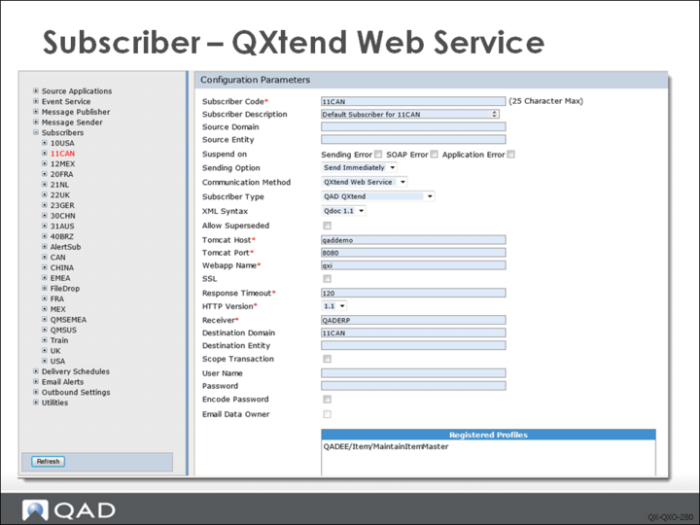
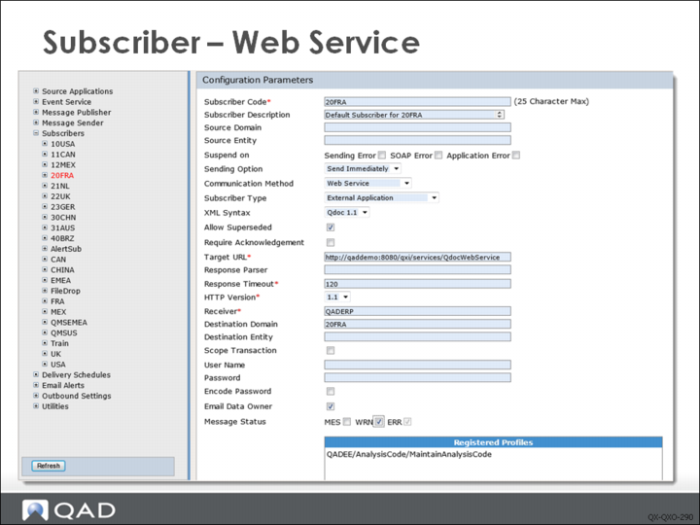
You use the same Configuration Parameters screen to create a subscriber to deliver messages to QXtend Inbound. However, you set the Communication Method to QXtend Web Service. Several extra fields display that you must complete:
Tomcat Host.
The name or IP address of the machine where the QXI instance that you want to process the request is running.
Tomcat Port.
The port number of the Tomcat instance.
Webapp Name.
The name of the QXI web application. This is the name assigned to the QXI web application during the installation of QXtend.
SSL.
Select this option when the Tomcat instance that is hosting QXI is only accessible via SSL communication.
Response Timeout.
The amount of time in seconds that QXO waits for a response from the HTTP post. If a response is not received in the specified time, QXO raises an exception.
HTTP Version.
The version of the HTTP protocol to use when processing the HTTP post. Use HTTP post 1.1 unless you experience problems.
Receiver.
The name of the receiver in QXI you want to process the request. The value entered in this field must match exactly, including the case the name of the receiver set up in QXI.
Destination Domain.
The name of the domain that you want the message to be loaded into. If the destination domain is not specified on the subscriber, the default domain on the receiver connection pool is used.
Scope Transaction.
Select this option to indicate that the entire message should be treated as a single transaction, and that any exception should cause the entire transaction to be rolled back. If not selected, the normal transaction scoping applied by the application is enforced.
User Name.
Name of the user to be used to process the transaction. This field is used by QXI only when the Use Requester feature is selected.
Password.
The password used to log in with the user name specified above. This field is only used by QXI when the Use Requester feature is enabled.
Encode Password.
Specify whether you want to encode the password for the subscriber.
Web Service
When creating a subscriber to deliver messages to a Web Service, you use the same Configuration Parameters screen. However, you set the Communication Method to Web Service. The configuration parameters are similar to QXtend Web Service with the exception that you need to provide Target URL instead of Tomcat Host/Port/WebApp Name, etc.:
Target URL
The complete URL used to deliver the message to the target application.
Response Parser.
Specify the response parser the subscriber uses to parse QDoc information. Response parser is a Progress class that you can define to parse information for your subscriber application.
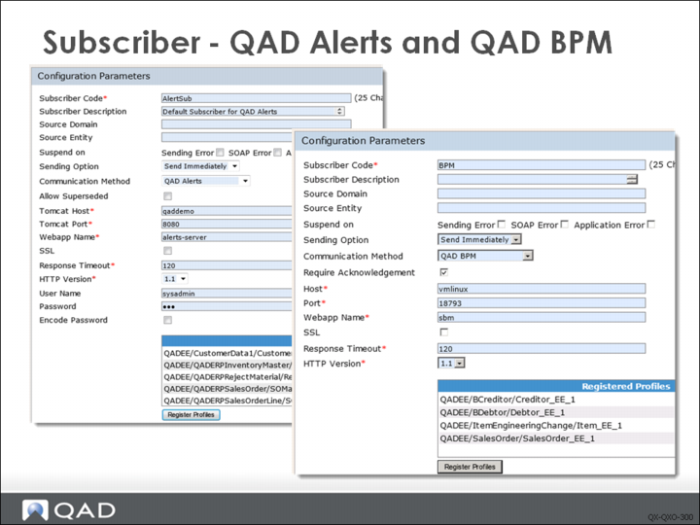
QAD Alerts and QAD BPM
These two types of subscribers are only used to communicate with QAD Alerts and QAD BPM respectively.
Subscribers with QAD Alerts communication method send messages to the QAD Alerts Event Publishing Web Service. Only profiles with type QAD Alerts can be registered with these subscribers.
Subscribers with QAD BPM communication method publish business events and data to the QAD BPM server. Only profiles with type QAD BPM can be registered with these subscribers.
Profiles
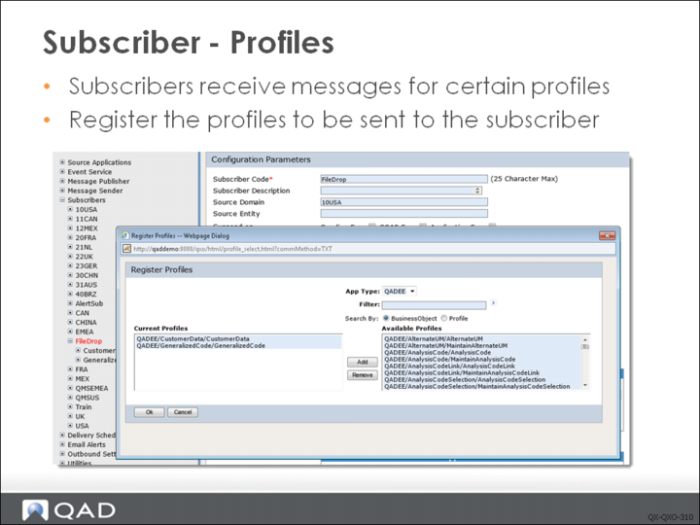
Subscribers are interested in only certain messages produced by QXO; the messages produced by QXtend are represented by the profiles available in QXO. Configuring the subscriber requires that you register the profiles to be delivered to the subscriber. This allows you to define which messages are delivered to the subscriber.
To register profiles:
1 Click Register Profiles to display the selection box.
2 Select the App Type, enter any filter for the Profile search, and then click the arrow next to the Filter field to execute a search and display the business object list.
3 Select the profiles you want and then click Add to register them with the subscriber.
Source Applications
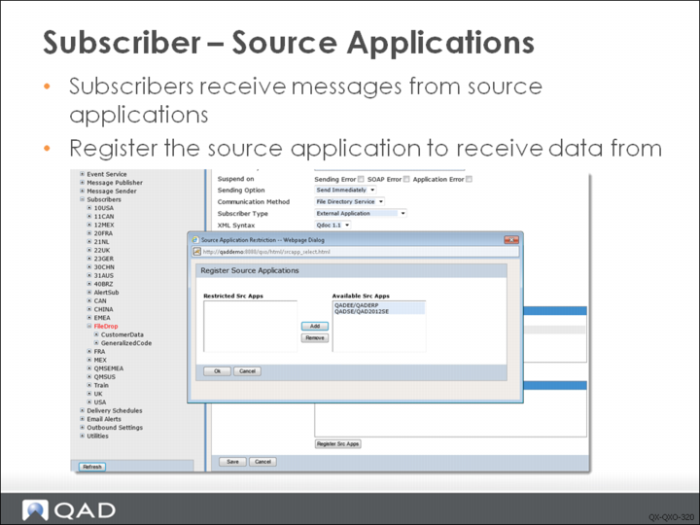
Subscribers receive data from source applications. QXO can support many source applications, but typically a subscriber wants to receive data from some, not all, source applications in QXO. To address this, you can restrict the source applications the subscriber receives data from. Each subscriber has a Source Application Restriction list; only messages from those source applications are delivered to the subscriber.
To display the selection box, click Register Src Apps, select from the Available Src Apps list, and then click Add to register them with the subscriber.
If no Src. App is registered with Source Application Restriction, then messages from all source applications can be delivered to the subscriber.
You now can configure individual profiles for subscribers to enhance your control over when messages are sent.
Sending Option
Choose a sending option to use when sending messages:
• Use Subscriber Default. Send the document to the subscriber using the delivery schedule that is defined for the subscriber.
• Send Immediately. Send the document to the subscriber immediately. If there are no delivery schedules defined, this is the default.
• Use Delivery Schedule. This option is available only if delivery schedules have been defined. Selecting this option displays a dropdown of the defined schedules.
Filter
The subscriber will only deliver the profile message if the filter defined on the subscriber is true for the data in the top-level table in the profile.
Operations
When the message publisher determines the operation of the top-level buffer, the system will not create a subscriber message if the operation is invalid for the subscriber. If the Detect Operations check box is not selected on the profile, the message publisher determines the operation based on the existence of the previous and current message. Before creating the subscriber message record, the filter query must be satisfied.
Event Types
The message publisher will create a subscriber message if the original event that created the raw message is selected. The Event Types table reflects any changes made to the event types included in a data object for a business object.
Field Substitution
The Field Substitution table displays a list of tokens and the values to substitute into those tokens when generating a profile message for the current subscriber.
• Token: Specify any required tokens to set values on the profile based on the subscriber that is receiving them.
• Fixed Value: Optionally, specify a fixed value to use in the QDoc for this field or specify a value using the format =$<node>$, in which case the field will be populated with the value in the specified node.
• Calculated Program: Optionally, enter the name of a Progress program (.p) to run. The program can be either in the QXOServer PROPATH or on the AppServer. The local version will be run if it exists; otherwise, it runs on the AppServer.
Detailed Response
Specify whether to set the suppressResponseDetail attribute of QDoc requests to true or false for a subscriber profile. If Detailed Response is set to Yes, then suppressResponseDetail is set to false.
File Name Pattern
Enter the file name pattern you want to use.
Add File Unique Reference
Specify whether to append an internal used 18-digit number to the file name to make it unique in any situation.
The two options, File Name Pattern and Add File Unique Reference, provide you with the ability to define the QDoc file names. They are available only when the subscriber’s Communication Method is set to File Directory Service.
By default, File Name Pattern is <profile_name>- and Add File Unique Reference is Yes.
You can include field values of profile messages in file names. For example, for an ItemMaster message, if you use ItemMaster-$ptPart$- as the name pattern, $ptPart$ will be replaced with item number in the file name.