Message Sender
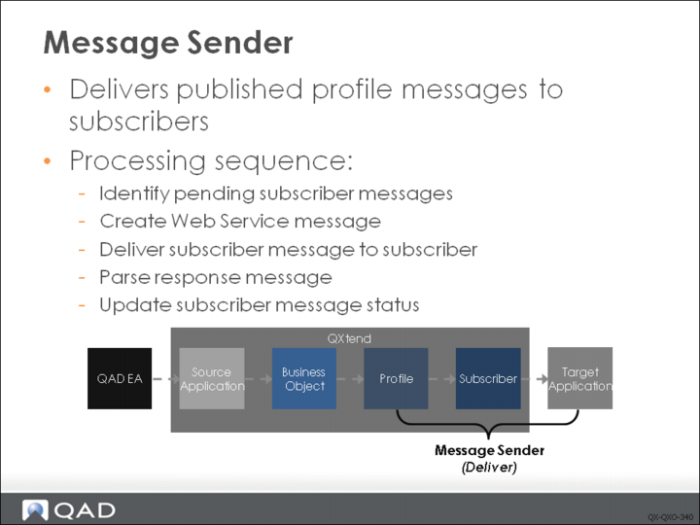
The final phase of the QXO message lifecycle is the deliver phase, handled by the message sender. In this phase, profile messages created in the publish phase are delivered to registered subscribers. The Message Sender sends data generated by the message publisher to the registered subscribers and stores the status of the delivery in the QXO subscriber messages queue. To complete this process, several steps are required:
• Identify pending subscriber messages: Publishing creates messages in the subscriber message queue that are ready for delivery to the subscriber; these are created with a pending status. The message sender identifies any pending messages in this queue intended for subscribers that are registered with the message sender process instance; from this list the first pending message is identified. The message sender configuration allows multiple message senders to be created. Each message sender can be assigned specific subscribers, which allows advanced, flexible configuration to optimize the delivery of messages to specific subscribers by creating dedicated message senders.
• Create Web Service message: The pending subscriber message identified in the previous step (which contains only application data at this point) is now converted into a Web Service message if the Include Soap Envelope option is selected on the subscriber to which the message is being delivered. The application data is inserted into a SOAP envelope, and the SOAP envelope is updated with the values defined in the subscriber configuration.
• Deliver subscriber message: The message created in the previous step is now delivered to the subscriber using the details configured for the subscriber. The subscriber determines the delivery method and destination (file drop, QXtend Web Service, QAD Alerts, ect).
• Parse response message: When the delivery method of the subscriber is set to Web Service or QXtend Web Service, you can configure QXtend to read the response message and determine whether or not the target application processed the message successfully. However, if the delivery method is File Directory Service, this is not possible as an immediate response is not returned.
The response message is passed to a response parser program that reads the response file, interprets the message, and extracts the processing status and any returned messages. QXO is shipped with one response parser that can read response messages returned from QXI, but you can develop custom response parsers for other message types if required. The response parser is configured in the Profile configuration screen by selecting a profile type for the profile. QXO is shipped with two types: Data Synchronization and Other. The Data Synchronization type can parse QXI response messages.
• Update subscriber message status: Based on the results of the previous step, the status of the subscriber message is updated. If there is no response parser for the response, this is typically set to DLV regardless of the contents of the response message unless the sending of the message fails due to communication or file permission problems. When a response parser is available, the status is determined based on the content of the response message.
Configuring Message Senders
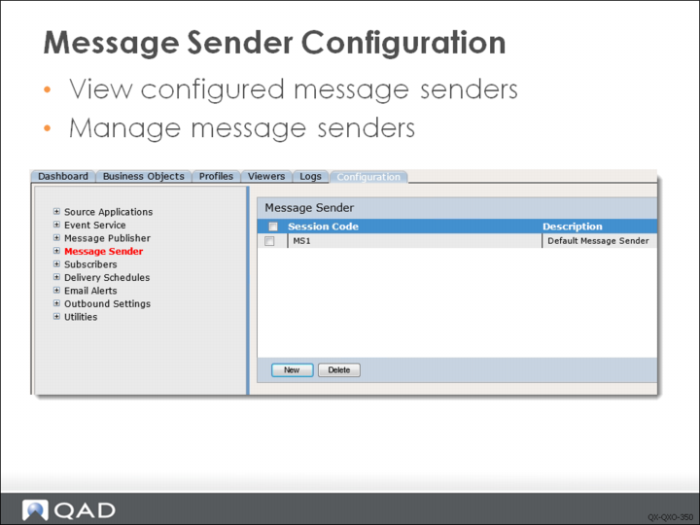
Message senders are managed using the Configuration tab. You can view existing message senders by selecting the Message Sender node in the tree menu. Use the Add and Delete buttons to create and delete message senders. To modify a message sender, select the service name from the tree menu.
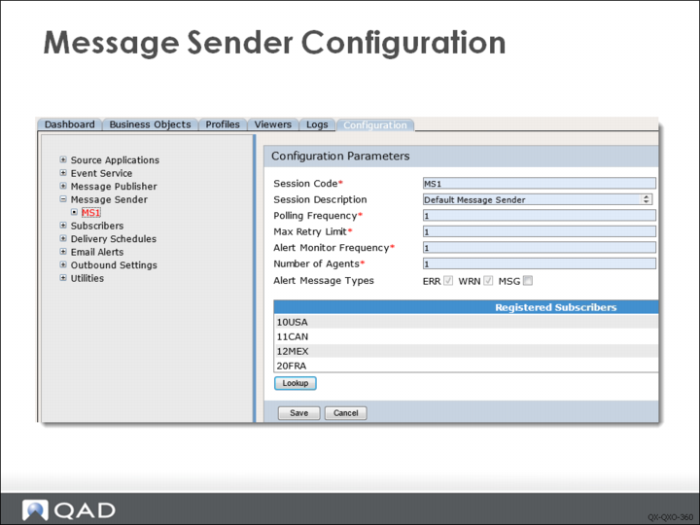
Use the Configuration Parameters screen to configure message senders. Complete the following fields:
Session Code
Enter a code (maximum 10 characters) for this service. Using a naming convention such as MS<serviceName> helps to identify the service as an event service.
Session Description
Enter a description (maximum 15 characters).
Polling Frequency
Enter the number of seconds the service should wait between polls to the pending subscriber messages queue in the qxodb. The qxo database is polled to pick up any pending subscriber messages. The time delay specified here allows the message sender to sleep before polling for pending subscriber messages, and prevents the message sender from consuming valuable CPU resources.
Max Retry Limit
Enter the maximum number of times during a single session that the service will attempt to reprocess a failed subscriber message (maximum 9999).
Alert Monitor Frequency
Specify the number of minutes between alert messages when the Alert Message Type is set to MSG and thresholds have been set.
Number of Agents
Specify the number of agents to start for the service when the service is started. Starting multiple agents increases the volume of messages that can be delivered by the message sender. In high volume environments, you can start multiple instances to meet message throughput requirements.
Alert Message Types
Select the message types you want to be raised as alert conditions for this profile. Select one or all of the following:
• MSG (used for metric-related alert messages)
• ERR (errors)
• WRN (warnings)
This setting works in conjunction with the email alerts functionality of QXO. Alert message types are only acted upon when email alerts are configured.
The configuration of threshold alerts for the message sender is the same as the event service and message publisher. However, threshold values apply to the number of subscriber messages.
Subscribers
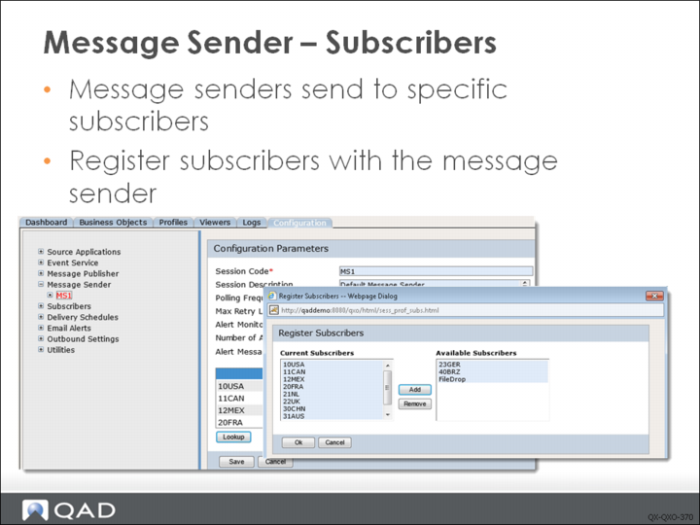
Message senders deliver messages to a defined set of subscribers registered with it; this allows for flexible configuration during the implementation of QXtend. The message sender sends messages to the subscribers that are registered with it. This is useful when subscribers require minimum delay in message delivery and a dedicated message sender for a subscriber will ensure that messages are delivered quickly. Less critical subscribers can be handled by a separate message sender.
Click Lookup to display the selection box. Select the App Type, enter any filter for the Business Object search, and then click the arrow next to the Business Object Filter to execute a search and display the business object list. Select the business objects, then click Add to register them with the messages publisher.