License Manager
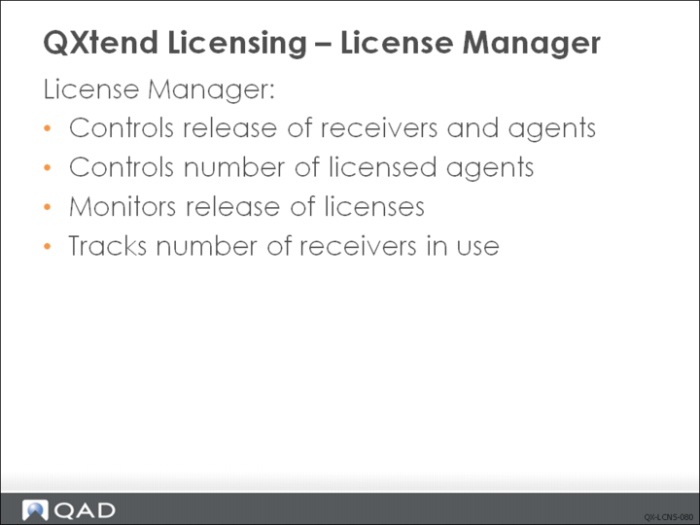
The License Manager controls the release of receivers and agents; it also lets you limit the number of licensed agents, monitor the release of licenses, and track the number of receivers in use.
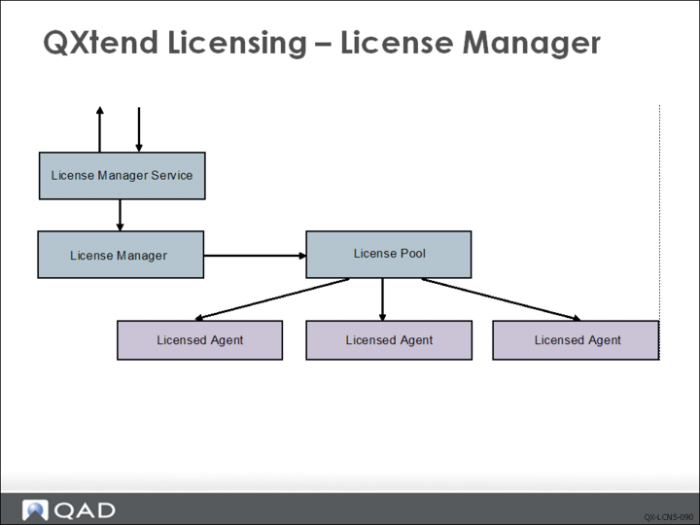
The License Manager enforces the agent limit encoded in the QXtend license by tracking when agents are requested and when they are released. It retrieves the agent limit by decoding the agent count from the license string. This enforced limit ensures that the number of agents is not exceeded across a QXtend installation.
When the License Manager is started, it creates a license pool for the current QXtend instance. The license pool then creates a pool of agents, determined by the licensed agent count, and initializes them. Agents in the initialized state have been created, but are not yet assigned a processing task.
Each time a message sender service in QXtend Outbound is started for an unregistered subscriber, the system makes a call to the License Manager to reserve an agent for the task. In QXtend Inbound, connection pool agents process QDoc requests, and one or more processing threads are assigned to each connection pool.
Each time a QDoc is processed, a request for a licensed agent is sent to the License Manager. If there are no available agents, an exception is returned and processing stops. The system waits a predefined period for an available licensed agent. The waiting period is determined using a combination of the values in the Configurable Timeout and Maximum Retry fields in the Connection Pool window.
A licensed agent changes state from idle to busy when processing a task. When the task is complete, the agent becomes idle again and is available to process other tasks. This allows agents to be used freely across the QXtend Inbound and QXtend Outbound services.
Licensing Configuration
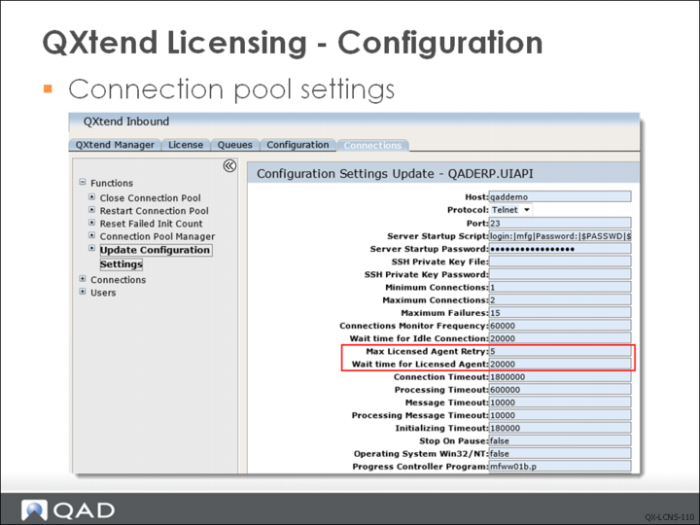
The Connection Pool window enables you to specify the number of attempts the License Manager makes to reserve a licensed agent, and the period of time the License Manager waits for an available agent. If the License Manager cannot reserve an agent and has exceeded the number of retry attempts, QXI returns an exception.
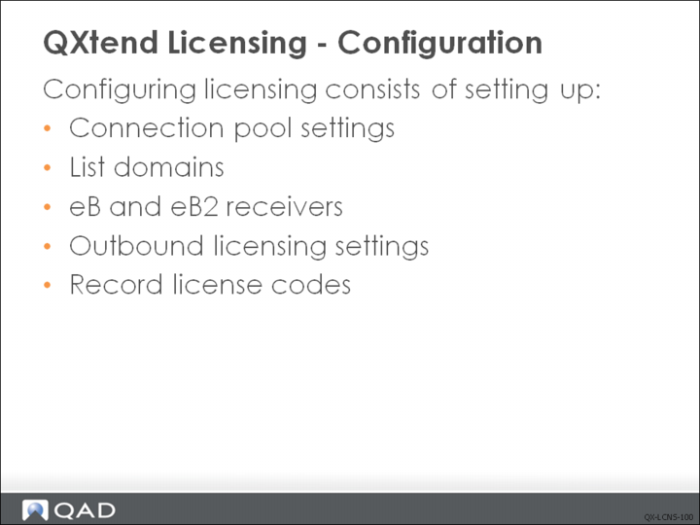
You need to configure the following settings:
Max Licensed Agent Retry
Specify the number of times the system attempts to reserve a licensed agent before returning an exception.
Wait Time for Licensed Agent
Specify the number of milliseconds that the system waits for a licensed agent.
List Domains
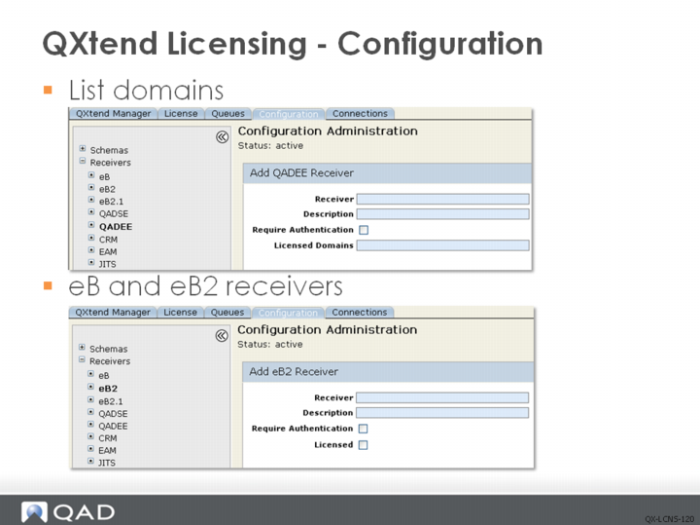
Use the Add Receiver window to assign a list of valid domain codes when you define a new receiver. The License Manager rejects any QDoc for an undefined domain.
You can specify a comma-separated list of domains or a single domain. If you define a comma-separated list, the system converts the list into the appropriate XML format, and updates the qdocReceivers.xml file. If a receiver does not use domains, the qdocReceivers.xml file has a single domain entry that defaults to the receiver name.
Note: If the domain is not specified in the request QDoc, then the default domain defined in the Connection Pool window is used. If a default domain is not specified on the connection pool, the request fails to process.
When you update the list of valid domains in the Add Receiver window, the receiver count is also updated in the License Manager.
eB and eB2 Receivers
When adding receivers for eB and eB2, the Add Receivers window does not show a list of licensed domains. You must select the Licensed field to indicate whether the receiver will be processing requests that require a licensed agent.
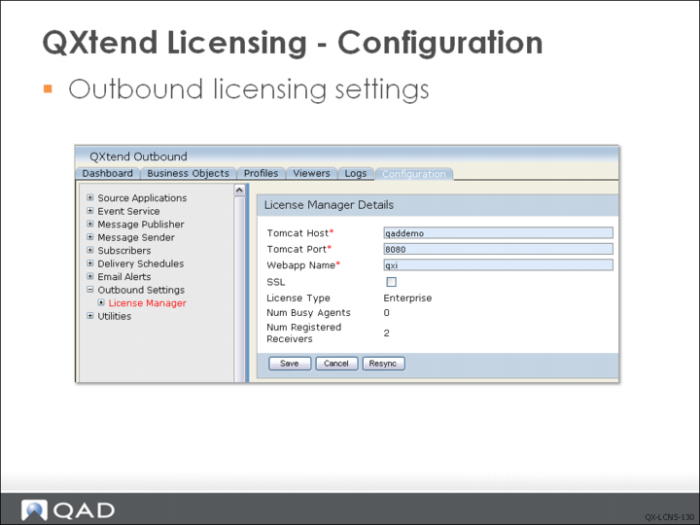
Use the License Manager Details window in the Configuration tab to configure the License Manager for QXO. This enables you to record the location of QXI to ensure that the count of licensed agents and receivers is synchronized across QXtend. Each time you configure a subscriber (receiver) in QXO, the system sends a message to the License Manager. Configure the following fields:
Tomcat Host
Specify the host name of the License Manager.
Tomcat Port
Specify the port where the License Manager resides.
Webapp Name
Specify the web application name of QXI.
License Type
Displays the type of license. The possible types are Standard, Data Synchronization, or Enterprise.
Number of Busy Agents
Displays the number of busy agents in both Inbound and Outbound.
Number of Registered Receivers
Displays the number of registered receivers in both Inbound and Outbound.
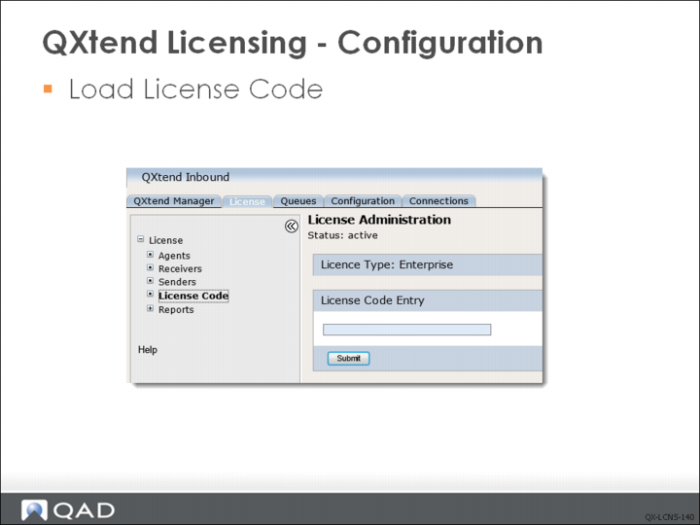
When QAD QXtend is first installed, the installation defaults to a QAD & Approved QAD Partner Free Use license. This license only permits data synchronization and QAD internal messages to be processed. In order for QAD QXtend to communicate with other products, you must record a license code issued by QAD.
Use the License Administration window in QXI to submit a license code. Configure the following fields:
License Type
Displays the type of license.
License Code Entry
Enter the license code you received from QAD, and click Submit.
When you submit a new license code, the system validates it and stores the information in an encrypted XML file. The code has the number of agents and receivers encoded within it.If a license file has already been entered, the system overwrites it and resets the License Manager’s internal count information.
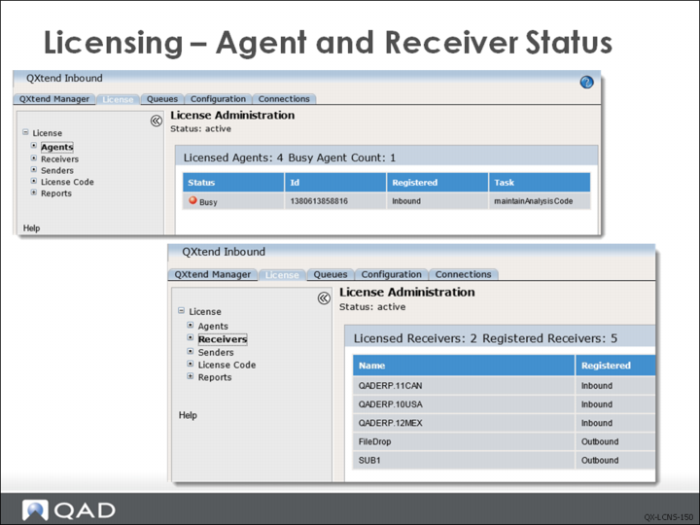
Agent and Receiver Status
The Licensed Agents window tracks and displays the number of licensed agents, as defined in the license code. It also displays the number of agents that are currently used in processing, and the task assigned.
Use the Licensed Receivers window to display the total number of licensed receivers in both QXtend Inbound and Outbound, and to view the list of registered receivers.