QGen
>
Generating API Files
Generating API Files
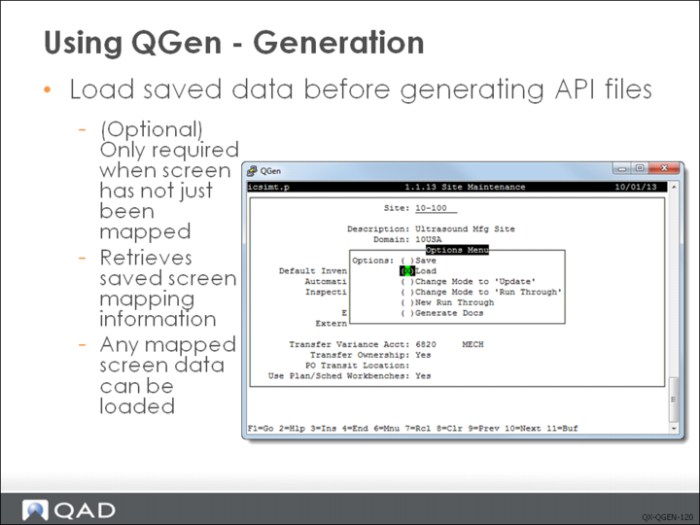
Before generating the API files, reload the data that was saved at the end of the mapping of the screen. This step is optional if you have just completed the mapping of the screen that you want to generate the API for.
You can use the Load option to load the information recorded for a screened map from the mapping file. API files can be generated/re-generated anytime: you do not have to generate them immediately after mapping the screen. Loading the API data is also useful when mapping a customized screen as only the customized fields will need to be mapped if you use the original QGen data file.
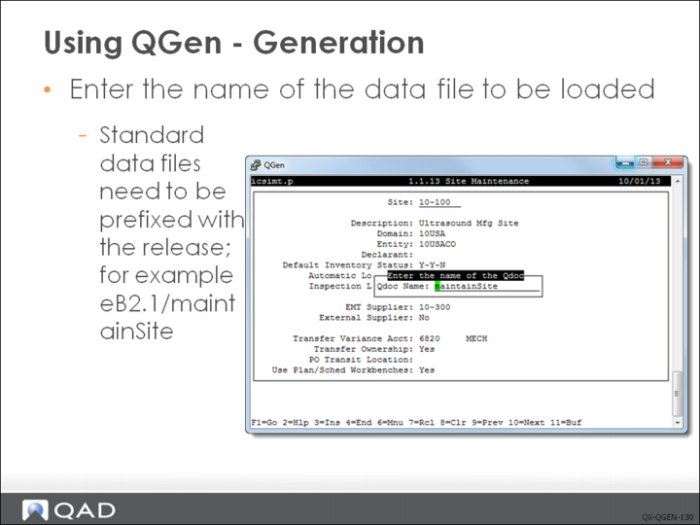
Selecting the Load option displays a system prompt for the name of the mapping data file that you want to load. If you are loading a data file you created, type in the name of the file you used to save the mapping data.
If you want to load a data mapping file that was shipped with QXtend, you must prefix the file name with “standard”, for example, “standard/maintainSite”. In this way, the data mapping file will be loaded from $QXTEND_ADAPTER_HOME/tools/datFiles/standard directory.
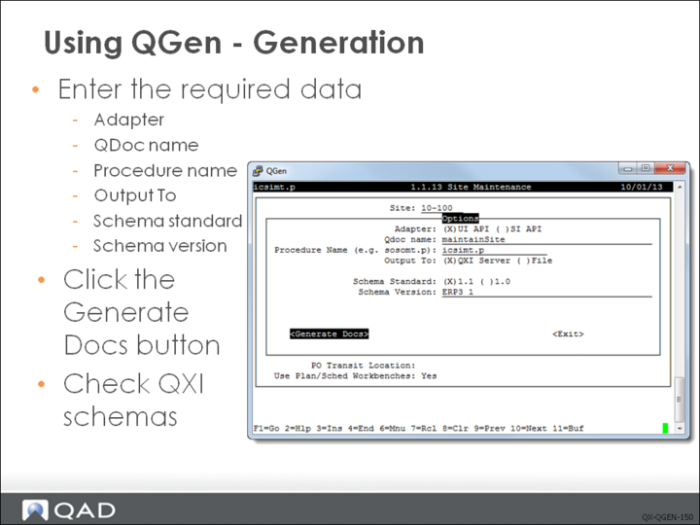
QGen requires the following additional information to generate the artifacts required by QXtend for the UI API adapter:
Adapter
Choose UI API adapter. The SI API option is used for generate customized schemas for native API. For details on generating native APIs, see User Guide: QAD QXtend
Qdoc Name
Name of the QDoc to be generated. The name should follow the usual QDoc naming guidelines using the <verb><object> format; for example, maintainSalesOrder.
Procedure Name
The name of the procedure the API has been mapped from. This is used to generate the name of the events file; for example, icismt.p generates an events file called icsimt-ERP3_1.xml.
Output To
Deploy to QXI Server or output files to the local server. Typically the file generated by QGen is saved to the QXtend adapter installation directory: <qxi-adapter-home>\tools\generatedDocs
Schema Standard
New API should use the default (QDoc 1.1). The 1.0 standard is provided for backward compatibility only.
Schema Version
The version number to assign to the schema and the API. There are some conventions for the naming. Depending on the version of QAD Enterprise Application, a new QDoc should be named as ERP3_1 for EE or eB21_1 for SE if there is no name conflict. If the QDoc with same version already exist, you can increment the last digit to have a new version, for example, ERP3_2.
QGen generates the following files:
• <program>-<version>.xml – the events file
• <qdoc-name>-<version>.xsd – the request XML Schema file
• <qdoc-name>Response-<version>.xsd – the response XML Schema file
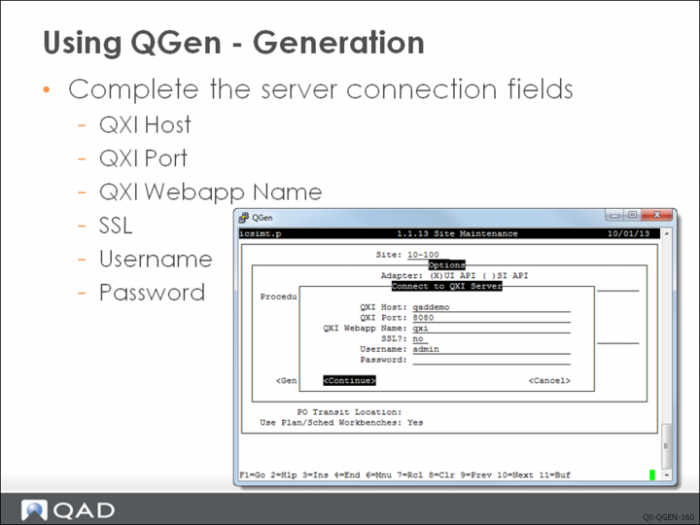
To deploy API to QXI, QGen needs to know how to connect to QXI web service. This screen is used to complete the server connection fields.
Note: The information in this screen persists in memory until QGen is closed.
QXI Host
Specify the hostname of the QXI server.
QXI Port
Specify the port number used to access the QXI server.
QXI Webapp Name
Specify the name of the Web service used to connect to the QXI server.
SSL
Select the field to use Secure Socket Protocol https encryption on messages to the QXI server.
Note: If SSL is selected, then QXI Host must include domain name of the host.
Username
Specify the username login for the QXI server.
Password
Specify the password for the user.
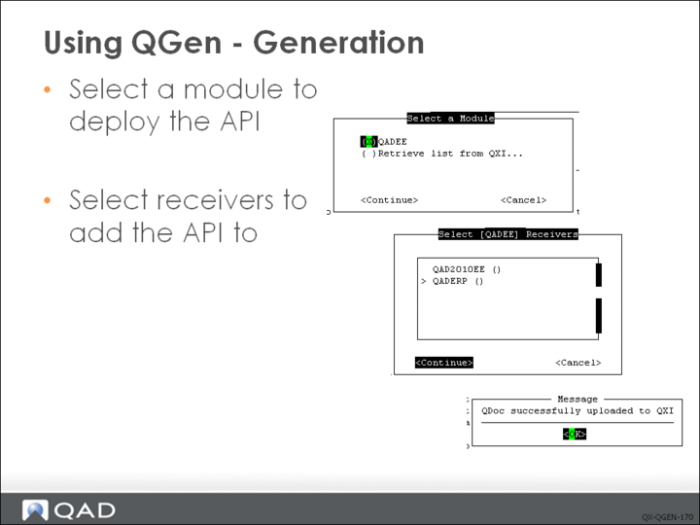
Select the module to which you want to send the QDocs and then select Continue. The Select Receivers screen displays.
Then, select the receiver to which you want to send the QDocs and then select Continue. If the upload of QDocs is successful, the Upload QDoc to QXI Successful message displays.
Mapping Comments
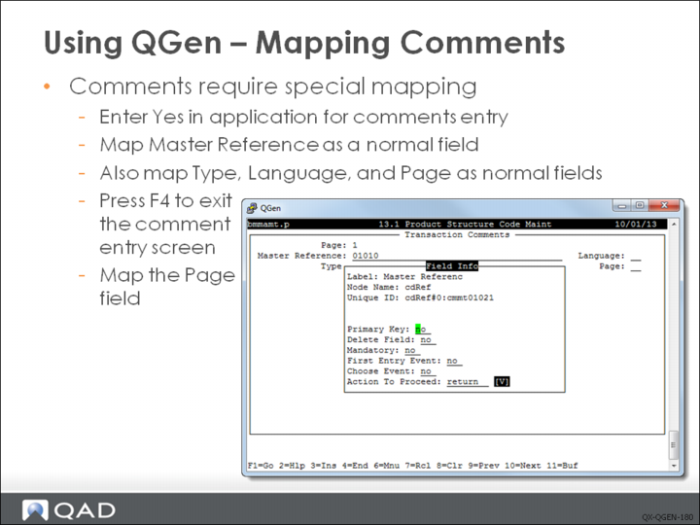
Mapping functions that contain transaction comments requires special mapping. The structure for comments is common across the entire application, so when mapping a screen that includes transaction comments, you should re-use the screen mapping that has already been performed.
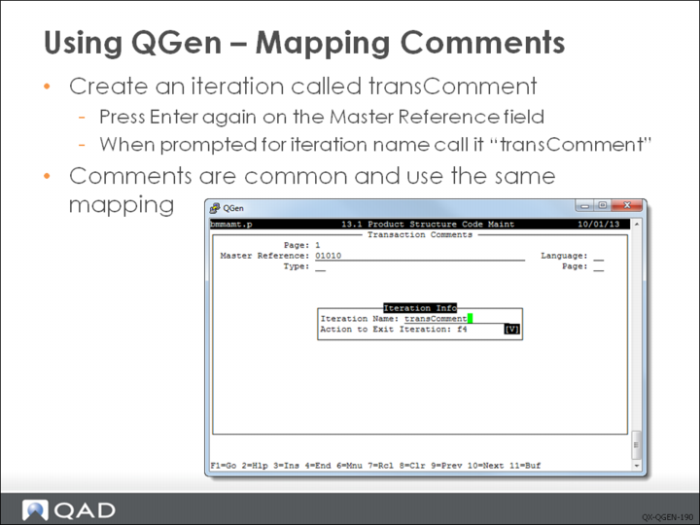
When mapping a function with transaction comments, map the screen as normal. Set the comments flag to Yes to ensure that the comments entry screen displays. Map the first four or five fields on the comments as usual. When the system prompts you to enter the 15 lines of comment details for that page, press F4 to exit the update screen. The system prompts you for the page. Press Enter and update the values. The system returns you to the Master Reference field. Press Enter again so that QGen recognizes the iteration.
QGen prompts you for the iteration name for the transaction comments transaction you are mapping. Use the iteration name transComment QGen will recognize this value and substitute the premapped schema definition for transaction comments.
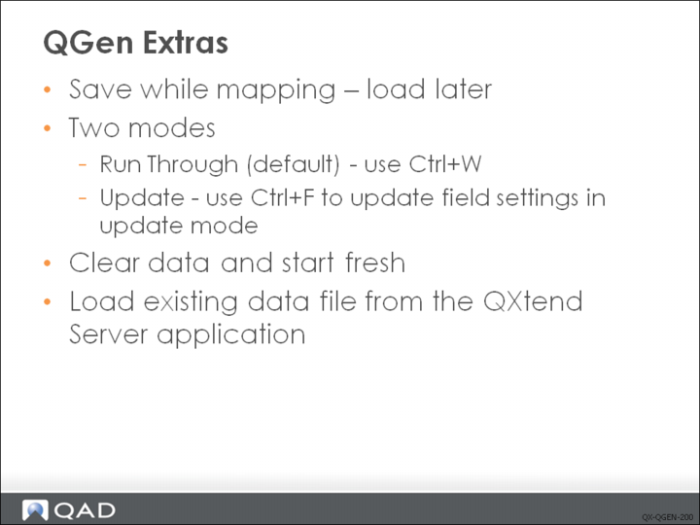
QGen has several other features that have not been covered:
• You can save your work to a data file if you are interrupted and come back to it later simply by saving and then reloading and carrying on later. All of the fields already mapped will not prompt for information again.
• There are three operating mode available:
• Run Through: The default mode records information field by field as it is accessed.
• Update: Allows the user to change already recorded info. ctrl-f is used to access the data already recorded.
• New Run Through: Clears all of the data that has been recorded and allows the user to start from scratch.
• Mapping data files are shipped with the QXtend server so these files can be loaded when mapping a slightly modified function. The standard file can be used as a base and the new data can be added to the data file. This saves a lot of time as the standard data does not have to be recorded again only the customizations need to be recorded.
Exercise: QGen
The following list shows a number of key concepts used in QGen in QXI. In each statement below, fill in the correct term from the list.
F1 | twice |
Ctrl+O | QDoc |
structure and field | QXI server |
Ctrl+W | Field Info |
schema | receivers |
module | |
1 QGen is a tool that records the ______ information from QAD Enterprise Applications character user interface screens and saves it to data files.
2 The data recorded by the mapping process is passed to the QGen generation engine, which transforms the data in the files into the relevant QDoc ______ files and events.
3 To enable the QGen mapper, start a QAD EA session, select the function you want to map, and then press ______to enable the mapper.
4 You enter the information about the field you want to record into the ______ pop-up window.
5 Once you've entered all the information about a field in the Field Info pop-up window, press ______ to move to the next field.
6 Where there are frames that you enter iterations, you must press Enter ______ to ensure that the mapper picks up the iteration name.
7 After mapping the UI function, press ______ to display the Options menu. Select Save on the menu and then press Go.
8 When entering the name of the file in which to save the mapping data, it's recommended that you use the same name as the ______ that will be generated.
9 Deploying an API usually includes following steps: enter required data, connect to ______, select a ______ and select ______.
Lab: QGen
QAD QXtend 1.8.4 has been installed with both QXI and QXO components. In the previous labs you performed the basic configuration that is required to enable requests to be processed by QXI and QXO. The following lab exercises describe how to use QGen to map screens in the Enterprise Applications and create UI API adapter APIs.
<LabHomeDirectory> = C:\QXtendTraining\Labs\05-QGen\
QAD QXtend Inbound ships with a limited set of APIs; most of them use the UI API adapter. However, many screens in QAD Enterprise Applications have not been mapped; you can generate UI API adapter APIs for these screens using QGen. You can also use QGen to map screens that have been created or modified during an implementation project.