Query Service
Overview
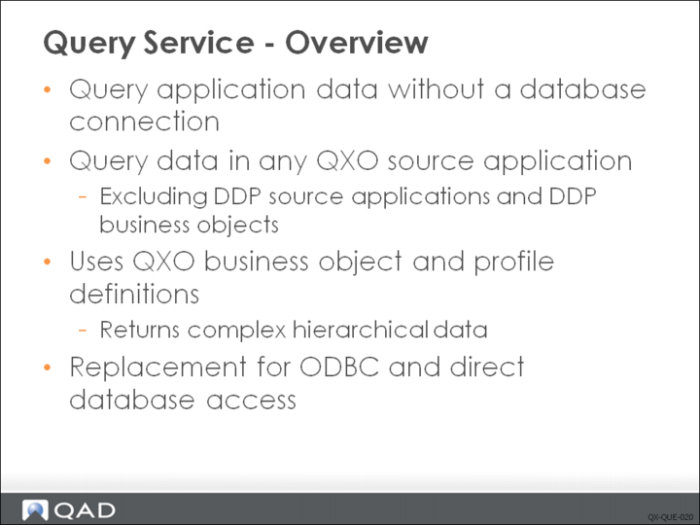
The Query Service is an extension of the event extraction process used to extract and publish business event data from QAD applications based on rules defined in the QXtend configuration. The Query Service enables you to access data in QAD EA without needing direct access to the application database. Often, integration to external systems requires access to data in the QAD Enterprise Application, and this has typically been achieved with ODBC or direct database access. The Query Service allows you to replace those approaches with a standard QAD-supported solution.
The Query Service can query data in any source application configured in QXO except DDP-only source applications as they do not define application database sets. In a source application that is not DDP-only, Query Service can not query data for DDP business objects, for example, in a QADEE source application, you cannot query Financials data.
Using a single service in QXtend you can query application data from multiple data sources by changing a simple parameter in the Query Service request.
The data retrieved by the Query Service is not limited to a single table or a flat data structure; it will return a complex hierarchical data set either as a Progress ProDataset or XML document. The structure and format of the data returned is controlled by the business object and profile definitions configured within QXO. The business object definition is used to build and execute all of the queries required to fill the dataset from the source application database. The queries are executed using standard Progress 4GL constructs that provide superior performance over other methods, such as ODBC. The profile definition is used to map the data in the business object to the format defined in the profile, and this is used as the response to the Query Service request.
Request
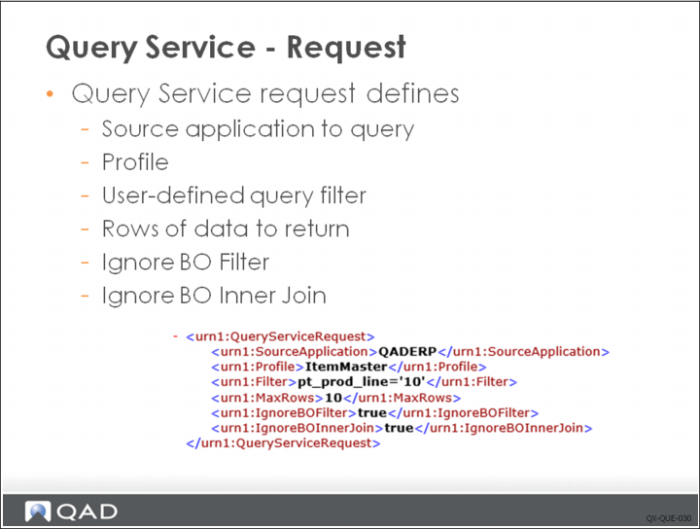
Requests made to the Query Service must provide the data required to perform the query. The request interface for the Query Service is generic and is the same regardless of the object being queried. However, the data that is returned will obviously be different. The request must supply the following information:
Source Application
Name of the source application instance configured in QXtend to query. This must be a valid QXO source application that is not defined as DDP only.
Profile
Name of the profile in QXO you are querying; this is linked directly to the business object. This lets you choose which view of the data from the business object you would like returned. If the profile includes calculated fields and fixed values, these also are returned in the response. If the default profile name is supplied (that is, the same name as the business object), the data is returned in the format defined in the business object.
Note: In Query Service, no business object is defined in the request. QXO will always find the first profile that matches the profile name defined in the request.
Query Filter
A filter can be defined that is applied to the query that fills the top level of the business object; the filter allows you to limit the data that is returned in the response. For example, you could return information for a single sales order by filtering on the sales order number.
Note: The filter can only be against data in the data source for the top level table. That is, if the top level is so_mstr you can only filter on data from so_mstr; you cannot include other tables in the filter.
Max Rows
Number of rows in the top level table that should be returned if the query returns more than one row. This allows you to limit the size of the dataset that gets returned.
Ignore BO Filter
Whether ignore BO filter. If this is set to true, then BO filter will not be used when extracting data.
Ignore BO Inner Join
Whether ignore BO inner join. If this is set to true, then BO inner join will not be used when extracting data.
Calling Options
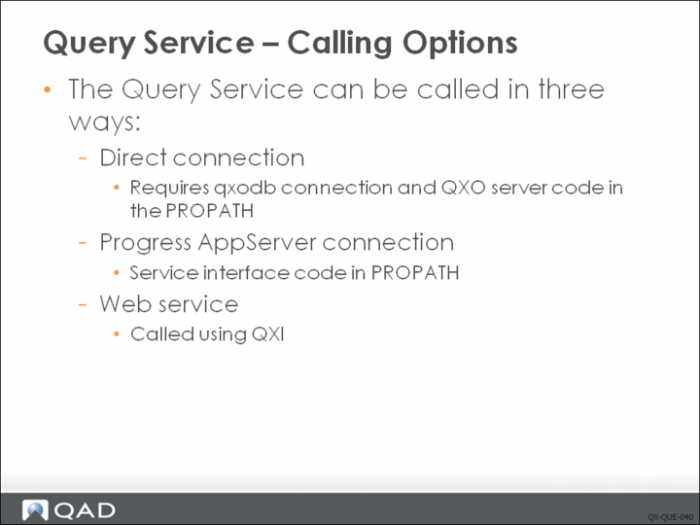
The Query Service is implemented using the SI layer, so you have several supported methods when it comes to using it from your other application:
• Direct connection: Requires an Progress OpenEdge (10.1B+) session that connects to the QXO database and then executes the actual query API. This method also requires that you have all of the QXO server runtime code in the session PROPATH. This method executes the Query Service API without going through the SI. The query result is returned as an instance of a ProDataset.
• AppServer connection: Requires that the client making the request is one of the clients supported by the AppServer (AppServer supports OpenEdge, .NET, and Java clients). The client connects to the AppServer and invokes the API, using the SI to process the request. The response data for the query is returned as a ProDataset.
• Web service: This method can be used by any application that can process an http message. This method can easily be integrated into an Enterprise Application Integration (EAI) or Enterprise Service Bus (ESB) architecture, as Web services fit naturally into this space. The Web service is hosted as a normal service in QXI, which connects to QXO via an AppServer and invokes the API on QXO. In this method, response data is returned to the caller as an XML document.
The following section discusses using the Web Service method for calling the Query Service. See User Guide: QAD QXtend for details on the other two invocation methods.
Web Service Invocation
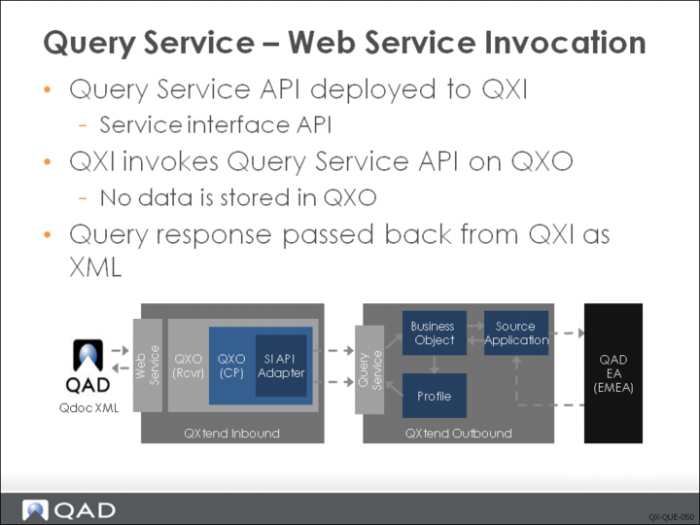
The Query Service API generated from the QXO profile screen is deployed to QXI using Deploy Query function. The API is deployed as an SI API.
When a Query Service request is deployed to QXI, it must be addressed to a receiver that has a connection pool that is connected to the QXO SI-enabled AppServer. The request details are passed from QXI to QXO, where the query request is processed. The query is executed against the relevant source application that is identified in the request, and the result of the query is returned to QXI.
The result of the query is packaged as the response to the QXI request and passed back to the caller as a SOAP XML message.
QXI Configuration
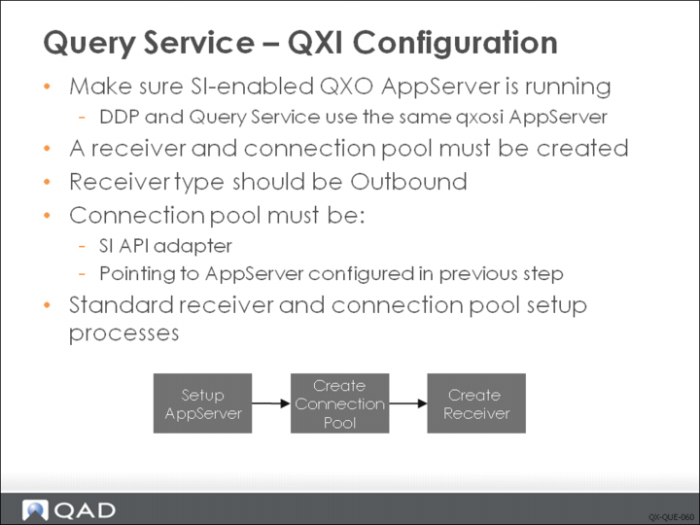
The Query Service runs against QXO. In order for it to be called from QXI, an SI-enabled AppServer is required. The AppServer instance must be connected to the QXO database. The QXO runtime code is required in the PROPATH, and it must use the QXO SI startup procedure com/qad/qxtend/si/AppServerStart.p when it starts.
By default such a qxosi AppServer has been configured for DDP and Query Service during installation of QXtend. The AppServer is shared by DDP and Query Service.
Follow the standard configuration process for QXI. Any request to be processed by QXI requires a receiver and connection pool. The receiver type of the receiver must be Outbound. The connection pool created must be a SI API adapter connection pool. It must be configured to work with the AppServer created for the Query Service requests.
For details on creating an SI API connection pool, see
Service Interface Layer.
QXO Configuration
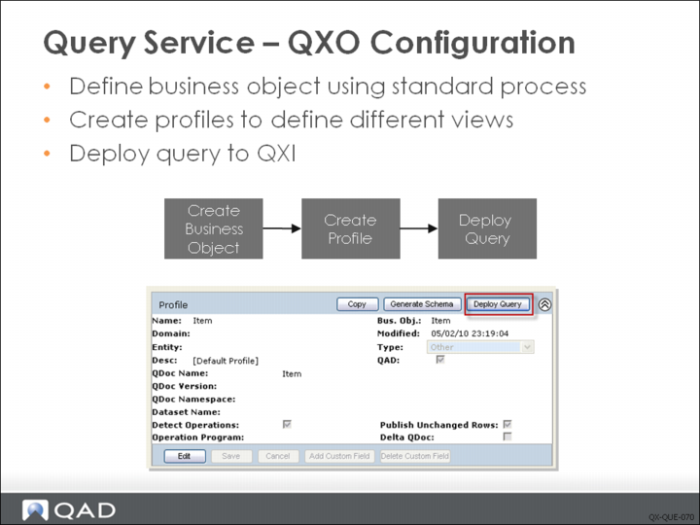
The first step in using the Query Service is to define the structure of the response data from a Query Service request. After determining the data you want returned, create a business object definition that contains all the data you identified. Before creating a new business object, verify that none of the existing objects contains the data you need. When you create your business object, make sure that the business object only contains the fields you need.
The business object defines the raw message structure. The structure probably will not meet your requirements since you have no control over the field names within the returned data; you also may need additional calculated fields that are not stored in the database returned from the query. Create or use an existing profile to ensure that the data returned from the Query Service meets the requirements of the system that is querying the data.
After defining the business object and profile you need for your query, you can automatically deploy the query API to QXI by using the Deploy Query function.
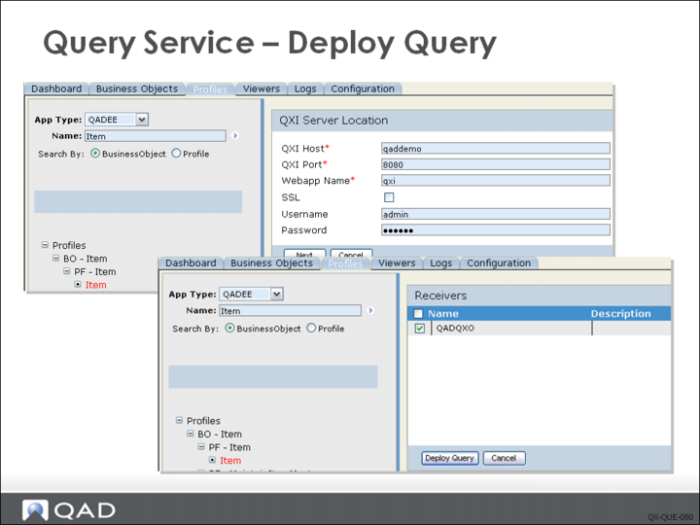
To deploy the query service API to QXI, QXO must establish a connection to the QXI server:
1 Provide the host and port information for the QXI server. You also need to specify the Webapp name.
2 If using Secure Socket Protocol https encryption, select the SSL check box.
Note: If SSL is selected, then QXI Host must include domain name of the host.
3 Enter Tomcat admin user login credentials.
By default all these values have already been defined. Click Next. Once the connection to QXI has been established, QXO will display the receivers for the Outbound module in QXI.
4 Select the receiver or receivers to which you want to deploy the query API, and then click Deploy.
5 A system message displays the status of the deployment.
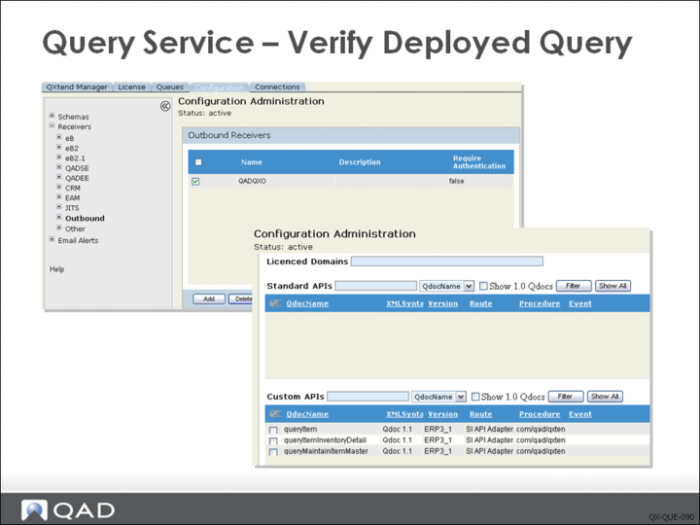
To verify that a query API has been deployed successfully, you can go to QXI and view the schemas under the receiver for query service. A new custom API should be identified. Typically, it has following attributes:
QdocName:
The name of the Qdoc is ‘query’ + profile name. For example, if the profile name is ‘Item’, the QdocName of the API will be queryItem.
XML Syntax:
Qdoc 1.1.
Version:
Depends on the type of source application. For example, if source application type is QADEE, the version of the query API will be ERP3_1.
Route:
SI API
Procedure:
com/qad/qxtend/si/QueryService.p