Configuring E-mail Settings
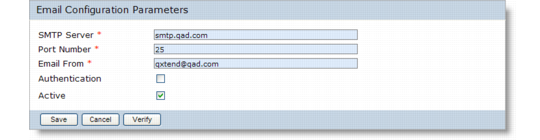
Use the Email Configuration Parameters screen to configure e-mail settings. You can validate your e-mail setup by clicking the Verify button. The process for configuring e-mail settings in QXI is the same as that in QXO.Note: Before configuring e-mail settings, ensure that access is available to the SMTP server.
1 Click the Configuration tab.
2 Click the Email Alerts node in the left-hand tree view. If it was not already displayed, the Email Configuration Parameters screen displays.
Email Configuration Parameters
3 Enter the following values as required.
SMTP Server
Specify the address of the SMTP server used to deliver the alerts. This field is required.
Port Number
Specify the port number used to access the SMTP server. This field is required.
Email From
Specify the address to use as the “From:” in the header of the e-mail message. This field is required.
Authentication
Select this option if the SMTP server to be used requires authentication. When this check box is selected, the User Name and Password fields display.
User Name
If authentication is required, specify a user name.
Password
If authentication is required, specify a user password.
Active
Select this option to activate e-mail alerts. No e-mail alerts will be distributed unless this option is selected.
Verify
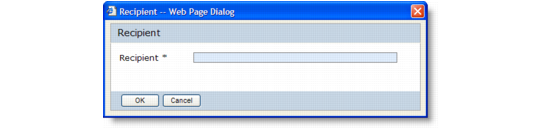
Click to validate the SMTP configuration settings. The Recipient dialog displays.
Recipient
Enter an e-mail address in the Recipient field and click OK. If the SMTP server is available and can be communicated with, a success message is sent to the specified address and a message appears on the Recipient dialog. If the setup is incorrect—or if the SMTP server cannot be communicated with—an error message displays. You can view logs for e-mail alerts in:
<QXI webapp>/WEB-INF/logs/alert.log