Manage User Sessions
Choose Users to view currently logged in users. Choose a user ID to see information related to that user.
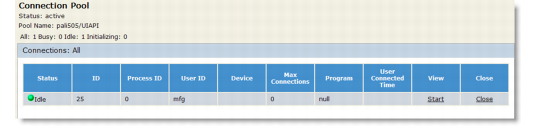
Monitoring Users shows an example of a connection pool in which there are no busy sessions (Busy: 0), no idle sessions (Idle: 0), and one user session initializing (Initializing: 1).
Monitoring Users
Note: When QDocs are being processed, the user is the one defined in the server startup parameters in the Configuration Settings Update page in the Connection Pool Manager. The IP address is that of the server machine where the QDocs were loaded into the queue for processing.
Choose Refresh to update the screen display. Choose the Close link to close a user session. For example, you can click Close to close a connection if a user has locked a database record and left the session running.Debugging Your QDocs
Using the Start link you can debug your QDocs. Choose Start to view the telnet window for the connection being used to import data from a QDoc when that QDoc is being processed. If there is an error in the QDoc, the scrolling of the QDoc on the telnet window halts at the location of the error. When finished testing your connections, choose the Stop link, which displays next to the Start link.Important: Since telnet windows for connections use system resources, close any telnet windows not in use.
Viewing Multiple Telnet Windows
Each section has its own base port. By default the port value is set to 15000 for every connection pool.<snoopingPort label="Snooping Base Port" uiconfig="false" value="15000"/>
To view multiple telnet windows—and to avoid network port conflicts while doing so—set the base port to different values for each connection pool in connectionManagerConfig.xml.Note: The telnet port that each process agent uses is a combination of the base port and agent ID. For example, for agent ID 2 in this connection pool, the network port used is 15002.