Map Iterations
When you come to a frame that repeats—lines in a sales order, items in a container, and so on—QGen recognizes this as an iteration. This means the QGen mapper maps the first field in the iteration twice.
To accomplish this, you navigate through the first field of the frame twice. The first time, enter data normally as described in Mapping a Program for Regular UIAPI Interface Programs. The second time through, make sure to return to the first field in the frame. QGen automatically recognizes the iteration.One common iteration type is the Comments iteration. This does not need to be mapped because it is defined in the commonTypes.dat file. See Starting QGen.At a Comments field, press Enter twice. The first Enter pops up the Field Info screen and captures the field information. The second detects the iteration. Enter transComments as the Iteration Name. Exit the Comments iteration by pressing F4 until you reach the next field, and continue through the remaining fields of the program.False Iterations
You will also encounter false iterations in QAD Enterprise Applications. These are fields that are entered into more than once, but that are not receiving new data. For example, when you leave the Consignment Location field in Sales Order Maintenance, several messages that require user input may display regarding the status of inventory in this location. After responding to the first message, the interface returns you to the field. QGen sees this as an iteration. In these instances, press F4 to leave the Iteration Info pop-up and continue with the next field in the program.Important: Each menu-level program is itself an iteration. When you return to the first field in a program—the sales order number field in Sales Order Maintenance—select the field again to allow QGen to detect the iteration. If you skip this step, an error occurs during QDoc generation.
Hidden Iterations
In general, iterations are detected automatically by QGen. In some cases, such as when multiple values are allowed in a single frame, the iteration is not detected because you have not left the frame. In this case, you must open the Field Info pop-up on the first instance of the field to map the field. When you arrive back at the field after entering data, you must press Ctrl-F again to open the Iteration Info pop-up.Mapping an Iteration
In most cases when you enter an iterating field the second time, the Iteration Info pop-up displays automatically.
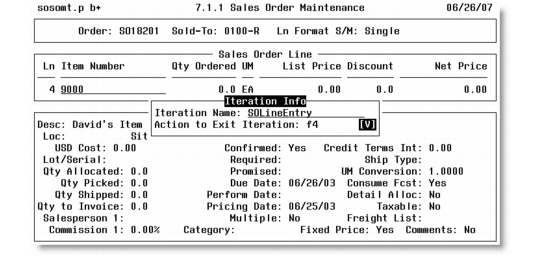
Iteration Info Pop‑Up
Enter the following data:
Iteration Name
Enter a name for the iteration. This iteration name is the name that will appear in the QDoc. It must conform to the standard humpback notation for QDocs; for example, maintainSalesOrder.
Action to Exit Iteration
Enter the key required to exit the iteration (usually F4). Use the down arrow to select an alternative value if necessary.
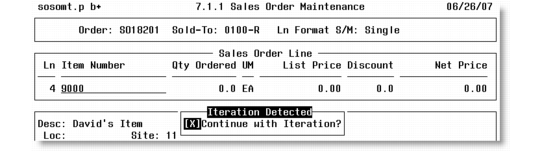
4 Press Go to exit the pop-up. Continue with Iteration? displays.
Continue With Iteration Query
5 From the Iteration Detected pop-up, there are two courses of action:
a Press spacebar to enter an X and press Go to continue through the iteration again. You can do this as many times as there are unique pathways in the iteration. This moves you to the second field of the iteration and you would continue through the fields until all iterations are mapped.
Note: Fields that were mapped on the first pass through the program display the message “<fieldname> found in table” in the program message area. The Field Info pop-up does not display.
b Press Go without the selecting the continue option to exit the iteration. A message displays:
Please exit the iteration.
Press spacebar to select the message. Press Go to exit the iteration message. Move on to step
6.
6 Press the appropriate key, usually F4, to exit the first iteration field.
Note: If the iteration is exited in a different way than you originally specified (Action to Exit Iteration was set to F4 but should be F4:F4), you can change it in Update Mode. See
Change Mode to Update.
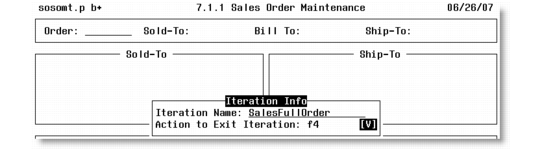
When you return to the first field in the program, remember to press Enter, as though you were going to go through the program again. The Iteration Info pop-up displays. Enter a name for the full program iteration.
Complete Program Iteration
To finish the mapping process, press Ctrl+W to disable the pop-ups.