Basic Sales Order Process
Overview
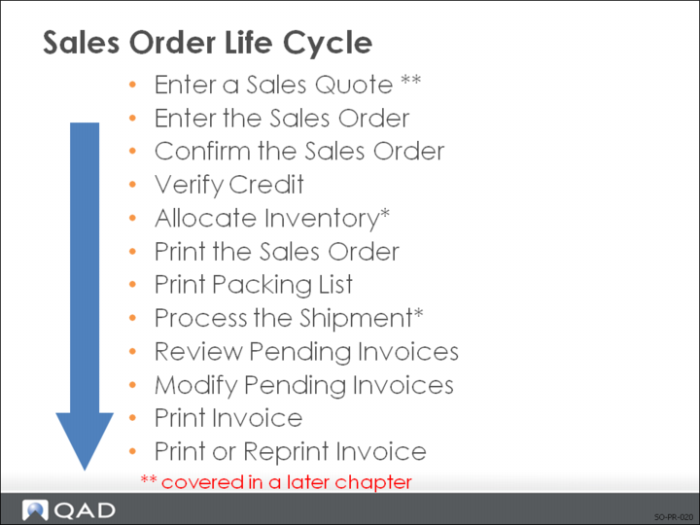
This diagram shows the suggested steps for processing a typical sales order. Please note that sales quotes will be skipped at this time and covered in the next chapter. Items with a single asterisk are required, but are covered at length in another course.
Four modules are typically involved in the sales order process:
• Sales Quotations
• Sales Orders/Invoices
• Configured Products
• Sales Analysis
See in this training guide:
Sales Quotations and
Sales AnalysisQAD Enterprise Applications also supports many optional features that can be used with sales orders. These are covered in the next chapter.
See in this training guide:
Optional Sales Order Features.
Depending on your company requirements, you may complete some or all of the above procedures when processing a sales order.
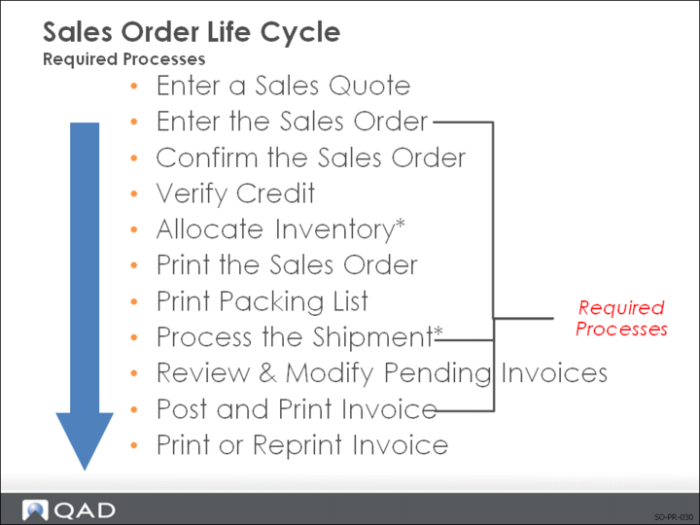
Procedures that are typically required to process a sales order include:
1 Entering/creating the sales order
2 Processing the shipment of the items on the sales order
3 Posting and Printing the invoice
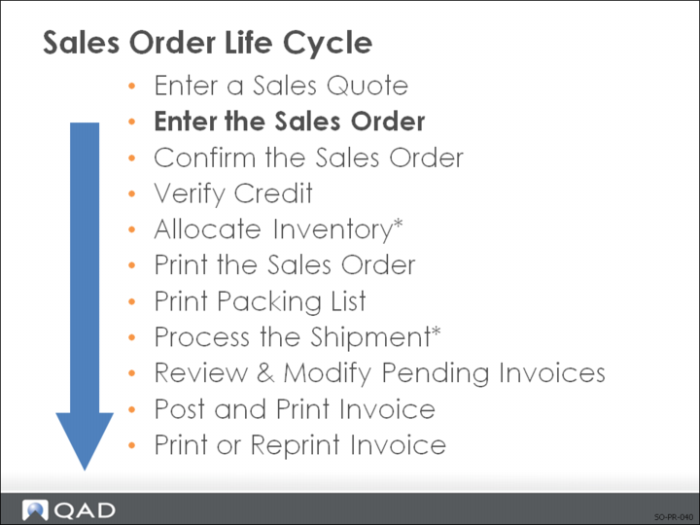
Enter the Sales Order
A sales order consists of a header, line items, and a trailer. Each part is displayed in a separate frame.
Header
The header frames include the sales order generic information that defines customer information and applies to the entire order:
• Order number
• Dates: Order Date, Due Date, Required Date, Promise Date, and Pricing Date
• Customer name and address: sold-to address and/or bill-to address
• Ship-to name and address
• Credit terms
• Freight list
• Shipping remarks
• Comments can follow to describe in more detail the terms or instructions associated with this order
Line Items
After completing the header information, you enter specific line items in the Sales Order Line frame. The line item frame includes all items on the order.
Each line item lists:
• Item number
• Quantity ordered
• Unit of measure
• Pricing information
Note: Best list price, discount percentage, and net price are determined by the system based on analysis codes and defined price lists.
Enter line items in single or multiple-line mode:
• Mode is specified by the default you set in Sales Order Control
• You can switch between the two modes within an order
Trailer
When all line items are entered, QAD Enterprise Applications displays the trailer frame:
• Totaled line items
• Calculated taxes
• Optional order discounts
• Freight charges: calculated automatically on a bulk or unit basis
• Optional miscellaneous charges
• Total value of the sales order
Sales Order Maintenance: Header
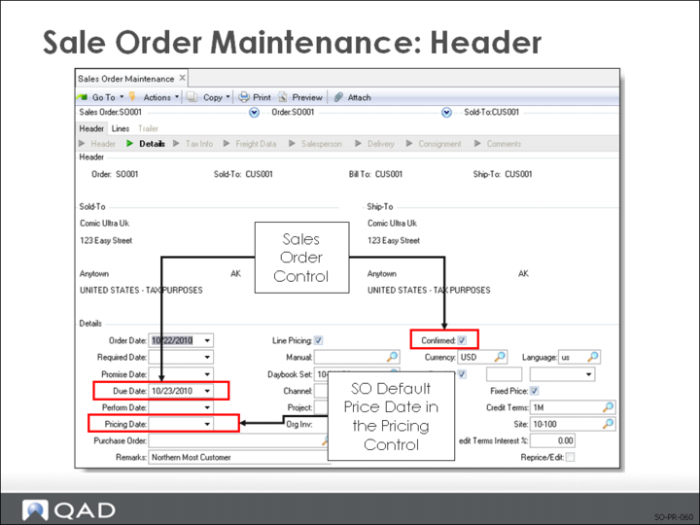
You can create a sales order or view an existing sales order using Sales Order Maintenance.
• Each entered sales order or pending invoice is identified by a sales order number, entered manually or system assigned
• Sales order numbers select information to appear on reports and inquiries
Sales order numbers must be unique.
• The system automatically assigns a number for the next sales order number
• Leave sales order number blank for a system assigned number
• The system records the next sales order number in Sales Order Control and increments it automatically
Due Date
The system calculates the due date by adding the specified Shipping Lead Time from Sales Order Control to the Order Date
• The due date is the date the system uses for MRP and for determining shipping priorities
• You can change this field
Note: You can also specify the Order Date, Required Date, Promise Date. These dates are not used by the system and are for your reference only.
Pricing Date
Defaults to one of the other four dates, depending on the setting of SO Default Price Date in Pricing Control
• This date is used in the search for effective price dates
Line Pricing
Defaults from the setting of Price SO by Line in Pricing Control
• For a new sales order or RMA, determines whether the system prices each line item as it is entered, or waits until the end of order entry before calculating prices
• No: The system prices each line without considering other lines on the order. This might not be the best price, since additional item quantities on other lines may qualify a line for a different price list
• Yes: The system prices each line item as it is entered in relation to other lines on the order and displays the best price
Note: In either case, if prices change because of quantity breaks the system recalculates them at the end of order entry.
• Affects a new order being entered in the system; when you are maintaining an existing order this setting has no effect
• Depending on how price lists have been set up, successive lines on an order can affect the price of line items previously entered
Example: When lines 1 and 2 are for the same item (or break category), the combined quantity can qualify line 1 for a different price list (with better prices). The system always adjusts prices affected in this way when order entry is complete.
Note: If you expect repricing to happen often or do not need to know exact prices as you enter an order, you can save time by telling the system to hold these pricing calculations to the end of the order. Setting Line Pricing to No can improve performance during line item entry.
Manual
A price list to be considered for line item pricing on this order in addition to the ones that the system selects as potential price list candidates
• When a price list is defined in Sales Order Price List Maintenance, you can optionally mark it as manual. In this case, the system never considers it for pricing unless it is entered by the user in the Manual field on an order header.
• If a price list is entered, it is included as a price list candidate when the system selects price lists to consider for this order
• Specifying a manual price list only marks it to be considered
• The system still determines the best price according to the rules and codes previously set up
• You can add security for this field
Currency
The currency code for this sales order or invoice, uniquely identifying a foreign currency.
• All sales, purchasing, and accounting transactions can specify a foreign currency, and you assign entities to a specific currency
• The currency code and current exchange rate must be defined in advance in Exchange Rate Maintenance
• When an order is entered, the system displays the exchange rate effective on the order date and lets you change it, optionally flagging this rate as fixed
• This exchange rate is used for reporting purposes
• Usually when the invoice is posted, the system takes the exchange rate effective on the post date and posts this to Accounts Receivable
• However if you have flagged the exchange rate as fixed, it is not changed by the system
• Once an order or invoice has been entered, the currency cannot be changed
Warning If you made a mistake and entered the wrong currency, you can only correct it by deleting the order or invoice and re-entering it.
Sales Order Maintenance: Line Items
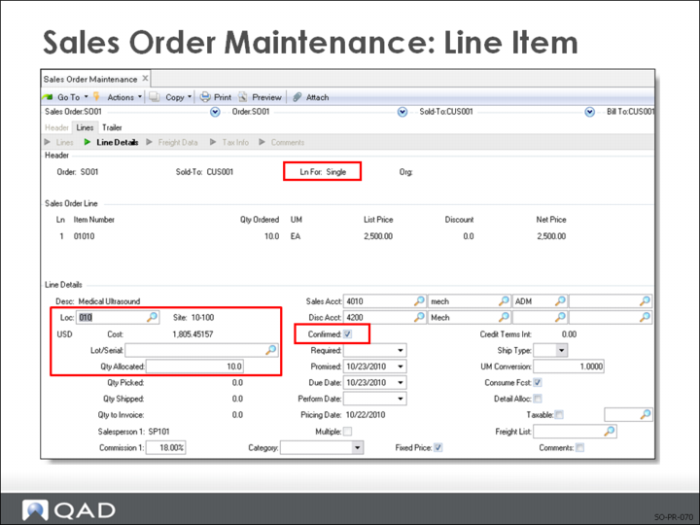
Ln Format S/M
The method for entering sales order and invoice line items. Values must be S or M:
• Single: You can display and maintain detailed information for each line item
• Multi: You can enter basic information--item, quantity, and price--for up to 12 lines on a single screen
See in this training guide:
Ln Format S/MLocation
For detail allocation, specify a location from which the inventory is to be allocated. For General Allocation, leave field blank; the system allocates from the default site/location for the item
Lot/Serial
If doing a detail allocation, specify the site, locations, lot/serial numbers, and lot references for the allocated quantity for the item
See in this training guide:
Detail AllocationsQty Allocated
The total of quantity allocated, plus quantity shipped, plus quantity picked cannot be greater than quantity open on the line item. You can add security for this field.
• A quantity allocated can only be specified for a confirmed order
• For confirmed orders, the system calculates a default based on a number of fields
• Quantity Available to Allocate
• Limit Allocations to Avail to Allocate
• Allocate Sales Order Due in Days
• Allocations reserve inventory so it won't be allocated to other sales orders, RMA issue lines, intersite requests, or work orders
• Allocations are used to control the shipment of items, especially in shortage situations when a sufficient quantity of an item does not exist to fill all orders
• Most shipment functions let you set up the quantity allocated or picked for immediate shipment
• Allocation quantity can be changed manually
• Usually picklists only print the quantity allocated
• Sales Order Manual Allocations or Sales Order Auto Allocations can be used later to allocate inventory to a sales order or RMA line due outside the allocation window or when sufficient inventory becomes available
• Sales Order Packing list Print will only detail allocate sales orders whose quantity allocated is greater than zero
Qty Picked
Quantity picked cannot be greater than the quantity open on the line item
• The quantity printed on a picklist for this line item
• When a picklist prints, the system updates the quantity picked, ensuring that the same quantity is not printed again on the next picklist printed for this order
• Quantity picked can display as the default quantity to ship during the Sales Order Shipment function to simplify the entry of shipments
Confirmed
Defaults to the value entered on the sales order header
• Indicates whether this order line is considered a firm order
• Yes = the order line is confirmed
• No = the order is not confirmed
Note: A confirmed order can have some line items that are not confirmed. If there aren't enough items in stock, someone needs to review the schedule prior to promising delivery.
• When processing orders that allocate inventory from other sites connected over a network, if the connection is down enter No here
• Later, when the connection comes up, use Sales Order Confirmation and confirm all order lines to be shipped from this site
See in this training guide:
Confirmed OrdersSales Order Maintenance: Trailer
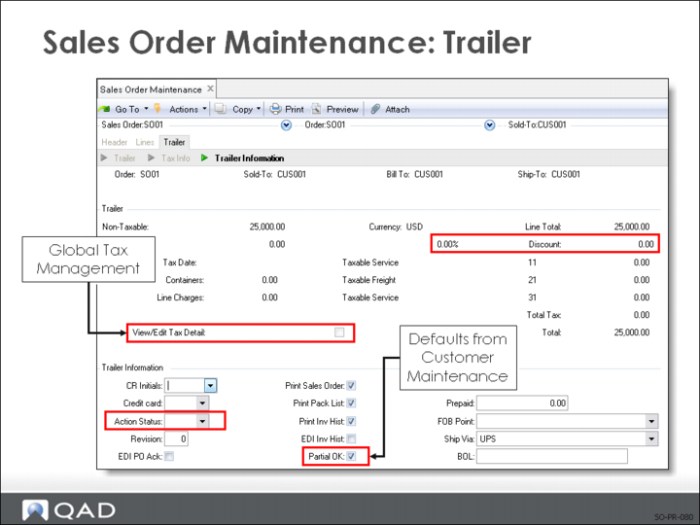
Action Status
You can still allocate inventory for an order on hold, but cannot print a picklist
• If the field is blank, you can release the order
Note: If there is any value other than blank in the Action Status field, the order is on hold.
View/Edit Tax Detail
You can record additional tax information on sales orders and pending invoices
• This feature lets you review (and optionally change) tax amounts
EDI PO Ack
EDI = Electronic Data Interchange
• Yes = sales order is processed by PO Ack Export or PO Ack Export Audit Report
Partial OK
Defaults from the customer record when an order is entered