Domain Maintenance
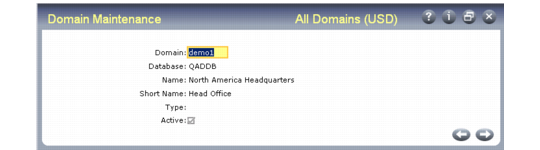
Domain Maintenance (36.10.1) illustrates Domain Maintenance (36.10.1).
Domain Maintenance (36.10.1)
Domain Code
Enter a code (up to 8 characters) identifying a specific domain. Codes are restricted to the characters A–Z, a–z, and 0–9.
Domain Name
Enter a descriptive name to associate with this domain (up to 28 characters). This name must be unique within a database and across connected databases.
This name displays in the lookup associated with domain fields and on various reports and inquiries, as space permits.
Note: When you change the domain name, the system automatically sets the value of ~SCREENS and ~REPORTS to the new domain name. You define these values in Company Address Maintenance (2.12) to represent your company name on the top of menus and reports.
Domain Short Name
Enter a brief name (up to 14 characters) to associate with this domain. This name must be unique within a database and across connected databases.
The domain short name displays in the program title bar in the character and Windows interfaces based on the setting of Header Display Mode in Security Control. It always displays in the program title in Desktop screens.
Database
For a new domain, enter the name of the database where the domain is located. Set up databases in Database Connection Maintenance (36.6.1). You must specify a database even in a single-database environment.This is to ensure proper setup data exists if you decide to add other databases later.
Once a domain exists, this field cannot be edited. Database defaults to your current working database.
Domain Type
Enter a code identifying the type of domain. You can use this field to group domains based on a user-defined convention.
One domain in each database must be defined with a domain type of SYSTEM, which is used as a template for supplying default data when other domains are created.
You cannot modify the type of the system domain. However, you can change another domain to be the system domain by modifying its type to SYSTEM. In this case, you are prompted to continue. If you respond Yes, the type of the current system domain is set to blank and the domain you are editing becomes the system domain.
Note: A connection record cannot have a type of SYSTEM.
Active
Indicate whether this primary domain is currently active.
Yes (the default): This domain can be associated with users in User Maintenance and specified at log-in.
No: This domain is not active in the current database.
Note: Unless you have purchased the Shared Services Domain module, the system lets you have only one active domain. If you attempt to activate a domain when your database already has an active domain, an error message displays.
When new sites are created in Site Maintenance (1.1.13), a site connection record is created in active domains only.
The system performs the following validations related to this field:
• You cannot change the Active setting of your current domain. You must switch domains first and then modify the other domain to inactive.
• You cannot change this field if the domain is a connection record (referencing another database). You must change this field in the domain’s primary database.
• In a multiple-database environment, you can only change this field for a domain in the current database when all other databases are active and connected. The system modifies the Active field for the connection records that exist in the other databases. An error displays if any database cannot be accessed and the field cannot be changed.
Propath Setting
Enter a comma-separated list of directories—in addition to those defined at login—that the system should use for this domain. The system validates that the entry does not exceed 160 characters—the maximum size of the database field—and that all elements represent valid directories.
You cannot change this field for the current working domain; in this case, the Propath field is disabled. If necessary, switch to a different domain.
Important: You can only update this field in the character and Windows user interfaces. However, this does not limit QAD Desktop and .NET UI from running domain-specific programs based on the values in the field.