Operating System and Progress Security
Security controls applied using programs on the Security Menu (36.3) apply primarily to accessing the application itself, as well as accessing functions within the application. In addition to application-level controls, you should consider additional security at the operating system and Progress levels.
At the operating system level, all related files should be reviewed to determine the appropriate permission and ownership settings. Relevant files would include at a minimum:
• Database files (*.db)
• Log files (*.lg)
• Source code files (*.p)
• Compiled source code (*.r)
• Database backup files
• Files used to execute system administration tools such as MFG/UTIL
For example, on UNIX platforms, a system administrator should be the owner for most—if not all—of these files. To restrict access to these files, operating system commands such as the following for UNIX can be used to limit both Read and Write access to the file owner.
chmod 600 <database file name>
The standard Progress documentation set provides information about security controls, including the following documents:
• Database Administration Guide
• Client Deployment Guide
• Progress Programming Handbook
The following sections discuss information-security exposures and mitigating controls in these areas:
• Accessing the Progress Editor from the application
• Capabilities to directly read, modify, and delete database records
• Compiling custom code on unprotected databases
• Accessing a database directly from Progress
Progress Editor Access
One area of potential security exposure is related to the Progress Editor. By default, legitimate users can access the Progress Editor by exiting from the menu and specifying the appropriate code at the exit prompt. Once a user has accessed the Progress Editor, data can be significantly exposed.
You can use Menu Security Maintenance (36.3.10) to limit access to the Progress Editor just as with standard menu programs:
1 Leave the Menu field blank.
2 Set Selection to 1.
3 Enter user IDs or groups for any users who should have access to the Progress Editor.
Another related control that should be considered is to disallow privileges for users connecting to the database with a blank user ID. The Disallow Blank User ID Access option on the Progress Database|Admin|Security menu is available for this purpose.
Selecting this option denies all access privileges to the Progress blank User ID by placing a leading exclamation point (!) in each table and field permission specification for the database. See the next section for a more detailed description.
See the “Maintaining Application Security” section in the Progress Client Deployment Guide for details.
Progress-Level Database Schema Controls
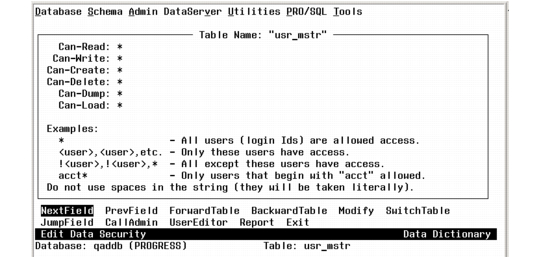
Progress-level security controls should also be considered for protecting the database tables. Progress provides a schema security function to restrict various levels of access to specific database tables. This function is accessed from the Progress Data Administration|Admin| Security|Edit Data Security menu option.
Assigning Schema Controls
Select the NextField option to define access specifications at the individual field level as well.
These access specifications are enforced at compile time: Users are prevented from writing and executing custom source code in the Progress Editor if the code violates access restrictions.
Compiling Custom Code on Unprotected Databases
Progress schema-based controls do not prevent users from compiling code on an unprotected database with no schema-level access restrictions and then executing it on a production database. The schema access restrictions are checked at compile time rather than runtime.
To provide protection against this exposure, consider using the Progress PROUTIL function DBAUTHKEY to set a key for a Progress database.
Once set, this key is embedded in all r‑code compiled against the database. In addition, any r‑code is checked to verify that it contains this key value before it is permitted to execute. An additional function, RCODEKEY, is available to set or change the key value in specific r‑code entries without recompiling source code.
See the Progress Database Administration Guide for additional details on these functions.
Progress-Level Database Access
Unless properly controlled, it is possible under certain conditions to start a Progress session and then connect to a database without starting the application. After connecting, there would be no effective controls over accessing private or confidential data, modifying, or deleting records. Since a session is never initiated, any application-level controls such as menu security could be circumvented. To mitigate this exposure, user and password access controls can be implemented at the Progress level as well as the application level.
To set Progress security, access the Edit User List option on the Admin|Security menu of the Progress Data Dictionary. Use this function to load valid user ID, name, and password combinations into the user security (_user) table.
Note: Controls on user IDs and passwords do not apply to user records in the Progress _user table.
You can use this table in combination with command-line security options when the database is started. There are several possibilities:
1 No Progress users are defined and the –U and –P options are not specified. This is the default. The Progress user ID is set to the operating system log-in or the network log-in ID.
2 Progress users are defined but the –U and –P options are not specified. On all systems, this results in a blank Progress user ID. This can be used to establish basic system security for the majority of users. Any users with additional capabilities must specify a –U and –P at startup.
3 Progress users are defined and the –U and –P options are specified. The system verifies that the user ID and password combination is in the user security (_user) table. If not, an error displays and the session is not started.
Note: If no Progress users are defined, the –U and –P options cannot be specified.
By setting Progress user/password controls on the database, restricting access to the database files, and monitoring the database log file for unusual access events, security exposures from inappropriate access to the database can be substantially reduced.