Assign Access by Menu
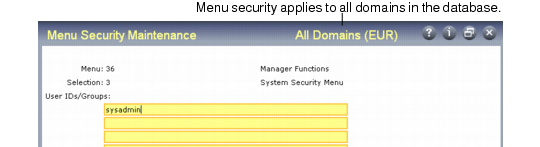
Menu security controls each user’s access to programs. Use Menu Security Maintenance (36.3.10) to define the users or groups that have access to a menu function.
Menu Security Maintenance (36.3.10)
Specifying Menu Numbers
Enter the number identifying the menu where the program you want to restrict is found. The system combines menu and selection number to determine the function to be restricted.
For example, Purchase Order Maintenance is selection 7 on menu 5.
To restrict an entire submenu, enter the menu number in Menu and the submenu in Selection. For example, Menu 7 Selection 1 restricts the entire Sales Order Menu (7.1).
The main menu is identified by menu number 0 (zero). In the character interface, restrict access to any of the 36 top-level menu items by specifying 0 for menu and the appropriate number for selection.
In the Windows environment, top-level menu options are also grouped under seven icons. These icons are referenced through the letter A:
A.1: Distribution
A.2: Manufacturing
A.3: Financials
A.4: Customer Services
A.5: Master Data
A.6: Custom
A.7: Supply Chain
To restrict access to top-level menu items in the Windows interface, define records for menu A and the appropriate selection number as well as menu 0 and the appropriate selection.
For example, to restrict access to the Item/Sites menu (1) in Windows, create the following records:
1 Specify Menu: 0, Selection 1.
2 Specify Menu A.5, Selection 1.
Important: Menu security is intended to provide control over menu functions as opposed to the executable programs associated with a particular menu specification. This distinction is important in cases where a particular function is provided in multiple menu locations. For example, AR Aging as of Effective Date (arcsrp05.p) exists at the following menu locations:
• 26.21.1.12.16
• 26.21.3.1.16
• 27.18
If User1 is denied permission to execute this function from the first two menu locations, this user may still be able to execute the function from the third location.
Effect of Menu Security
The effect of menu security varies according to the interface.
• In the character interface, users cannot see restricted menu items or submenus.
• In the Windows interface, a restricted menu item or submenu displays with an X after the menu number. Users can choose not to see restricted menus by selecting Hide Menu Items from the Options menu.
• In QAD Desktop, restricted menus display but users cannot execute them.
• In QAD .NET, restricted menu items are hidden.
In all interfaces, users cannot access a restricted menu item by typing the program name. However, programs can still be executed from the Progress editor unless you add security for it. To do this, leave Menu blank in Menu Security Maintenance and specify selection 1, which represents the editor.