Defining User Groups
Use User Group Maintenance (36.3.4) to create groups that can be used to control access to various aspects of system use and associate them with domains and users.
Two administrative user groups are required in the system:
• The administrator group specified in Security Control (36.3.24) to receive e‑mail notifications when specific security and controlled events occur. See
Administrator Group.
• A QAD Desktop administrative group that can access the Desktop administrative functions. This group is specified during installation of QAD Desktop 2.7 or higher.
Note: If you plan to take advantage of the simplified screen tool in QAD Desktop 2.7, you can also specify a user group that can create and modify screen templates, which are then assigned to groups of users. See User Guide: QAD Desktop for details on simplified screens.
Although they can streamline security setup and administration activities, groups are not required to control access. Depending on your security requirements, you can also control access based on individual IDs or not at all.
You also can assign user IDs to existing groups by domain in User Maintenance (36.3.1). To use this method, just set up a group name and description in User Group Maintenance, and set Update Groups to Yes in the domain frame of User Maintenance.
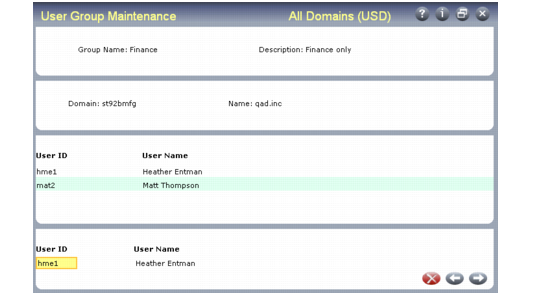
Use the first frame to enter a name and description for the group. Then specify the domain with which you want to associate group records. The domain must be defined in Domain Maintenance (36.10.1), and the Active field must be Yes in that program.
User Group Maintenance (36.3.4)
The system lists all users currently assigned to this domain/group combination. To add a user ID, navigate to the User ID field in the bottom frame and enter a user ID defined in User Maintenance. If the user is not currently assigned to the domain, User Group Maintenance automatically creates that association.
If you enter a deactivated user ID—one that has Active set to No in User Maintenance—the system displays a warning message. Although the user ID is considered part of the group, the user cannot log in to the system until the user ID is reactivated.
Deleting Group Records
To delete a user ID from the group, select the ID from the list and choose Delete. Confirm the delete to continue.
To delete a group, you must first delete all the domain-specific group records. Navigate to the Domain field and choose Delete. When you confirm the deletion, the system removes all references to the group from access lists associated with each domain. After deleting these records, the system prompts you to delete the group itself.
Note: Deleting a group has no effect on access records set up using Field Security by Group (36.3.20). That program creates an individual access record for each group member; these records are not updated when a group is deleted. You must use Field Security Maintenance (36.3.19) to delete records individually by user ID. See
Field Security by Group.