Updating Audit Profiles
Use Audit Workbench Profile Maintenance (36.12.13.5) to adjust profile settings for your specific environment. You can enable or disable auditing and add user-defined delete event keys for the tables you plan to audit.
To disable auditing for a table already being audited, you must create a new activated profile for that table. Do this by updating the workbench profile with Audit Trail set to No; then activate that profile with the proper begin date.
Delete Event Keys
The primary index fields for each database table are defined as delete event keys. These keys are stored in the audit database when a record in this table is deleted. This is in addition to the standard information stored for create and modify auditing events. The system uses this data to uniquely identify a deleted record. This search criteria is used by Audit Trail Report–Deleted to find and retrieve deleted record information from audit databases.
Example: To search for and report audit trail information for a deleted sales order, Audit Trail Report–Deleted uses a date range and the so_nbr field values indexed when the record was originally deleted. The so_nbr field is the QAD-defined delete event key for the so_mstr table.
Updating Profiles
Audit Workbench Profile Maint (36.12.13.5) illustrates the first frame of Audit Workbench Profile Maintenance.
Audit Workbench Profile Maint (36.12.13.5)
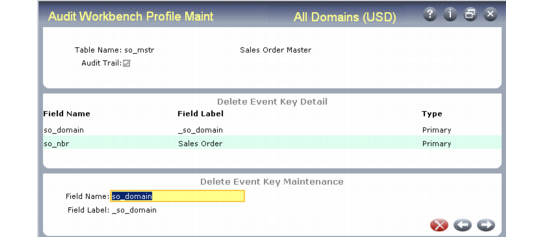
Enter a table name and press Go. Then indicate if you want audit trail to be enabled or not. Press Go to display the delete event keys currently defined for the table.
Audit Workbench Profile Maint, Delete event Key Detail
In addition to the QAD-defined delete event keys, you can manually define any other field in the table as a delete event key in the Delete Event Key Maintenance frame.
Note: You cannot delete the QAD-provided keys.
Use Audit Workbench Profile Report (36.12.13.6) to display the information updated in this program.