Displaying Deleted Audit Data
Audit Trail Report–Deleted (36.12.2) shows a complete history for any audited record that has been deleted. The report includes two date ranges. The first date range indicates the range of audit trail event dates to include in the report. The second date range, Delete Date and To, refers to the date the record was actually deleted.
The date range is not mandatory, but entering one narrows the search of audit databases and improves reporting speed. If older audit databases have been take off-line, restrict the date range to dates included in the online databases to avoid error messages.
Example: Several records were deleted sometime in June 2007. You need to see the previous year’s audit trail information for those records. Enter 07/1/06 to 06/30/07 in the first date range to see events that occurred in the previous year. In the second date range, enter the date range when you think the records were deleted, 06/01/07 to 06/30/07.
The resulting report shows that the last audit event for the reported records was DELETE with an event date of 06/02/07. The report also shows the CREATE and MODIFY events for the records if these events occurred in the previous year.
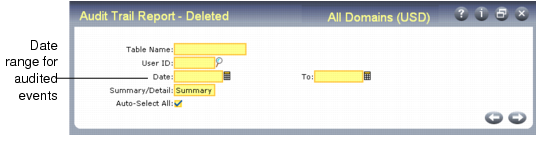
Audit Trail Report–Existing (36.12.1) illustrates the first frame of Audit Trail Report–Deleted.
Audit Trail
Report–Deleted (36.12.2)
This frame is the same as Audit Trail Report–Existing. Select the table, user ID, date range, report style, and selection default. When you press Go, you are prompted for a date range when the deletions occurred. If you do not know this, enter a date range spanning the online audit databases.
Audit Trail
Report–Deleted, Date Range
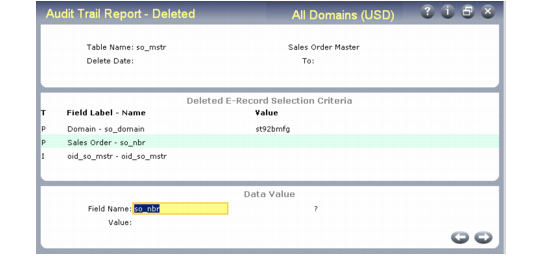
Enter an appropriate date range and press Go. The Deleted E-Record Selection Criteria frame displays.
Audit Trail
Report–Deleted, Deleted E‑Record Selection Criteria
The field name, field label, type, and value for the associated delete event keys display in the Deleted E-Record Selection Criteria frame. Field types are Primary (P), Indexed (I), or non-indexed (F). To identify the deleted record, you can enter specific search criteria for each delete event key or choose Go to continue. To enter specific data values for an event key, select the key and then enter the criteria in the Value field. Press End when you finish entering values. The Report Display Fields frame displays.
Audit Trail
Report–Deleted, Report Display Fields
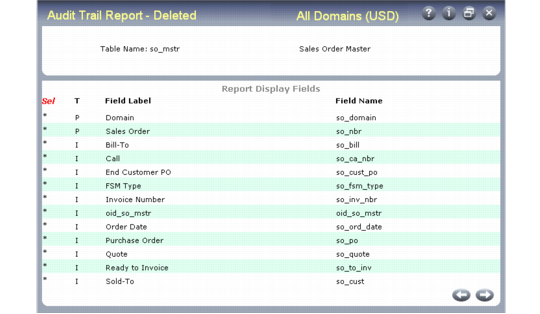
This is identical to the frame that displays in Audit Trail Report–Existing. It displays all the fields in the table for which you are generating a report. All fields are preselected if Auto-Select All is Yes. Select or deselect fields as needed. Then press Go to specify the output device for the report.