Displaying Existing Audit Data
Use Audit Trail Report–Existing (36.12.1) to find audit information related to existing database records. You can only report against audit databases that are currently online.
Note: This report does not display audit information for deleted records. To see audit information for deleted records, use Audit Trail Report– Deleted. See
Displaying Deleted Audit Data.
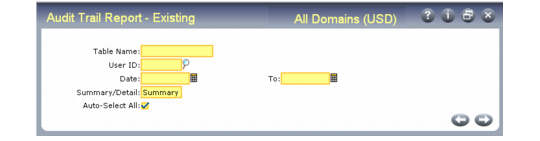
Audit Trail Report–Existing (36.12.1) illustrates the first frame of Audit Trail Report–Existing.
Audit Trail
Report–Existing (36.12.1)
Select the table, user ID, date range, and report style in the first selection criteria frame. You also indicate if you want all the fields in the selected tables to be included in the report by default. You can modify the setting for individual fields as needed in the Report Display Fields frame.
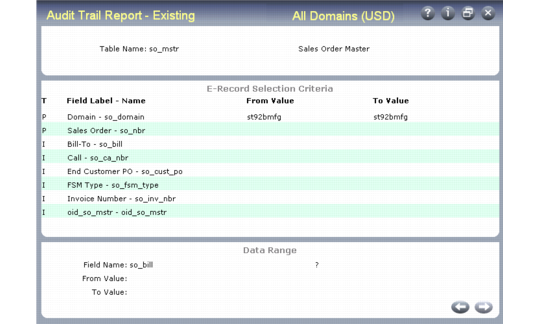
Then press Go to display the E-Record Selection Criteria frame where you can specify a range of values for one or more fields for identifying the records to report.
E-Signature History Report, E‑Record Selection Criteria
This frame displays the field name, field label, and field type for each field in the selected database table. Field types are Primary (P), Indexed (I), or non-indexed (F). To enter a selection range for a field, navigate to the Data Range frame, where you can specify from and to values. Any selection criteria entered in the Data Range frame display next to the corresponding field on the E-Record Selection Criteria frame. These selection criteria are used to narrow the search results. Not entering a data range for a field matches all values.
Note: Large reports may result if you do not specify field-level selection criteria.
To minimize the report output, enter criteria for as many table fields as needed. For example, if you are reporting the audit trails for one or more so_mstr records, scroll to the so_nbr field and press Go. Enter a range of sales order numbers in the so_nbr From Value and To Value fields to narrow the search results. After entering the field-specific selection criteria for your report, press End to continue.
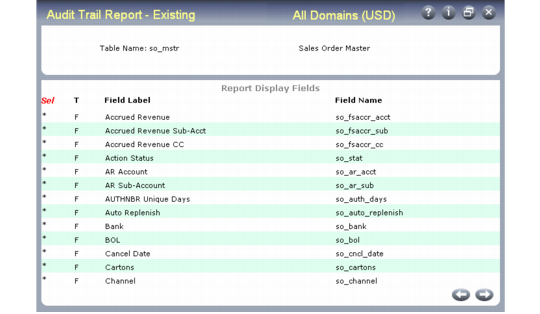
Use the Report Display Fields frame to select or deselect the fields to include or exclude on the resulting report.
Audit Trail
Report–Existing, Report Display Fields
All fields are preselected if Auto-Select All is Yes in the first frame. Select or deselect fields as needed. Then press Go to specify the output device for the report.