Transfer the Inventory
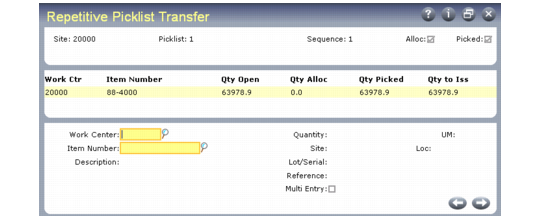
Use Repetitive Picklist Transfer (18.22.3.6) to transfer inventory from the stocking location to the work center. The new location must exist and must have the same name as the work center. After transferring the inventory, the system deletes the picklist.
Note: Inventory is transferred, not issued.
Specify the date of the transfer in a pop-up frame after selecting Go from the header. The default is the system date.
Repetitive Picklist Transfer (18.22.3.6)
Use the Sequence code to transfer only part of the total if space at the work center is limited.
Example: If a work center holds 1,000 of an item, but the total requirements are 5,000, one picklist is created allocating 5,000, while the material is picked and transferred in sequences of 1,000 (sequence 1 for 1,000, sequence 2 for 1,000, and so on).
Set the maximum order quantity for an item in the Order Multiple field (Ord Mult) in Item Planning Maintenance (1.4.7) or Item-Site Planning Maintenance (1.4.17).
To transfer specified quantities other than the order maximum, set the amount in Order Mult.
Example: If the stocking unit of an item is liters but the item is delivered to the work center in 500-liter barrels, set an order multiple of 500 to ensure the item is transferred 500 liters at a time.
You can transfer inventory even if a picklist has not been created or printed. Use the Alloc and Picked fields to set the default for your transfers. You can also directly specify inventory to issue.
After issuing inventory, the system records an ISS-TR transaction and a RCT-TR transaction in transaction history.