Using Browse Collections
The Component Check programs are embedded in browse collections. Component Check by Work Order/Production Line and Component Check by Work Order/Work Center are browse collections that consist of these browses:
• Work Order Browse - Lists selected work orders along with component shortage severity status. The WO component status that displays is the most severe component status found among the components. The browse is located at the top of the screen.
• Work Order Component Browse - Lists work order components for a particular work order. Each component listed has a component shortage severity status associated with it. The browse is located at the top of the screen.
• Work Order Component Details - Contains Supply/Demand Detail and Supply/Demand Summary. The browses are located at the bottom of the screen.
• Supporting Business Process Browses and Programs - The default Component Check browse collections contain other supporting browses and programs. For example, Schedule Maintenance is provided so that you can quickly access and modify a scheduled quantity if a material shortage exists. Net Change MRP is also provided so that you can view results once you change the schedule, make a net change, and explode a schedule.
Note: Programs/browses in Component Check by Item/Work Order differ slightly.
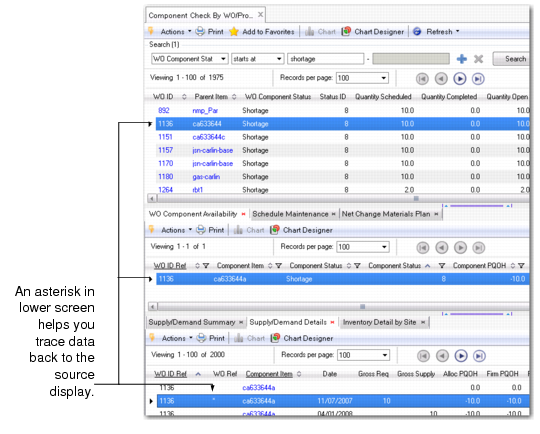
Your selection in Work Order Component Browse drives the data that displays in Work Order Component Details.
When data displays in Work Order Component Details, an asterisk (*) displays in the row of data that relates to your selection in the Work Order Component Browse. This helps you trace data back to the record upon which you are calculating component availability; see
Component Check, Data Trace.
Component Check, Data Trace
You can define other collections of related browse and maintenance programs within the QAD .NET UI that let you browse and maintain related item, site, schedule, and order data that you can then save under Favorites. Use the Browse Collection Maintenance program to do this.
See Administration Guide: QAD .NET User Interface.
Decimal Places
In Component Check browses, numbers display only a single digit after the decimal point—unlike typical system screens and reports that can display up to eight places after the point; for example, in Component Check browses, the system displays 1.1, not 1.111399.
To expand the decimal places, modify the format of the field in Browse Collection Maintenance. Changing the format does not impact calculations.
System Security
System security can be set for any program or browse that has a menu entry. If the program or browse exists within one of the Component Check browse collections, the following security issues can exist:
• If you do not have access to either a program or the menu within which the program resides, you cannot access the program in a Component Check browse collection.
Example: If you do not have access to Repetitive Schedule Maintenance in the Schedule Menu (18.2), but have access to it in the Advanced Repetitive Menu (18.22.2), the program is not be available to you in the Component Check browse collection.
• Of the browse components in the Component Check browse collections, only the top-level browses have menu entries and, therefore, can be secured.