Examples
You can anticipate when a material shortage typically occurs in your production cycle to determine if your supply meets future demand. For example, if a material shortage typically occurs two to three days before a standard supplier delivery on the first of every month, you can factor in this anticipated shortage and view incoming supply to determine if the demand can be met.
Since you can view both planned and confirmed orders for short components, you can always take into account the worst-case items; that is, you can factor in orders, receipts, or work centers for items that take the longest time to process.
Component Check by Work Order/Production Line Example
As a production planner, you want to ensure that all work orders scheduled over the next week have enough components available. You run Component Check by Work Order/Production Line to look at work orders that have a release date during the next seven days. To do this, you set search criteria for work order release date for seven days away. You add secondary search criteria to find work order component status that contains a shortage.
The system displays all work orders with a status of 7 (Projected Shortage) or 8 (Shortage).You look at the Supply/Demand Summary Browse to see the cumulative supply and demand information for that work order component detail record. To get more information, you look at the Supply/Demand Detail Browse to view the MRP details the system used to calculate the work order component status.
You have several options to resolve the shortage. You can reschedule either supply or demand. For example, to reschedule supply you can reschedule a purchase order receipt if the component is purchased. Or, if the component is manufactured, you can reschedule a work order. To reschedule demand, you could reschedule a sales order or forecast demand.
Note: The functions and programs described are the defaults; however, you can add other browse and maintenance programs that help you resolve shortage problems.
Once you make the change, you refresh the data in Work Order Browse to determine if the shortage no longer exists for the component.
Component Check by Work Order/Item Example
As a materials expediter, you want to ensure that you have enough components for all orders of an item. You want to start at the work order component level, accessing data by component item number. To do this, you set search criteria for buyer/planner ID to see items assigned to you. You add secondary search criteria to find items that contain a specific work order release date; then click Search. The system displays the component base on your selection criteria.
Note: To view only items with shortages, you can filter on a specific item status, such as Shortage, or you can include this as part of your browse selection criteria.
To get a summary of the issue, you then look at Supply/Demand Summary to determine the total source of the supply demand for this component. You then drill down into the details using the Supply/Demand Detail Browse, viewing projected QOH based on supply and demand by date.
You have several options to resolve the shortage. You can contact your company’s sales planner or production planner to reschedule either supply or demand. For example, to reschedule supply the planner can reschedule a purchase order receipt if the component is purchased. Or, if the component is manufactured, the planner can reschedule a work order. To reschedule demand, the planner can reschedule a sales order or forecast demand.
Viewing Receipt Data
When drilling down to find the reason for shortages, you can view receipts. You can also view the expected receipt dates based upon the date of an Advance Ship Notice (ASN).
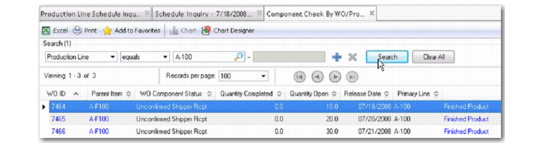
Unconfirmed Receipt shows an unconfirmed shipper receipt in supply.
Note: The system consumes the unconfirmed ASN receipt quantities from scheduled and planned receipt quantities to avoid double-counting the receipt.
Unconfirmed Receipt
If you click on the unconfirmed receipt, the system factors in the unconfirmed receipt. Click the refresh button to view results, shown in
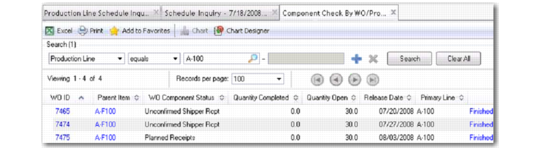
Calculated Unconfirmed Receipt.
Calculated Unconfirmed Receipt
If you have planned orders only, you can see planned receipts, too.
Planned Receipts
You can rectify shortages by moving up receipts. Then, you can change the schedule in Schedule Maintenance, launched from the browse collection, then, optionally, rerun Net Change Materials Plan to clear any planned receipts. Finally, you refresh the top component availability portion of the screen to determine if this resolved the shortage.